Independent download guide for HP printer and scanner drivers
hpdrivers.net is an independent website and is not affiliated with, endorsed by, or sponsored by HP Inc. Download links point to HP's official servers (ftp.hp.com). Read the full disclaimer
Last checked against HP’s download list: November 4, 2026 · Checked by H&G
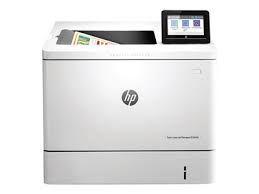
Looking for the HP Color LaserJet Managed E55040dw driver? This page lists HP’s official software for the whole HP Color LaserJet Managed E55040 series: the Color LaserJet Managed E55040dw and Color LaserJet Managed E55040dn. HP lists some packages for specific models in the series, so check that the package title includes your model. For Windows 10, 8.1, 8, 7 (32-bit and 64-bit), the package most people need is the HP Color LaserJet Managed E55040 V3 PCL 6 Print Driver (no installer). For Windows 11, HP lists the HP Universal Print Driver for Windows PCL6 (64-bit). For a Mac, HP lists Install HP Easy Start.
HP Color LaserJet Managed E55040dw
Recommended downloads
Windows 10, 8.1, 8, 7 (32-bit and 64-bit): HP Color LaserJet Managed E55040 V3 PCL 6 Print Driver (no installer)Version 8.00.1329.4996 · Released May 20, 2021 · 11.2 MB
HP lists its Universal Print Driver for this series on Windows 11; Windows 10, 8.1, 8, 7 (32-bit and 64-bit). Get it from our HP Universal Print Driver page.
Linux
HP lists Linux support for this series through its HPLIP project, outside the regular download list: HP’s Linux printing page (HPLIP).
Installing the Color LaserJet Managed E55040 driver
The driver files without an installer are added through Windows’ Add Printer wizard (Have Disk). For step-by-step instructions, see our guide to installing an HP printer driver.
Firmware update 1.0
The newest firmware HP lists for the Color LaserJet Managed E55040 is version 1.0, released Jul 25, 2019.
Keep the printer and the computer switched on until the update has finished.
Specifications that matter for setup
Connections
1 Hi-Speed Device USB 2.0; 2 Hi-Speed USB 2.0 Host; 1 Gigabit/Fast Ethernet 10/100/1000 Base-TX network; Hardware Integration Pocket
Mobile printing
HP ePrint; Apple AirPrint™; Google Cloud Print™; Mopria™ Certified
Print languages
HP PCL 6; HP PCL 5c; HP postscript level 3 emulation, native PDF printing (v 1.7), URF (AirPrint)
Print speed (black)
Normal: Up to 40 ppm
Recommended monthly volume
2000 to 15,000 HP Recommends that the number of pages per month of imaged output be within the stated range for optimum device performance
Two-sided printing
Automatic (standard)
Ink supplies HP lists for the Color LaserJet Managed E55040
HP’s specifications name these replacement supplies for the Color LaserJet Managed E55040:
HP CF360XC High
What comes in the box
HP lists these items with the Color LaserJet Managed E55040:
Printer
Toner collection unit
In-box documentation
CD
Power Cord
100-sheet multipurpose tray 1
550-sheet input tray 2
Paper handling and hardware details
Values below are HP’s published figures for the Color LaserJet Managed E55040; they help you check that this page matches your printer before you download anything.
550-sheet media input tray 3, 550-sheet media input tray 4, 550-sheet media input tray 5
Paper sizes
Tray 1: letter, legal, oficio, executive, statement, 4 x 6, 3 x 5, 5 x 7, 5 x 8, postcard (JIS), double postcard (JIS), 8.5 x 13, envelope (commercial No. 9
Media types
Paper (plain, light, bond, recycled, mid-weight, heavy, mid-weight glossy, heavy glossy, extra heavy, extra heavy glossy, cardstock, card glossy) color transparency, labels, letterhead, envelope
Paper weight
Tray 1: 16 to 58 lb (plain); 28 to 58 lb (glossy); Tray 2: 16 to 58 lb (plain paper); 28 to 58 lb (glossy paper); Optional Trays 3+: 16 to 58 lb (plain paper)
Print speed (color)
Up to 40 ppm
Print quality (black)
Black: HP ImageREt 3600 Color: HP ImageREt 3600
Control panel
4.3-in (10.92 cm) Color Graphics Display (CGD) with touchscreen; rotating (adjustable angle)
You’d rather not install software on a Mac. HP’s specifications list AirPrint support, so macOS can usually add the printer from System Settings without extra software.
Last checked against HP’s download list: November 10, 2026 · Checked by H&G
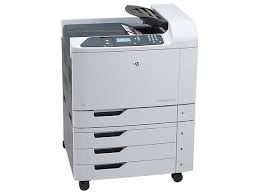
Looking for the HP Color LaserJet CP6015xh driver? This page lists HP’s official software for the whole HP Color LaserJet CP6015 Printer series. HP lists some packages for specific models in the series, so check that the package title includes your model. For Windows 10, 8.1, 8 (64-bit), the package most people need is the HP LaserJet USB (DOT4) communication driver for Windows 8 and Higher (64-bit). For Windows 11, HP lists the HP Universal Print Driver for Windows PCL6 (64-bit).
HP Color LaserJet CP6015xh
Recommended downloads
Windows 10, 8.1, 8 (64-bit): HP LaserJet USB (DOT4) communication driver for Windows 8 and Higher (64-bit)Version 7.0.0.29 · Released Apr 21, 2015 · 1.5 MB
Files download directly from HP’s official servers. hpdrivers.net does not host or modify them.
Models covered by this page
HP’s download list for this series names these models. It covers the whole Color LaserJet CP6015 range, including model variants HP does not list by name:
HP Color LaserJet CP6015nHP Color LaserJet CP6015dnHP Color LaserJet CP6015deHP Color LaserJet CP6015xHP Color LaserJet CP6015xh
Which Windows package should you choose?
HP publishes 3 kinds of Windows package for the Color LaserJet CP6015:
Firmware update (v04.260.2, Feb 21, 2017): updates the printer itself, not your PC.
HP Universal Print Driver (v8.2.0.26778, Sep 26, 2026): HP’s shared driver for many models, also listed for this series.
HP LaserJet USB (DOT4) communication driver for Windows 8 and Higher (64-bit) (v7.0.0.29, Apr 21, 2015).
HP lists its Universal Print Driver for this series on Windows 11; Windows 10, 8.1, 8, 7 (32-bit and 64-bit). Get it from our HP Universal Print Driver page.
Linux
HP lists a Linux driver for this series: HP Color LaserJet CP6015 Printer README (Version 04.260.2 · Released Feb 21, 2017 · 0.5 MB). Download from HP.
The newest firmware HP lists for the Color LaserJet CP6015 is version 04.260.2, released Feb 21, 2017.
Keep the printer and the computer switched on until the update has finished.
Specifications that matter for setup
Wi-Fi
Optional, enabled with purchase of a hardware accessory
Mobile printing
Mobile Print Capability not supported
Print languages
HP PCL 6, HP PCL 5, HP postscript level 3 emulation
Print speed (black)
Normal: Up to 40 ppm
Recommended monthly volume
4000 to 17,000
Toner supplies HP lists for the Color LaserJet CP6015
HP’s specifications name these replacement supplies for the Color LaserJet CP6015:
HP 823A Black LaserJet Toner Cartridge (16
500 pages) CB380A
HP 824A Cyan LaserJet Toner Cartridge (21
000 pages) CB381A
HP 824A Yellow LaserJet Toner Cartridge (21
000 pages) CB382A
HP 824A Magenta LaserJet Toner Cartridge (21
000 pages) CB383A
Paper handling and hardware details
Values below are HP’s published figures for the Color LaserJet CP6015; they help you check that this page matches your printer before you download anything.
Output tray
500-sheet output bin
Paper sizes
Letter, legal, executive, 11 x 17 in, ledger, 12 x 18 in, banner 12.6 x 36 in, envelopes (No. 10, Monarch), statement
Media types
Paper (extra heavy, glossy, heavy, heavy glossy, high gloss images, intermediate, light, plain, recycle, tough), envelopes, labels, cardstock, transparencies
Paper weight
Tray 1, 2, 3, 4, 5: 16 to 58 lb
Print speed (color)
Up to 40 ppm
Print quality (black)
Black: Up to 1200 x 600 dpi Color: Up to 1200 x 600 dpi
Control panel
3.0-in LCD (text)
Processor
835 MHz
Power use
Values current as of February 2, 2004. Power reported is the highest value measured for color and monochrome printing using all standard voltages. For current i
Last checked against HP’s download list: November 10, 2026 · Checked by H&G
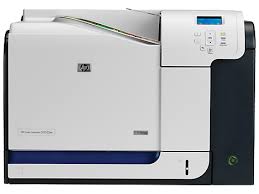
Looking for the HP Color LaserJet CP3525dn driver? This page lists HP’s official software for the whole HP Color LaserJet CP3520 Printer Series. HP lists some packages for specific models in the series, so check that the package title includes your model. For Windows 10, 8.1, 8 (64-bit), the package most people need is the HP LaserJet USB (DOT4) communication driver for Windows 8 and Higher (64-bit). For Windows 11, HP lists the HP Universal Print Driver for Windows PCL6 (64-bit).
HP Color LaserJet CP3525dn
Recommended downloads
Windows 10, 8.1, 8 (64-bit): HP LaserJet USB (DOT4) communication driver for Windows 8 and Higher (64-bit)Version 7.0.0.29 · Released Apr 21, 2015 · 1.5 MB
HP lists its Universal Print Driver for this series on Windows 11; Windows 10, 8.1, 8, 7 (32-bit and 64-bit). Get it from our HP Universal Print Driver page.
Linux
HP lists a Linux driver for this series: HP LaserJet CP3525 Series Printer README (Version 06.250.3 · Released Mar 14, 2017 · 0.5 MB). Download from HP.
The newest firmware HP lists for the Color LaserJet CP3520 is version 06.250.3, released Mar 14, 2017.
Keep the printer and the computer switched on until the update has finished.
Specifications that matter for setup
Print languages
HP PCL 6, HP PCL 5c, HP postscript level 3 emulation, direct PDF printing v 1.4
Print speed (black)
Normal: Up to 30 ppm
Recommended monthly volume
1500 to 5000
Paper handling and hardware details
Values below are HP’s published figures for the Color LaserJet CP3520; they help you check that this page matches your printer before you download anything.
Paper (plain, light, bond, recycled, mid-weight, heavy, mid-weight glossy, heavy glossy, extra heavy, extra heavy glossy, cardstock, card glossy) color transparency, labels, letterhead, envelope
Paper weight
Multipurpose tray: 16 to 58 lb (plain paper); 28 to 58 lb (glossy paper), 250-sheet input tray: 16 to 43 lb (plain paper); 28 to 58 lb (glossy paper)
Print speed (color)
Up to 30 ppm
Print quality (black)
Black: Up to 1200 x 600 dpi Color: Up to 1200 x 600 dpi
Control panel
4-line LCD (color graphics)
Processor
515 MHz
Power use
Power requirements are based on the country/region where the printer is sold. Do not convert operating voltages
USB cable
No, please purchase USB cable separately
Warranty
One-year, onsite warranty
Control panel messages on the Color LaserJet CP3525 and what HP says to do
HP’s message guide for the CP3525 series lists every control panel message with a description and a recommended action. These are the ones people meet most often.
Supply messages
10.32.00 UNAUTHORIZED SUPPLY IN USE: the printer is using a non-HP supply. HP points to its anti-counterfeit page and says repairs caused by non-HP or unauthorized supplies are not covered by the warranty.
10.90.XY REPLACE CARTRIDGE: a toner replenishment malfunction; HP says to replace that print cartridge. 10.91.99 PRINT CARTRIDGE ERROR: one of the cyan, magenta or yellow cartridges is defective; replace it and turn the printer off and on.
10.XX.YY SUPPLY MEMORY ERROR: the printer cannot read or write a cartridge memory tag, or a tag is missing. XX = 00 means a memory tag error and 10 means a missing tag; YY = 00 black, 01 cyan, 02 magenta, 03 yellow. HP says to reinstall the cartridge or install a new one.
INSTALL CARTRIDGE: the cartridge was removed or installed incorrectly; reinstall it to continue printing.
Jam, fuser and error codes
13.XX.YY FUSER AREA JAM and FUSER WRAP JAM: HP warns that the fuser can be hot and says to wait for it to cool. For the wrap jam HP suggests setting the print optimization mode LIGHT MEDIA to ON in the Print Quality menu to prevent it.
50.X FUSER ERROR: make sure you have the correct fuser, reseat it, and turn the printer off and on. If it persists, HP says to contact an authorized service provider.
49.XXXX ERROR: a firmware error. HP lists corrupted print jobs, non-product-specific drivers, poor-quality USB or network cables and unsupported accessories as possible causes, and says to turn the printer off and on first.
59.XY ERROR: a temporary printing error; turn the product off and on.
11.XX Internal clock error: set the time and date at the control panel each time the printer is turned on; if the error stays, HP says the formatter might need replacing.
Maintenance messages
REPLACE FUSER KIT means the fuser is nearing the end of its life and printing can continue. The toner collection unit message appears when the cleaning motor is stuck, the unit is full, or its chute is clogged, and HP says to replace the unit. A REPLACE SUPPLIES menu setting lets the printer keep going when a color runs out.
The control panel names the jam location and HP’s guide lists the areas: output bin, duplexing area, Tray 1, optional 500-sheet Tray 3, Tray 2 pickup and fuser. Internal parts you may need to open have green handles or green labels.
Common causes HP lists
Paper that does not meet HP specifications, or paper that has already passed through a printer or copier.
An input tray loaded above the maximum stack height mark, or guides that are not holding the stack firmly.
Sheets sticking together: HP says to flex the stack, rotate it 180 degrees or flip it, and reload.
Pulling the page out before it settles in the output bin, or before the second side prints on two-sided jobs.
Worn tray rollers, or paper heavier than 220 g/m2 that may not be picked from the tray.
Packing tape, cardboard or plastic shipping locks left in the printer, and the transfer belt or transfer roller not correctly installed.
The HP postcard insert: use it in Tray 3 only for 4 x 6 in (10 x 15 cm) paper and remove it for other sizes.
HP’s safety note says to take off necklaces, bracelets and other metal items before reaching inside the printer. If the printer keeps jamming after these checks, HP says to contact HP Customer Support or an authorized service provider.
HP’s paper-handling guide for the CP3525 starts with a rule: use only paper that meets the specifications in the HP LaserJet Printer Family Print Media Guide, and set the paper type at the control panel to match what is in the tray.
Feeds several sheets at once
Check that the stack is under the maximum mark, flex the stack or turn it over (HP says not to fan the paper because static can make sheets stick), and make sure the paper guides match the paper size.
Wrong size or wrong tray
Settings in the software override the driver, and the driver overrides the control panel, so check them in that order. Print a configuration page to see the size each tray is set to, and confirm the guides touch the paper. HP also says a driver for a different product can make the printer pull from the wrong tray.
Paper will not feed automatically
Manual feed may be selected in the program: load Tray 1 or press the checkmark button. Remove paper left from an earlier jam, and check the rear and width guides.