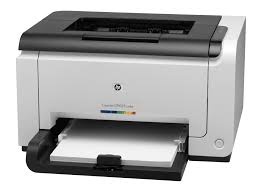
Looking for the HP LaserJet Ultra M106w driver? This page lists HP’s official software for the whole HP LaserJet Ultra M106 Printer series. For Windows 11; Windows 10, 8.1, 8, 7 (32-bit and 64-bit), the package most people need is the HP LaserJet Pro M102w/M104w and Ultra M106w Printer Full Feature Software and Drivers. For a Mac, HP lists Install HP Easy Start.

Recommended downloads
Files download directly from HP’s official servers. hpdrivers.net does not host or modify them.
Which Windows package should you choose?
HP publishes 3 kinds of Windows package for the LaserJet Ultra M106:
- Full software solution (v44.11.2779, Feb 24, 2023, 119.7 MB): driver plus HP’s setup wizard and tools.
- Driver-only installer (v44.11.2779, Feb 24, 2023): print driver only, for PCs that can’t or shouldn’t take the full package.
- Firmware update (v20220414, Apr 29, 2022): updates the printer itself, not your PC.
All downloads for the LaserJet Ultra M106
Windows
10, 8.1, 8, 7 (32-bit and 64-bit)
File details
File:Full_Webpack-44.11.2779-LJM101-M106_UWL_Full_Webpack.exe10, 8.1, 8, 7 (64-bit)
File details
File:Basic_Webpack_x64-44.11.2779-LJM101-M106_UWL_Basicx64_Webpack.exeFile details
File:Basic_Webpack_x86-44.11.2779-LJM101-M106_UWL_Basicx86_Webpack.exeFile details
File:HP_LaserJet_M102_M103_M104_M106fw_20220414.exemacOS
File details
File:HP_LaserJet_M102_M103_M104_M106fw--20220414.dmgFile details
File:HP_LaserJet_Pro_M106_Printer_Series_20180510.dmgOther HP software listed for this series
Windows 10, 7 (32-bit and 64-bit)
Linux
HP lists Linux support for this series through its HPLIP project, outside the regular download list: HP’s Linux printing page (HPLIP).
Installing the LaserJet Ultra M106 driver
For step-by-step instructions, see our guide to installing an HP printer driver.
Firmware update 20180510
The newest firmware HP lists for the LaserJet Ultra M106 is version 20180510, released May 30, 2018.
- Keep the printer and the computer switched on until the update has finished.
Specifications that matter for setup
Toner supplies HP lists for the LaserJet Ultra M106
HP’s specifications name these replacement supplies for the LaserJet Ultra M106:
- HP 33A Original Black LaserJet Toner Cartridge (~2
Paper handling and hardware details
Values below are HP’s published figures for the LaserJet Ultra M106; they help you check that this page matches your printer before you download anything.
Common setup problems
- You’d rather not install software on a Mac. HP’s specifications list AirPrint support, so macOS can usually add the printer from System Settings without extra software.
LaserJet Pro error codes that apply to the Ultra M106w
HP lists several LaserJet Pro error code articles on the LaserJet Ultra M106w page. Each covers a group of codes.
20.xx and 21.xx
- 20.0000 means the printer ran out of memory for a print job. HP says to turn it off and on and print again, try another driver, or with the PCL 6 driver use the optimize for raster setting.
50.xx fuser messages
- 50.00 generic, 50.10 low temperature, 50.20 slow, 50.30 high temperature and 50.70 fuser open.
- Turn the printer off with its switch, wait at least 30 seconds and turn it on. If it is on a surge protector, plug it straight into the wall. If the message stays, HP says the fuser needs replacing.
10.xx supply messages
- 10.0004 and 10.1004 point to communication with the imaging drum: restart, reseat the drum and replace it if needed.
- 10.000X and 10.100X point to a toner cartridge, where X is 0 for black. Restart, check that the cartridge is seated, reinstall it and replace it if the message stays.
Source: HP Support, HP LaserJet Pro – Troubleshoot 20.xx (memory failure) and 21.xx (print failure) error messages. Troubleshoot 50.xx (fuser failure) messages and Troubleshoot 10.xx and Supplies messages.
Unexpected size in tray message on the Ultra M106w
HP lists its LaserJet Pro article about the message Unexpected size in tray, Load size, Press OK on the M106w page. It can come with paper jams, and the event log may record a 41.3 error.
Causes HP names
- The tray’s paper size setting does not match what is loaded, custom-size paper is loaded wrongly, or a worn or dirty pickup roller takes extra time to pick the sheet, so the printer thinks the page is longer than it is.
- Picking several sheets at once has the same effect. HP links that to unsupported, already-used, badly stored or damaged paper.
What HP says to do
- Clear any jam, then check that the tray size setting in the control panel or Embedded Web Server matches the paper, and that the program asks for the same size. HP notes that most programs override the driver’s paper size.
- Load custom sizes short edge first, try a fresh ream of supported paper, and contact HP for a new pickup roller if the printer keeps mispicking.
Source: HP Support, HP LaserJet Pro and Color LaserJet Pro Printer and MFP – “Unexpected size in tray” displayed on the control panel.