The HP LaserJet P2015n driver download for Windows 11 is the HP Universal Print Driver for Windows PCL6 (64-bit). This page lists HP’s official software for the HP LaserJet P2015n Printer.
Recommended LaserJet P2015n driver downloads
Files download directly from HP’s official servers. hpdrivers.net does not host or modify them.
LaserJet P2015n driver: all packages
HP Universal Print Driver
HP lists its Universal Print Driver for this series on Windows 11, Windows 10, 8.1, 8, 7 (32-bit and 64-bit). Get it from our HP Universal Print Driver page.
These Universal Print Driver files are not on that page, so they are listed here:
- HP Universal Print Driver for Windows PostScript (32-bit) 8.2.0.26778 (Windows 10, 8.1, 8, 7 (32-bit))
- HP Universal Print Driver for Windows PCL6 (32-bit) 8.2.0.26778 (Windows 10, 8.1, 8, 7 (32-bit))
- HP Print Administrator Resource Kit 1.9.2 (Windows 11, Windows 10, 8.1, 8, 7 (32-bit and 64-bit))
LaserJet P2015n driver for Linux
HP lists Linux support for this series through its HPLIP project, outside the regular download list: HP’s Linux printing page (HPLIP).
Which systems the LaserJet P2015n driver supports
HP’s download list for the LaserJet P2015n names Windows 11; Windows 10, 8.1, 8, 7 (32-bit and 64-bit); and Linux through HPLIP. HP’s current list has no macOS software for this printer.
Installing the LaserJet P2015n driver
To install it, follow these steps.
- Choose the driver package from the table above.
- Run the installer on a computer connected to the network.
- Select the network connection when asked.
- Print a test page to confirm it works.
For step-by-step instructions, see our guide to installing an HP printer driver.
Specifications that matter for setup
Paper handling and hardware details
Values below are HP’s published figures for the LaserJet P2015 series, which the LaserJet P2015n belongs to.
Connecting the printer to a wired network
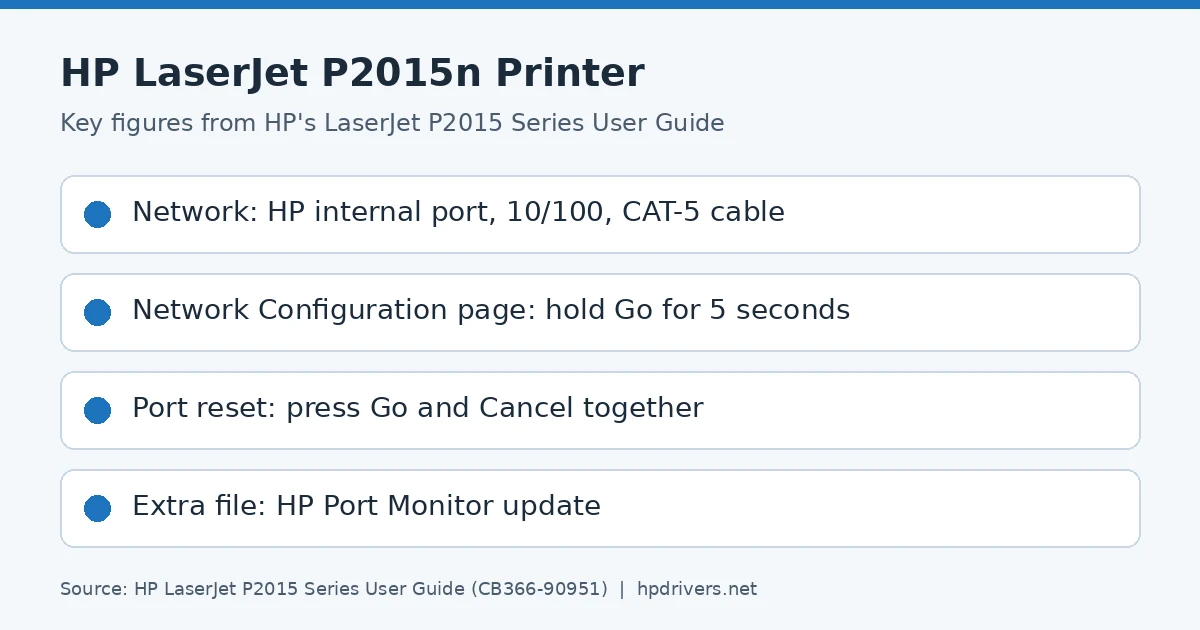
The P2015n has the HP internal network port, so it needs no extra print server. You need a working wired network and a CAT-5 Ethernet cable.
- Connect the cable to a free port on the Ethernet hub or router.
- Connect the other end to the Ethernet port on the back of the printer.
- Check that one of the network lights, 10 or 100, is lit on the port.
- When the printer is Ready, hold the Go button for 5 seconds to print the Network Configuration page.
Afterwards, install the printer software on a computer that is connected to the network. The printer is then available to it.
What the Network Configuration page tells you
This page exists only on printers with the HP internal network port. It prints automatically with the Configuration page, so you get it from the same Go-button press.
- IP address of the printer.
- Firmware version.
- Network statistics.
- Protocol information.
The IP address is the first thing to check. A non-zero address means the printer joined the network. If you see zeros instead, use the troubleshooting steps in the next two sections.
When the computer cannot find the printer
Start with the cables, since a loose one is a likely cause. Check the power cables, the cables between the printer and the hub or switch, and those between the hub or switch and the computer. If a modem or Internet connection is involved, check its cables too.
- On Windows, open My Network Places or Network Neighborhood and make sure some devices are listed.
- Look at the network light on the RJ-45 connector at the back. A solid light means the printer is connected.
- If both network lights are off, check the cable from the printer to the gateway, switch or hub.
- If the connections are secure, turn the printer off for at least 10 seconds and then on again.
Print a new Network Configuration page afterwards. When it shows a non-zero IP address, the problem is solved.
Resetting the internal network port
If the page shows no valid IP address, reset the port to its factory defaults.
- Press the Go and Cancel buttons at the same time.
- Wait until the Attention, Ready and Go lights finish cycling.
- Wait two minutes after the printer reaches the Ready state.
- Print another Network Configuration page and look at the IP address.
If the address is still zeros, the guide says to contact HP support.
The extra HP Port Monitor file for this network model
HP’s download list for the P2015n has one file that the USB-only models lack. It is the HP Port Monitor update, although HP labels it a Windows Server 2003 patch.
This update replaces the HP Port Monitor component only. It upgrades the version that was installed from the original 1.0 product CD to the one on the 3.0 software CD. HP states that it is for Windows 2000, Vista 32-bit, XP 32-bit and Windows 2003. HP lists these problems as resolved:
- Print jobs stuck in the printer’s queue.
- Print jobs that would not print.
- Print jobs that could not be deleted from the queue.
It is not a full software solution. Because it replaces one component only, the printer driver you already installed stays in place. HP lists the file (HP Port Monitor 7.x.2.51 Patch) only under Windows Server 2003 and states it is for Windows 2000, Vista 32-bit, XP 32-bit and Windows 2003; HP names no Windows 10 or 11 use for it.
Clearing jams in the cartridge area, trays and output bin
Jams can follow overfilled trays, unsupported media or a dirty paper path. Add new media only after you remove all the old media from the tray and straighten the stack. Loose toner after a jam clears up after a few sheets print.
- Cartridge area: press the cartridge-door button and remove the cartridge. Open the straight-through output door, pull down the green levers and pull the media free with both hands.
- Input trays: do the same, and then open tray 2 and pull out any media you see. If none shows, remove the cartridge and pull the upper media guide down.
- Output bin: grasp the most visible side of the media and pull it free.
Do not use sharp objects. If toner gets on clothes, wash them in cold water, because hot water sets it.
Similar models
This page covers the HP LaserJet P2015n Printer only. The related models have their own pages: P2015, P2015d, P2015dn and P2015x.