Independent download guide for HP printer and scanner drivers
hpdrivers.net is an independent website and is not affiliated with, endorsed by, or sponsored by HP Inc. Download links point to HP's official servers (ftp.hp.com). Read the full disclaimer
Last checked against HP’s download list: November 10, 2026 · Checked by H&G
Looking for the HP LaserJet 1022 driver? This page lists HP’s official software for the whole HP LaserJet 1022 Printer series. HP lists some packages for specific models in the series, so check that the package title includes your model. For Windows 8.1, 8, 7 (64-bit), the package most people need is the HP LaserJet 1020 and 1022 Printer Series Hostbased Plug and Play Basic Driver. For a Mac, HP lists Mac Printer Driver.
HP LaserJet 1022
Recommended downloads
Windows 8.1, 8, 7 (64-bit): HP LaserJet 1020 and 1022 Printer Series Hostbased Plug and Play Basic DriverVersion 20120918 · Released Jan 09, 2013 · 3.1 MB
macOS 12, 11, 10.13, 10.12, Mac OS X 10.11, Mac OS X 10.10, 10.15, 10.14, Mac OS X 10.9: Mac Printer DriverVersion 5.1 · Released Aug 18, 2022 · 557.4 MB
The newest firmware HP lists for the LaserJet 1022 is version 20120928, released Oct 29, 2012. HP’s notes for it: Firmware Version 20120928 Fix: Added the "RFU" setting to control remote firmware updates; The options are "Enabled", "Disabled", and "Locked"; The default value is "Locked" – preventing firmware updates.
Check your current firmware version first on the printer’s Configuration Page, and update only if it is older.
Install the printer driver before running the update. HP’s utility needs it to reach the printer.
Specifications that matter for setup
Print languages
Host-based printing
Recommended monthly volume
250 to 2000
Two-sided printing
Manual (driver support provided)
Paper handling and hardware details
Values below are HP’s published figures for the LaserJet 1022; they help you check that this page matches your printer before you download anything.
Power requirements are based on the country/region where the printer is sold. Do not convert operating voltages. Doing so might damage the printer and void the
The HP LaserJet P2015d printer driver download for Windows 11 is the HP Universal Print Driver for Windows PCL6 (64-bit). This page lists HP’s official software for the HP LaserJet P2015d Printer.
Last checked against HP’s download list: November 22, 2026 · Checked by H&G
Files download directly from HP’s official servers. hpdrivers.net does not host or modify them.
LaserJet P2015d printer driver: all packages
HP Universal Print Driver
HP lists its Universal Print Driver for this series on Windows 11, Windows 10, 8.1, 8, 7 (32-bit and 64-bit). Get it from our HP Universal Print Driver page.
These Universal Print Driver files are not on that page, so they are listed here:
HP lists Linux support for this series through its HPLIP project, outside the regular download list: HP’s Linux printing page (HPLIP).
Which systems the LaserJet P2015d printer driver supports
HP’s download list for the LaserJet P2015d printer names Windows 11; Windows 10, 8.1, 8, 7 (32-bit and 64-bit); and Linux through HPLIP. HP’s current list has no macOS software for this printer.
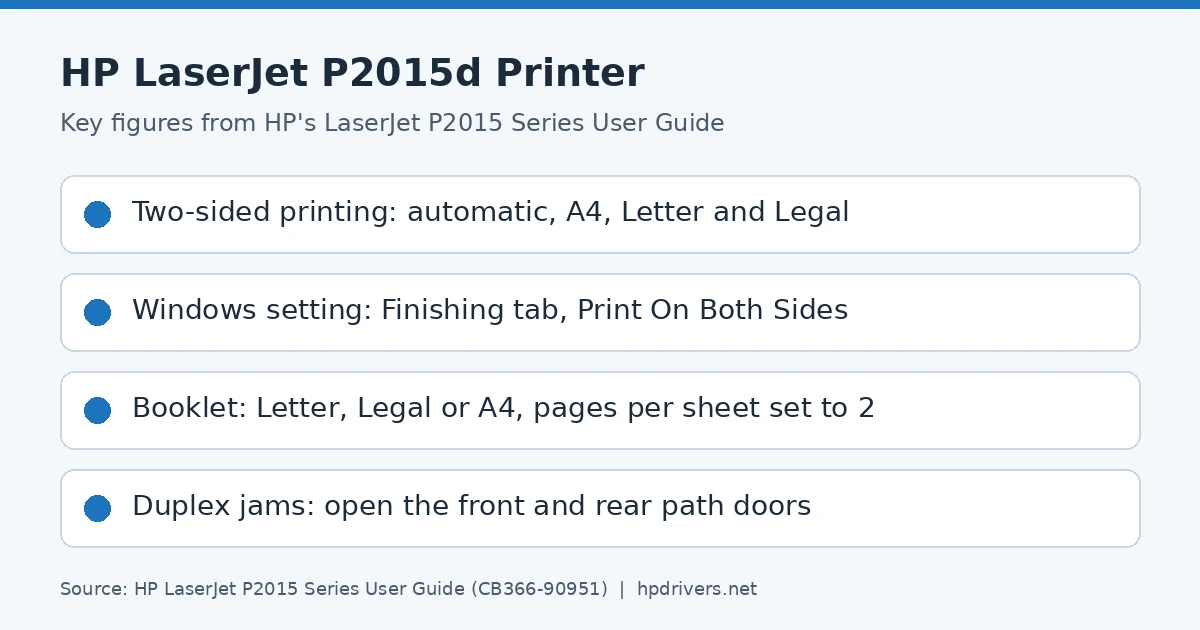
The P2015d adds automatic duplex to the features of the base model. The guide supports A4, Letter and Legal for it, so other sizes need a different approach.
Close the straight-through output door.
Open the printer Properties.
On the Finishing tab, clear the Correct Order for Straight Paper Path check box.
Select the Print On Both Sides check box and click OK.
Print the document.
Because the printer turns the sheet itself, you do not reload the stack by hand. That is the main difference from the models without a duplex unit.
When Print on Both Sides is missing on a Mac
The guide describes Mac OS X 10.2.8, 10.3.9 and 10.4.3. In the Print dialog, choose Duplex and then Print on Both Sides. If that check box is not there, the duplex unit has probably not been enabled in the queue.
Open Print Center, or Printer Setup Utility on Mac OS X 10.3, and click the printer queue.
In the menu bar, select Printers and then Show Info.
On the Installable Options menu, check Duplex Unit.
Click Apply Changes and close the menu.
Making two-sided the default
Turning Print on Both Sides on for every job is a print-job default, not a one-time choice.
Windows: open Printers & scanners, select the printer, open Printing preferences, and tick Print On Both Sides.
Mac OS X: choose File and Print, set the options in the pop-up menus, then use Save as on the Presets pop-up and name the preset.
On a Mac, the saved settings live in the Presets menu. Therefore you must select that preset each time you open a program and print.
Booklets, N-up pages and watermarks
Because the duplex unit handles both sides, the P2015d also suits layout jobs. A booklet works on Letter, Legal or A4 paper, and the guide notes that it is not available in all Mac OS X versions.
Load paper in tray 1 and close the straight-through output door.
Open the printer Properties and go to the Finishing tab.
Clear Correct Order for Straight Paper Path and select Print On Both Sides.
Choose Left Edge Binding or Right Edge Binding from the Booklet Layout list.
Set the pages per sheet to 2, click OK and print.
After printing, fold and staple the pages. N-up printing is simpler, because it needs only one setting. On the Finishing tab, pick the number of pages per sheet, and optionally add page borders and a page order. A watermark prints text such as Draft or Confidential in the background, and you select it on the Effects tab.
Clearing a jam in the automatic two-sided path
The back of this model has an automatic two-sided media-size selector, a rear path door and jam-clearing levers. They matter when paper sticks between the two sides of a job. Never use sharp objects such as tweezers or needlenose pliers, since that damage is not covered by the warranty.
Open the straight-through output door and pull down the green pressure-release levers.
Remove tray 2.
Push down on the green lever on the front automatic two-sided printing path door.
Hold the most visible side of the media with both hands and pull it free.
Close the front door by pushing it up firmly, and reinsert tray 2.
Open the path door on the back, pull the media free the same way, and close the door.
Cleaning the tray 2 pickup roller
If tray 2 feeds badly, the pickup roller may be dirty. The procedure has a duplex-only step, because the front two-sided path door must be opened on this model.
Unplug the power cord and let the printer cool.
Press the print-cartridge-door button and remove the print cartridge, then remove tray 2.
Open the automatic two-sided path door on the front.
Place the printer on the work surface with the front facing up.
Pull the white tabs outward and rotate them up, then slide the roller assembly right and remove the left end cap.
Remove the roller, scrub it with a water-dabbed lint-free cloth, and wipe it with a dry one.
Let the roller dry completely before you put it back. Then seat both ends, replace the end cap, and rotate the shaft until it clicks.
Similar models
This page covers the HP LaserJet P2015d Printer only. The related models have their own pages: P2015, P2015n, P2015dn and P2015x.
The HP LaserJet P2015 driver download for Windows 11 is the HP Universal Print Driver for Windows PCL6 (64-bit). This page lists HP’s official software for the HP LaserJet P2015 Printer.
Last checked against HP’s download list: November 22, 2026 · Checked by H&G
LaserJet P2015
Recommended LaserJet P2015 driver downloads
Windows 11: HP Universal Print Driver for Windows PCL6 (64-bit)Version 8.2.0.26819 · Released Sep 26, 2026 · 20.2 MB
Files download directly from HP’s official servers. hpdrivers.net does not host or modify them.
LaserJet P2015 driver: all packages
HP Universal Print Driver
HP lists its Universal Print Driver for this series on Windows 11, Windows 10, 8.1, 8, 7 (32-bit and 64-bit). Get it from our HP Universal Print Driver page.
These Universal Print Driver files are not on that page, so they are listed here:
HP lists Linux support for this series through its HPLIP project, outside the regular download list: HP’s Linux printing page (HPLIP).
Which systems the LaserJet P2015 driver supports
HP’s download list for the LaserJet P2015 names Windows 11; Windows 10, 8.1, 8, 7 (32-bit and 64-bit); and Linux through HPLIP. HP’s current list has no macOS software for this printer.
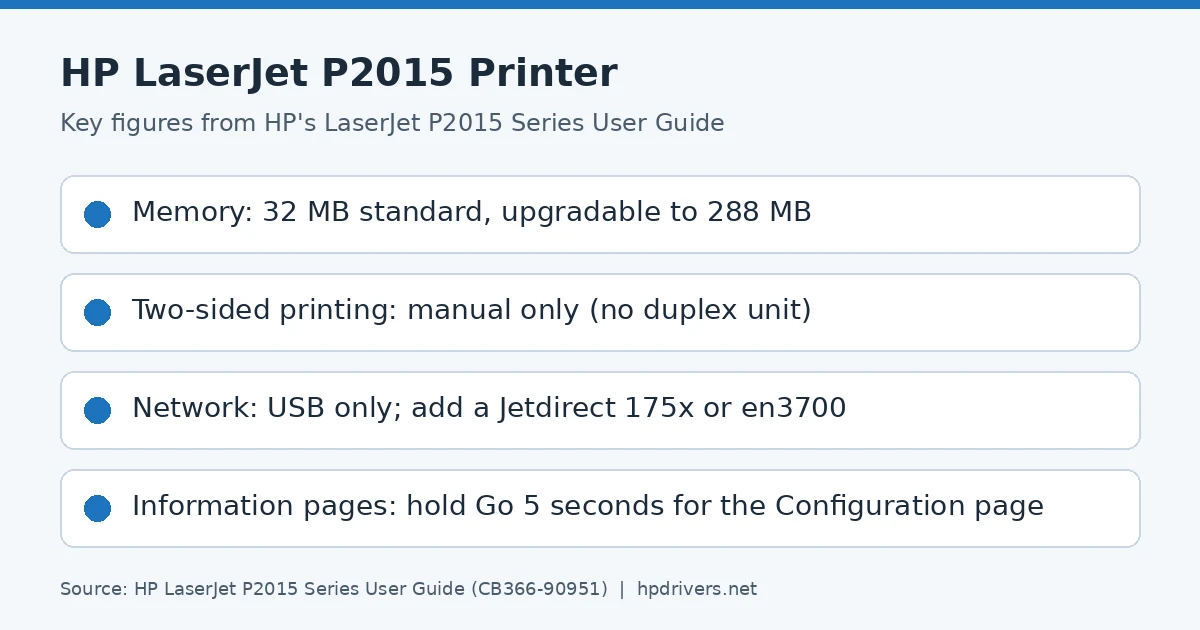
The base model has 32 MB of RAM, and the guide says it can be upgraded to 288 MB. More memory lets the printer handle more complex print jobs.
Static can damage a DIMM, so wear a grounded antistatic device or touch a metal part of the printer before you handle it.
Turn the printer off with the power switch and unplug all cables and cords.
Open the DIMM door.
Take the DIMM out of its antistatic bag, holding it by the top edge.
Insert it with the gold contacts facing up and press until the metal retaining pins click.
Close the door, reconnect the cables and turn the printer on.
Afterwards, print a configuration page and read the Total Memory value to test the result. If all the control-panel lights blink, the installation failed. Remove the DIMM and install it again.
What the control-panel lights mean
The panel has six lights and two buttons. Because the light patterns identify the printer status, they are the quickest way to find out why a job has stopped.
Attention: the print-cartridge door is open, so close it.
Toner Low: the cartridge is running out, so order a new one and keep it ready.
Toner Missing: the cartridge has been removed, so put it back in the printer.
Paper Out: there is no paper or other media, so load some.
Paper Mount: the loaded media is not supported. Load acceptable media, or press Go to override the condition.
Jam: media is stuck in the printer, so it must be cleared.
Fatal Error: turn the printer off, wait 10 seconds and turn it on again. If that fails, contact HP support.
While the printer starts up, the Go, Ready and Attention lights cycle one after another, and pressing buttons has no effect. For an accessory error, press Go to show more information; the light pattern then changes. The DIMM slot incompatible error shows the Go light on, with the Attention and Ready lights off, which points to a memory module the printer cannot use.
Printing on both sides by hand
This model has no duplex unit, so two-sided printing means running the paper through twice. With the top output bin, the method suits lightweight paper. The guide also warns that manual two-sided printing can make the printer dirty and reduce print quality.
Close the straight-through output door.
In the printer Properties, open the Device Settings tab and select Not Installed in the Duplex Unit list.
On the Finishing tab, clear Correct Order for Straight Paper Path and tick Print On Both Sides.
Print side one from tray 1, then take the remaining paper out of tray 1.
Straighten the printed stack and put it back in tray 1 with the printed side down and the top edge toward the printer.
Press the Go button to print side two.
Heavy media or media that curls needs another route. Open the straight-through output door instead, tick Correct Order for Straight Paper Path, and choose Print On Both Sides (Manually). Reload the stack the same way and press Go.
Driver types and print-quality settings
The user guide lists three Windows drivers for this series. HP’s current download list offers two of them, PCL 6 and PostScript, through the Universal Print Driver; PCL 5e is no longer listed.
PCL 5e: faster performance and a quick first page out at 600 dpi.
PCL 6: better print quality through ProRes 1200 and FastRes 1200. Speed and first page out may be slower.
HP postscript level 3 emulation: for PostScript jobs, although some printer features are missing in this driver.
Because the printer switches between PostScript emulation and PCL by itself, you only need to select the driver. After that, choose the quality setting on the Paper/Quality or Finishing tab.
1200 dpi uses ProRes 1200 for fine-line detail.
Alternatively, the FastRes setting gives 1200 dpi effective output quality.
600 dpi adds Resolution Enhancement technology for improved text.
EconoMode prints text with less toner, which helps with drafts.
EconoMode can be turned on independently of the other three settings. However, HP does not recommend using it full time, since the image gets lighter.
Adding a network connection with a print server
The base model connects by USB only, so the guide lists two HP Jetdirect print servers that add 10/100Base-TX networking.
HP Jetdirect 175x (J6035C): a fast-Ethernet external print server with a USB port. It must be Version C or later.
HP Jetdirect en3700 (J7942A): a fast-Ethernet print server.
Printers with the HP internal network port have this built in. The guide names the P2015 and the P2015d as the two that need an external server. Because the Network Configuration page depends on that internal port, this model does not print one.
Demo, Configuration and Supplies Status pages
The printer can print three information pages from the Go button. Each one answers a different question.
Demo page: press and release Go while the Ready light is on and nothing else is printing. It shows examples of text and graphics.
Configuration page: press and hold Go for five seconds under the same conditions. It lists the current settings and properties, plus a status log report.
Supplies Status page: it prints together with the Configuration page and shows the estimated toner left, the pages and jobs processed, and ordering and recycling information.
After a DIMM upgrade, the Configuration page is also where you read Total Memory.
Similar models
This page covers the HP LaserJet P2015 Printer only. The related models have their own pages: P2015d, P2015n, P2015dn and P2015x.