Independent download guide for HP printer and scanner drivers
hpdrivers.net is an independent website and is not affiliated with, endorsed by, or sponsored by HP Inc. Download links point to HP's official servers (ftp.hp.com). Read the full disclaimer
Last checked against HP’s download list: November 9, 2026 · Checked by H&G
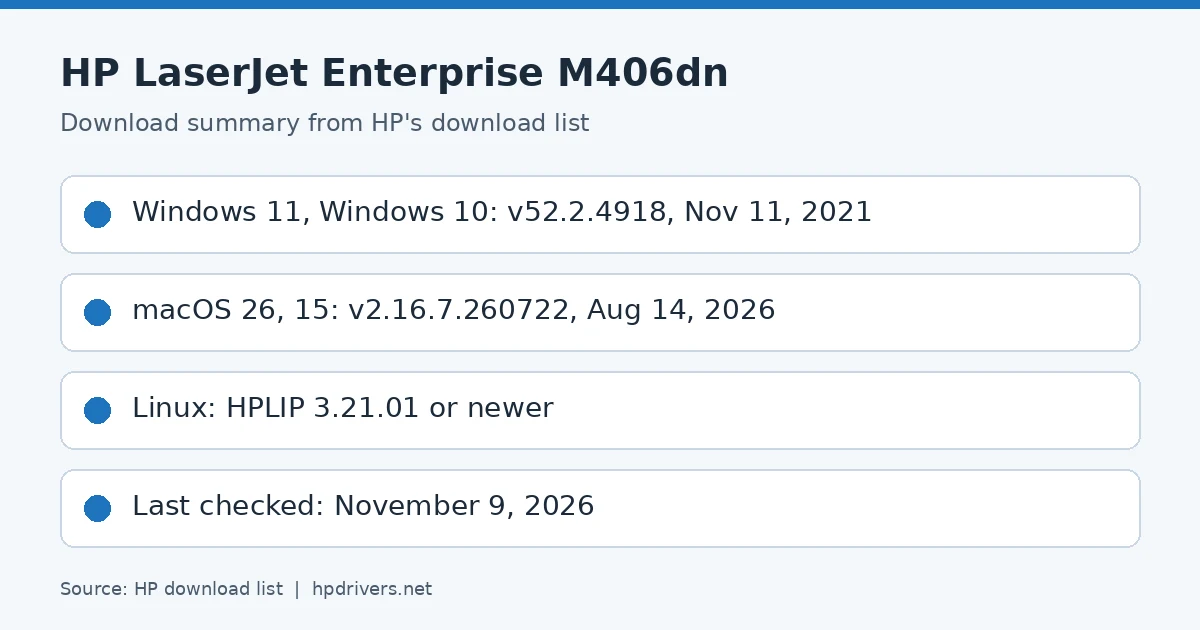
Looking for the HP LaserJet Enterprise M406dn driver? This page lists HP’s official software for the whole HP LaserJet Enterprise M406 series. For Windows 11; Windows 10, 8.1, 7 (32-bit and 64-bit), the package most people need is the HP LaserJet M406-M407 Printer Full Software Solution. For a Mac, HP lists Install HP Easy Start.
HP LaserJet Enterprise M406dn download summary
Recommended downloads
Windows 11; Windows 10, 8.1, 7 (32-bit and 64-bit): HP LaserJet M406-M407 Printer Full Software SolutionVersion 52.2.4918 · Released Nov 11, 2021 · 78.0 MB · HP rating: Recommended
HP lists its Universal Print Driver for this series on Windows 11; Windows 10, 8.1, 8, 7 (32-bit and 64-bit). Get it from our HP Universal Print Driver page.
Linux
HP lists Linux support for this series through its HPLIP project, outside the regular download list: HP’s Linux printing page (HPLIP).
Installing the LaserJet Enterprise M406 driver
The driver files without an installer are added through Windows’ Add Printer wizard (Have Disk). For step-by-step instructions, see our guide to installing an HP printer driver.
Firmware update 2510156_069170
The newest firmware HP lists for the LaserJet Enterprise M406 is version 2510156_069170, released Aug 28, 2026.
Keep the printer and the computer switched on until the update has finished.
Specifications that matter for setup
Connections
1 Hi-Speed USB 2.0 Host; 1 Hi-Speed USB 2.0 Device; 1 Gigabit Ethernet 10/100/1000T network
Wi-Fi
Optional, enabled with purchase of a wireless hardware accessory. Dual band Wireless Station and Wi-Fi Direct functionality available with HP Jetdirect 3100w BLE/NFC/Wireless Accessory 3JN69A
Mobile printing
HP ePrint; Apple AirPrint™; Mopria™ Certified; PrinterOn Print
Print languages
HP PCL 6, HP PCL 5, HP PostScript level 3 emulation, native PDF printing (v 1.7), Apple AirPrint™
Print speed (black)
Normal: Up to 40 ppm (default); Up to 42 ppm (HP high speed mode)
Recommended monthly volume
900 to 4,800 pages
Two-sided printing
Automatic (default)
Toner supplies HP lists for the LaserJet Enterprise M406
HP’s specifications name these replacement supplies for the LaserJet Enterprise M406:
HP 58A Black Original LaserJet Toner Cartridge (~3
000 pages) CF258A HP 58X High
What comes in the box
HP lists these items with the LaserJet Enterprise M406:
HP LaserJet Enterprise M406dn printer
HP Black Original LaserJet Toner Cartridge (~3,000 pages)
Getting started Guide
1 Power cord
Paper handling and hardware details
Values below are HP’s published figures for the LaserJet Enterprise M406; they help you check that this page matches your printer before you download anything.
Paper input tray
100-sheet tray 1, 250-sheet input tray 2
Output tray
150-sheet output bin
Optional trays
Optional third 550-sheet tray
Paper sizes
Tray 1: letter, legal, oficio, executive, statement, 4 x 6, 3 x 5, 5 x 7, 5 x 8, postcard (JIS), double postcard (JIS), 8.5 x 13, envelope (commercial No. 9
One-year, On-site Repair 24-hour / 7 day a week phone support
Common setup problems
You’d rather not install software on a Mac. HP’s specifications list AirPrint support, so macOS can usually add the printer from System Settings without extra software.
Closing unused ports on the LaserJet Enterprise M406dn
HP has a FutureSmart article on turning off ports, protocols and services you do not use, written for HP Enterprise and HP Managed printers on FutureSmart 5.5 or newer. HP lists the M406 series on its troubleshooting page for this printer, so the article is a useful reference for anyone who manages the M406dn from the Embedded Web Server (EWS).
What HP describes
If you only configure the printer through the EWS and no remote management tool is installed, HP says you can block TCP 80 and TCP 7627 separately and still allow HTTPS management on TCP 443.
Port 80 carries HTTP traffic between a workstation and the printer, port 443 carries the more secure HTTPS traffic, and port 7627 is used for communication with HP Web JetAdmin.
To change this, open the EWS by typing the printer IP address or host name into a browser, log in as an administrator, choose the Networking tab, then Mgmt. Protocols, then the Web Mgmt tab, and select the ports to disable.
If you lock yourself out
HP warns that if all three ports are disabled, the printer cannot be reached remotely until the security is reset at the control panel.
On the control panel, open Settings, choose Networking, then Ethernet or Wireless, then Security and Reset Security. After the reset, HP says all three ports are enabled again in the EWS.
Print jobs do not print over USB when the M406dn is asleep
This is a behaviour HP describes for HP Enterprise and HP Managed printers on FutureSmart firmware, and it can look like a driver problem when it is not.
What happens
When the printer is in deep sleep, HP says the internal USB hub is powered down by design to keep power use as low as possible. A job sent from a computer over a USB cable does not wake the printer, so nothing prints.
HP notes that jobs sent over a network connection are not affected.
What HP says to do
Touch the control panel screen to wake the printer, and the waiting jobs print as expected after it is awake.
Or send the job over the network, which wakes the printer automatically.
HP adds that a connected USB drive, accessory or solution can stop the printer from entering deep sleep.
HP LaserJet Tank MFP 2606dc Printer Driver Download for Windows 11/10/7 (32-Bit)(64-Bit)
HP LaserJet Tank MFP 2602-2606 Printer Series Software Download
Download HP LaserJet Tank MFP 2602dn/2602sdn/2606dn/2606sdn EasyStart Printer Setup Software – Offline Use Only
HP LaserJet Tank MFP 2606dc Printer
Details HP LaserJet Tank MFP 2606DC Driver
The full solution software includes everything you need to install and use your HP printer. This collection of software includes the complete set of drivers, installer software, and other administrative tools.
Fix and enhancements: Original Software/Drivers
Relase Details
Version: 56.2.5271 Release date: Feb 7, 2022 File name: HPEasyStart-13.6.5-LJTMFP260x_UW_56_2_5271_1_Webpack.exe
Operating Systems
Microsoft Windows 11 All Editions (64-bit), Microsoft Windows 10 (32-bit), Microsoft Windows 10 (64-bit), Microsoft Windows 7 (32-bit), Microsoft Windows 7 (64-bit)
HP Easy Start Printer Setup Software (Internet connection required for driver installation)
HP Easy Start provides guided setup and drivers for your HP printer. Furthermore, installation Software and Driver-Includes print, scan, latest features, and solutions.
Fix and enhancements: Improved user experience. Moreover, performance Optimizations. Additionally, added support for newest printer models.
Operating Systems : Microsoft Windows 11 All Editions, Microsoft Windows 10 (32-bit), Microsoft Windows 10 (64-bit)
Installation Software and Driver-Includes print, scan, latest features, and solutions.
Version : 16.7.5 Release date: Jul 18, 2024 File Name : HPEasyStart_16_7_5.exe
Driver-Universal Scan Driver for HP LaserJet Tank MFP 2606dc
HP is undoubtedly one of the largest printer and scanner producing companies. A new update has been released to the universal driver produced for HP scanner devices. Also some improvements and fixes have been made. This driver full web suite provides various scanning functions. However, it does not include OCR capabilities and Cloud targets.
HP LaserJet Tank MFP 2606dc Scan – Full Feature Software and Driver
Fix and enhancements:
Scan to computer improvements have been made in this version. However, some features may vary depending on your browser model. Additionally, the language of the Data Collection Agreement Screens has been updated.
Microsoft Windows 11, Microsoft Windows 10 (32-bit), Microsoft Windows 10 (64-bit), Microsoft Windows 8.1 (32-bit), Microsoft Windows 8.1 (64-bit), Microsoft Windows Server 2022
Finally, let’s make a few reminders about the installation. First, download the installation file to your computer. It will generally download to the general downloads folder. Then open the file you downloaded. The installation wizard will guide you. When the installation is finished, you can delete the file you downloaded. Or you can save it to reinstall it in case you experience problems again. If you encounter a problem, do not hesitate to contact us.
HP Universal Scan – Basic Feature Software and Driver
This driver provides the basic functionality of your scanner. It is the minimum scanning software solution that provides Wia and Twain support. It also does not include OCR capabilities and cloud targets. If you want these features, I recommend you download and install “HP Universal Scan – Full Featured Software and Driver”. However, if you are only going to do a simple scan, you do not need to install the full driver.
Version : 63.4.6169 Relase Date : Aug 29, 2024 File Name : Basic_Webpack_x64-63.4.6169-SJ0001_Basicx64_Webpack.exe
In addition, some innovations have been made in the renewed simple scanning driver. For example, scan to computer has been improved. Of course, this may vary depending on your browser model.
The HP LaserJet MFP M236sdn driver download for Windows 11, Windows 10, 8.1, 8, 7 (32-bit and 64-bit) is the HP LaserJet MFP M232sdn-M237sdn EasyStart Printer Setup Software – Offline Use only, and for a Mac HP lists Install HP app to complete setup and support. This page lists HP’s official software for the HP LaserJet MFP M236sdn and HP LaserJet MFP M232sdn, which share the same downloads at HP. HP lists some packages for specific models in the series, so check that the package title includes your model.
Last checked against HP’s download list: November 19, 2026 · Checked by H&G
HP LaserJet MFP M236sdn and M232sdn
Recommended LaserJet MFP M236sdn driver downloads
Windows 11, Windows 10, 8.1, 8, 7 (32-bit and 64-bit): HP LaserJet MFP M232sdn-M237sdn EasyStart Printer Setup Software – Offline Use onlyVersion 52.3.4930 · Released Dec 07, 2023 · 297.7 MB
HP lists Linux support for this series through its HPLIP project, outside the regular download list: HP’s Linux printing page (HPLIP).
Which systems the LaserJet MFP M236sdn driver supports
HP’s download list for the LaserJet MFP M236sdn names Windows 11; Windows 10, 8.1, 8, 7 (32-bit and 64-bit); macOS 26, 15, 14, 13, 12, 11, 10.13, 10.12, Mac OS X 10.11, Mac OS X 10.10; and Linux through HPLIP. On a Mac the setup runs through the HP app.
Installing the LaserJet MFP M236sdn driver
When the download from the table above finishes, follow these steps.
First, download the package shown in the Recommended downloads box.
Then, connect the printer to your router with an Ethernet cable, then turn it on.
Next, run the installer and pick your printer from the list it finds.
Finally, print a test page from any program to confirm the connection.
Firmware update 20260530 for the LaserJet MFP M236sdn
The newest firmware HP lists for the LaserJet MFP M232-M237 is version 20260530, released Jul 23, 2026. HP’s notes for it: USB Support for PSA Driver; Security updates; General improvements and bug fixes.
Check your current firmware version first on the printer’s Configuration Page, and update only if it is older.
Install the printer driver before running the update. HP’s utility needs it to reach the printer.
Specifications that matter for setup
Wi-Fi
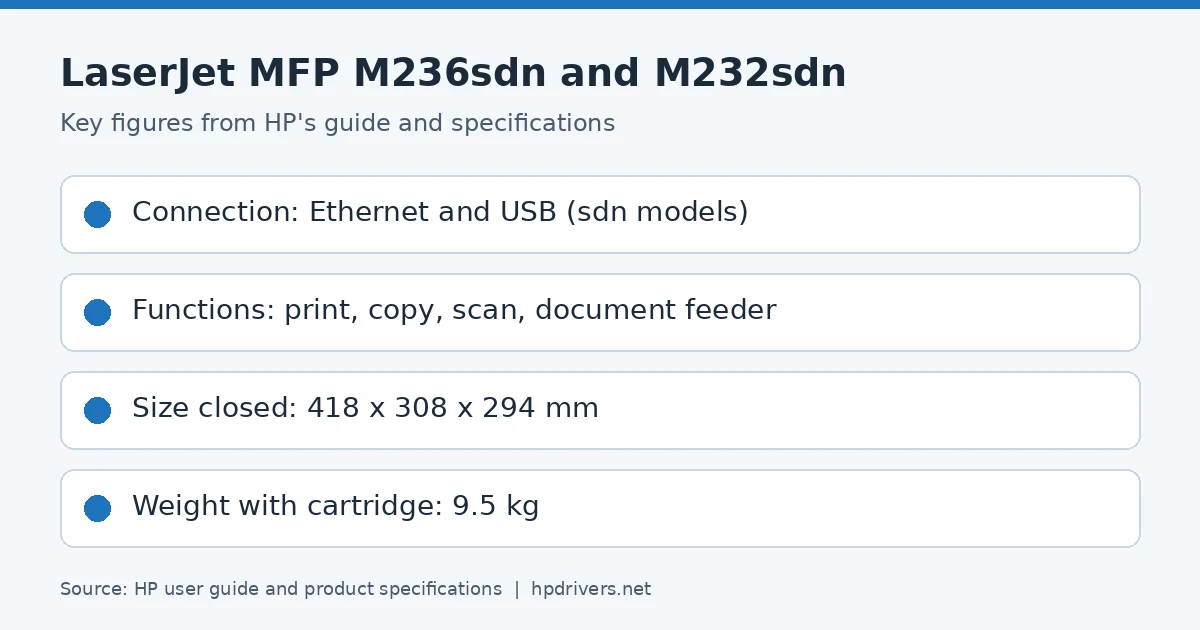
No, Ethernet and USB
Print languages
PCLmS; URF; PWG
Functions
Print, copy, scan
Print speed (black)
Normal: Up to 30 ppm
Recommended monthly volume
200 to 2,000
Two-sided printing
Auto-duplex
Scan resolution
Up to 600 dpi
Two-sided ADF scanning
No
Scan file formats
JPEG, TIF, PDF, BMP, PNG
Ways to scan
HP app; and user applications via Twain
Toner supplies HP lists for the LaserJet MFP M232-M237
HP’s specifications name these replacement supplies for the LaserJet MFP M232-M237:
HP 134A Black LaserJet Toner Cartridge, W1340A (about 1,100 pages)
HP 134X Black LaserJet Toner Cartridge, W1340X (about 2,400 pages)
HP 135A Black LaserJet Toner Cartridge, W1350A (about 1,100 pages)
HP 135X Black LaserJet Toner Cartridge, W1350X (about 2,400 pages)
HP 136A Black LaserJet Toner Cartridge, W1360A (about 1,150 pages)
HP 136X Black LaserJet Toner Cartridge, W1360X (about 2,600 pages)
HP 137A Black LaserJet Toner Cartridge, W1370A (about 1,150 pages)
HP 137X Black LaserJet Toner Cartridge, W1370X (about 2,600 pages)
Paper handling and hardware details
Values below are HP’s published figures for the LaserJet MFP M232-M237; they help you check that this page matches your printer before you download anything.
Paper input tray
150-sheet input tray
Output tray
100-sheet output tray
Paper sizes
Letter, Legal, Executive, Envelopes
Media types
Paper (laser, plain, rough, vellum), Envelopes, Labels, Cardstock, Postcard
Paper weight
16 to 43 lb
Print quality (black)
Black: Up to 600 x 600 dpi
Control panel
Either 1.27" or 1.6" Icon LCD
Memory
64 MB
Processor
500 MHz
Power use
Power requirements are based on the country/region where the printer is sold. Do not convert operating voltages.
Size (W x D x H)
16.46 x 12.13 x 11.59 in
Weight
20.95 lb
Warranty
One-year limited warranty
Opening the Embedded Web Server over Ethernet
Because the sdn models have an Ethernet port, you can manage them from a browser. HP lists the HP Smart app, the HP printer software and a browser with the printer’s IP address as ways to open the Embedded Web Server (EWS). Since these models have no Wi-Fi, the IP address route is the usual one.
First, press the Information button on the printer to print the information page, which shows the IP address.
Then, open a web browser and type the IP address or host name in the address bar.
Finally, press Enter.
If the browser warns that the site is not secure, choose the option to continue. HP says that visiting the page does not harm your device. When a login is requested, the user name is admin. For the password, open the cartridge access door and read the label inside the printer. Note that the EWS cannot be reached from outside the network firewall.
If the computer cannot find the printer on the network
HP’s guide gives a short checklist for Ethernet problems. Work through it in order.
Make sure the network works and that the hub, switch or router is turned on.
Check that the Ethernet cable runs from the printer to the router. The signal light next to the connector lights up when the cable is connected properly.
Rule out security software. Antivirus and spyware protection can stop the network from reaching the printer. If antivirus or firewall software blocks the connection, HP’s online firewall troubleshooter can help.
Run HP Print and Scan Doctor. It tries to diagnose and fix the problem automatically, although it may not exist in every language.
Setting a fixed IPv4 address and a printer name
The EWS also lets you view or change the network settings. Open the Network tab to see the current details and change what you need.
To enter the IPv4 settings by hand, follow these steps.
First, open the EWS and click the Network tab.
Then, choose IPv4 Settings in the left-hand pane.
Next, in the IP Preferred Address Method list, select Manual, then edit the IPv4 settings.
Finally, click Apply.
In addition, you can give the printer a unique name on the network. Open the System tab, then Device Information, and edit the Device Description field. Click Apply to save the change.
Protecting the web server with a password
A password keeps unauthorised users from changing the printer settings. Set it from the EWS.
First, open the EWS and click the System tab.
Then, click the Administration link in the left-hand pane.
Next, in the Product Security area, type the password in the Password box.
Then, type it again in Confirm Password.
Finally, click Apply.
HP advises you to write the password down and keep it somewhere safe. Otherwise a forgotten password can make later changes harder.
Opening the EWS from the Windows 7 printer software
On Windows 7 there is another route to the EWS. From the desktop, click Start, choose All Programs and click HP. Then click the printer’s folder, select the icon that carries the printer name and open HP Printer Assistant.
In HP Printer Assistant, select the Print tab and choose Printer Home Page (EWS). The page then opens in your browser in the same way as it does from an IP address.
What HP Smart does and where to get it
HP Smart helps with many printing tasks. It sets up and connects the printer, prints and scans documents and photos, and shares documents by email and other apps. It also manages printer settings, checks the printer status, prints reports and orders supplies.
The app supports phones and computers that run iOS, Android, Windows 10 and macOS 10.13 or later. Download it from 123.hp.com, or from the app store on your device. Windows 7 is the exception, because there you download the HP printer software from 123.hp.com instead.
HP notes that the app is not offered in every language, and that some features exist only on certain printers. Not every file format is supported either.
Printing a document from Windows
Before you print, make sure the HP Smart app is installed. Then follow HP’s steps.
First, open the document you want to print.
Then, in the program’s File menu, choose Print.
Next, click the button that opens the properties dialog. Depending on the program, it may be called Properties, Options, Setup or Preferences.
Then, check that your printer is selected, change any settings, and click OK.
Finally, click Print or OK to send the job.
Similar models
This page covers the M236sdn and M232sdn only. The M233sdn, the M234sdn and the M237sdn have their own pages.