Independent download guide for HP printer and scanner drivers
hpdrivers.net is an independent website and is not affiliated with, endorsed by, or sponsored by HP Inc. Download links point to HP's official servers (ftp.hp.com). Read the full disclaimer
Download HP Color LaserJet Enterprise M652 Printer Driver for Windows 10-8.1-8-7-Vista-XP (3bit-64bit)
Color LaserJet Enterprise M652/M653 Printer Full Software Solution for Microsoft Windows
HP Color LaserJet Enterprise M652dn
HP Color LaserJet Enterprise M652 Driver for Windows
Version: 43.1 Post date: Mar 21, 2017 Name: LJM652-M653__Full_WebPack_2457.exe Compatibility Systems: Windows 10 (32 bit) Windows 10 (64 bit) Windows 8.1 (32 bit) Windows 8.1 (64 bit) Windows 8 (32 bit) Windows 8 (64 bit) Windows 7 (32 bit) Windows 7 (64 bit) Windows Vista (32 bit) Windows XP (32 bit) Download Size: 149.39MB
HP LaserJet M631dn Driver Mac
Version: 12.38.0 File name: HP-LaserJet-Enterprise-MFP-M630_v12.38.0.dmg Release date: Sep 2, 2014 Operating Systems: Mac OS X 10.11-Mac OS X 10.10-Mac OS X 10.9 Mac OS X 10.8-Mac OS X 10.7 Download File Size: 74.71MB
Last checked against HP’s download list: November 4, 2026 · Checked by H&G
Looking for the HP LaserJet 1300 driver? This page lists HP’s official software for the whole HP LaserJet 1300 Printer series. HP lists some packages for specific models in the series, so check that the package title includes your model. For Windows XP (32-bit), the package most people need is the hp LaserJet 1150/1300 PCL5e driver.
HP LaserJet 1300
Recommended downloads
Windows XP (32-bit): hp LaserJet 1150/1300 PCL5e driverVersion 60.5.17.2 · Released Apr 01, 2003 · 2.1 MB
HP PCL 6, HP PCL 5, HP printer language (emulates Adobe® PostScript® Level 2)
Print speed (black)
Normal: Up to 20 ppm letter, up to 19 ppm A4 (assumes 5% toner coverage per page)
Two-sided printing
Manual (driver support provided)
Paper handling and hardware details
Values below are HP’s published figures for the LaserJet 1300; they help you check that this page matches your printer before you download anything.
Paper input tray
10-sheet priority feed slot, 250-sheet input tray
Output tray
125-sheet output bin
Optional trays
250-sheet input tray
Paper sizes
Letter, legal, executive, index card, No. 10 envelopes, Monarch envelopes
Media types
Paper (plain, recycled), cardstock, envelopes, heavy media, labels, transparencies
Paper weight
Tray 1: 16 to 28 lb (main tray to output bin), 16 to 43 lb (main tray to straight through media path); Tray 2: 16 to 28 lb (priority input tray to output bin)
Print speed (color)
Up to 20 ppm letter, up to 19 ppm A4 (assumes 5% toner coverage per page)
Print quality (black)
Black: Up to 1200 x 1200 dpi
Processor
133 MHz
Power use
320 watts (printing), 0 watts (off) Power requirements are based on the country/region where the printer is sold. Do not convert operating voltages. Doing so mi
Size (W x D x H)
16.3 x 19.1 x 9.5 in
Weight
19 lb
USB cable
No, please purchase USB cable separately
Warranty
One-year, return to HP authorized service center warranty
The HP LaserJet Pro MFP M132a driver download for Windows 11, Windows 10, 8.1, 8, 7 (64-bit) is the HP LaserJet Pro MFP M130a/M132a and Ultra MFP M134a Basic Driver, and for a Mac HP lists the package titled “Install HP Easy Start”. This page lists HP’s official software for the HP LaserJet Pro MFP M132a.
Last checked against HP’s download list: November 21, 2026 · Checked by H&G
HP LaserJet Pro MFP M132a
Recommended LaserJet Pro M132a driver downloads
Windows 11, Windows 10, 8.1, 8, 7 (64-bit): HP LaserJet Pro MFP M130a/M132a and Ultra MFP M134a Basic DriverVersion 44.11.2775 · Released May 18, 2022 · 66.1 MB
HP lists Linux support for this series through its HPLIP project, outside the regular download list: HP’s Linux printing page (HPLIP).
Which systems the LaserJet Pro M132a driver supports
HP’s download list for the LaserJet Pro M132a names Windows 11; Windows 10, 8.1, 8, 7 (32-bit and 64-bit); macOS 26, 15, 14, 13, 12, 11, 10.13, 10.12, Mac OS X 10.11, Mac OS X 10.10; and Linux through HPLIP. On a Mac the setup runs through the HP app.
Installing the LaserJet Pro M132a driver
To install it, follow these steps.
Download the Full Feature Software and Drivers package from the table above.
Turn on the printer and start the installer.
Connect the USB cable when the installer asks for it.
Scan one page with HP Scan to test the connection.
Firmware update 20211215 for the LaserJet Pro M132a
For the LaserJet Pro MFP M132a, HP lists the HP LaserJet Pro M130a/M132a and Ultra M134a printer Firmware Update Utility, version 20211215, released Dec 20, 2021. HP’s notes for it: General improvements and bug fixes; Contains all previous fixes and enhancements in official releases; Security Fixes. On a Mac, HP lists version 20201023, released Oct 23, 2020.
Check your current firmware version first on the printer’s Configuration Page, and update only if it is older.
Install the printer driver before running the update. HP’s utility needs it to reach the printer.
Specifications that matter for setup
Print languages
PCLmS, URF, PWG
Recommended monthly volume
150 to 1500
Two-sided printing
Manual duplex
Scan file formats
JPEG, PDF, PNG
Toner supplies HP lists for the LaserJet Pro MFP M132
HP’s specifications name these replacement supplies for the LaserJet Pro MFP M132:
HP 18A Original Black LaserJet Toner Cartridge CF218A (about 1,400 pages)
HP 19A Original LaserJet Imaging Drum CF219A (about 12,000 pages)
Paper handling and hardware details
Values below are HP’s published figures for the LaserJet Pro MFP M132 series, which the LaserJet Pro MFP M132a belongs to.
Paper input tray
150-sheet input tray
Output tray
100-sheet output tray
Media types
Paper (laser, plain, photo, rough, vellum), envelopes, labels, cardstock, postcards
Print quality (black)
Black: Up to 600 x 600 dpi, HP FastRes 1200 (1200 dpi quality)
Processor
600 MHz
Power use
255 watts (active printing), 4.2 watts (ready),1.0 watts (sleep), 0.7 watts (Auto Off/Wake on USB, enabled at shipment)
Warranty
One-year limited warranty
Which Windows print driver the installer adds
HP’s guide names three printer-specific drivers for this model. They differ only by the Windows version they are made for.
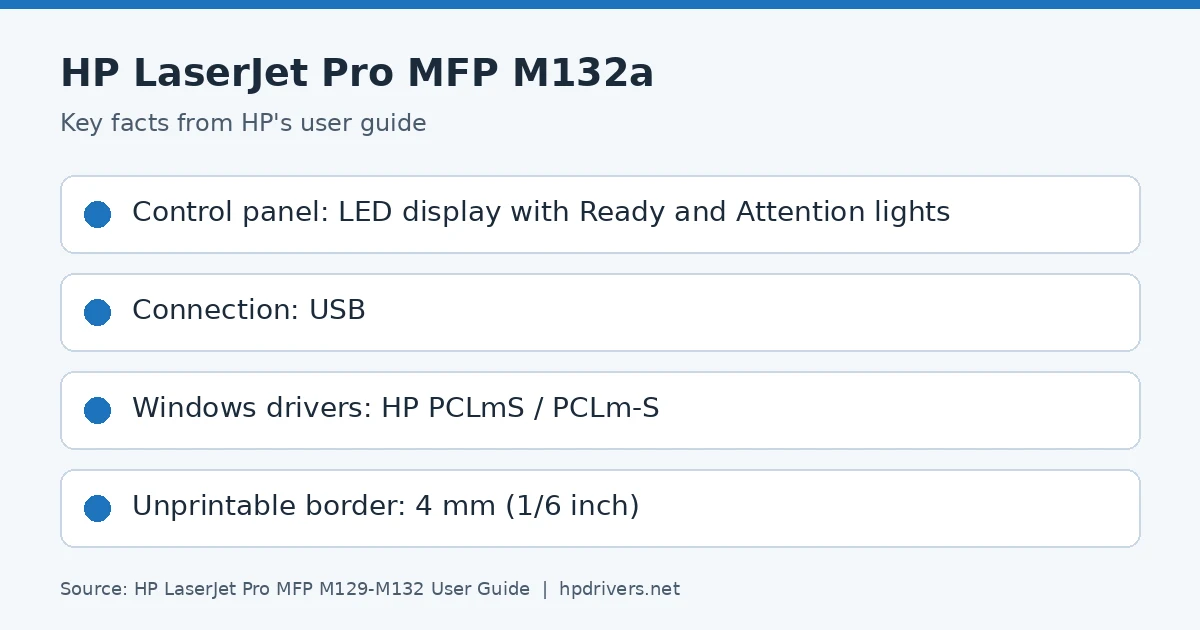
PCLm.S: Windows XP SP3, Windows Vista, Windows Server 2003 and Windows Server 2008.
PCLmS: Windows 7, Windows 8, Windows Server 2008 R2 and Windows Server 2012.
PCLm-S: Windows 8.1, Windows 10 and Windows Server 2012 R2.
The Basic Driver package adds the driver only, without HP Scan. The full software installer adds the same driver together with the optional HP software, such as HP Scan and HP Device Toolbox. Windows 8 RT and 8.1 RT are a special case, because Microsoft’s own IN OS Version 4 driver supports them. On older systems such as Windows XP, HP gives best-effort support only, since Microsoft has retired them.
Scanning from Windows with HP Scan
The M132a has no scan button that sends a page to the computer. You start each scan from the computer instead, with the HP Scan software that the full installer adds. HP Scan saves the image as a file or passes it to another program.
Open HP Printer Assistant from the HP folder in the Start menu.
Select Scan, and then select Scan a Document or Photo.
Change the settings if the default ones do not fit the original.
Click Scan.
Dark specks or lines in every scan usually come from the glass. To clean it, turn the printer off and unplug the power cable. Then wipe the scanner glass and the white plastic backing under the lid with a soft cloth and a nonabrasive glass cleaner. HP warns against acetone, benzene, ammonia and ethyl alcohol, and against pouring liquid onto the glass. Dry the parts with a chamois or a cellulose sponge so that no spots remain.
Copy quality: text, pictures and the page border
The LED panel has no menu for copy quality. On this model, the settings are in HP Device Toolbox, which opens from HP Printer Assistant under Print.
Optimize: on the Copy tab, Auto Select is the default. Choose Text for documents that are mostly text, Picture for mostly graphics, or Mixed for both.
Paper: on the System tab, Paper Setup sets the paper size and type that the tray holds.
Password: on the System tab, the Administration page sets a password, so that other users cannot change the settings.
Keep in mind that the printer cannot print to the very edge. There is a 4 mm (1/6 inch) border on every side that stays blank. If the original is smaller than the copy, move it 4 mm away from the corner that the icon on the scanner marks. If it has the same size as the copy, use Reduce/Enlarge so that nothing is cut off.
When the paper does not feed, or several sheets come in
Both problems can end in a paper jam, so it pays to fix them early. If the printer does not pick up any paper, remove jammed sheets and torn pieces from inside. Next, check that the tray holds the right paper size for the job. The guides should sit at the markings in the tray, without pressing on the stack.
Damp paper: in humid rooms the top sheets absorb moisture and turn wavy. Remove the top 5 to 10 sheets.
Static: in dry rooms the sheets stick together. Flex the stack into a U shape and back, rather than fanning it.
Dirty rollers: clean the rollers above the tray with a lint-free cloth dampened with warm water. Never spray water onto the printer.
When the printer takes several sheets at once, flex the stack, rotate it 180 degrees and turn it over. Also make sure the tray is not filled above the stack-height marks. Wrinkled, folded or damaged paper causes the same problem, so take fresh paper from another package if needed.
Two-sided and multi-page printing on a Mac
On a Mac, the print options sit in the print dialog under Show Details or Copies & Pages. The menu names can change from one program to another.
Manual Duplex: tick the box and pick a binding option. When the first side is printed, remove any blank paper from Tray 1. Then put the printed stack in the tray face down and click Continue.
Layout: choose the number of pages per sheet, their order and a border.
Finishing: pick the paper type from the Media-type list.
Manual two-sided printing needs the HP print driver. According to HP, it might not be available when the Mac prints through AirPrint. For that reason, install the HP software for the M132a rather than relying on the built-in macOS driver.