Independent download guide for HP printer and scanner drivers
hpdrivers.net is an independent website and is not affiliated with, endorsed by, or sponsored by HP Inc. Download links point to HP's official servers (ftp.hp.com). Read the full disclaimer
Looking for an HP LaserJet 9040dn driver download? This page lists HP’s official software for the HP LaserJet 9040, 9040n and 9040dn, which HP lists with (almost) the same downloads. HP lists some packages for specific models in the series, so check that the package title includes your model. For Windows 11, the package most people need is the HP Universal Print Driver for Windows PCL6 (64-bit).
Last checked against HP’s download list: November 16, 2026 · Checked by H&G
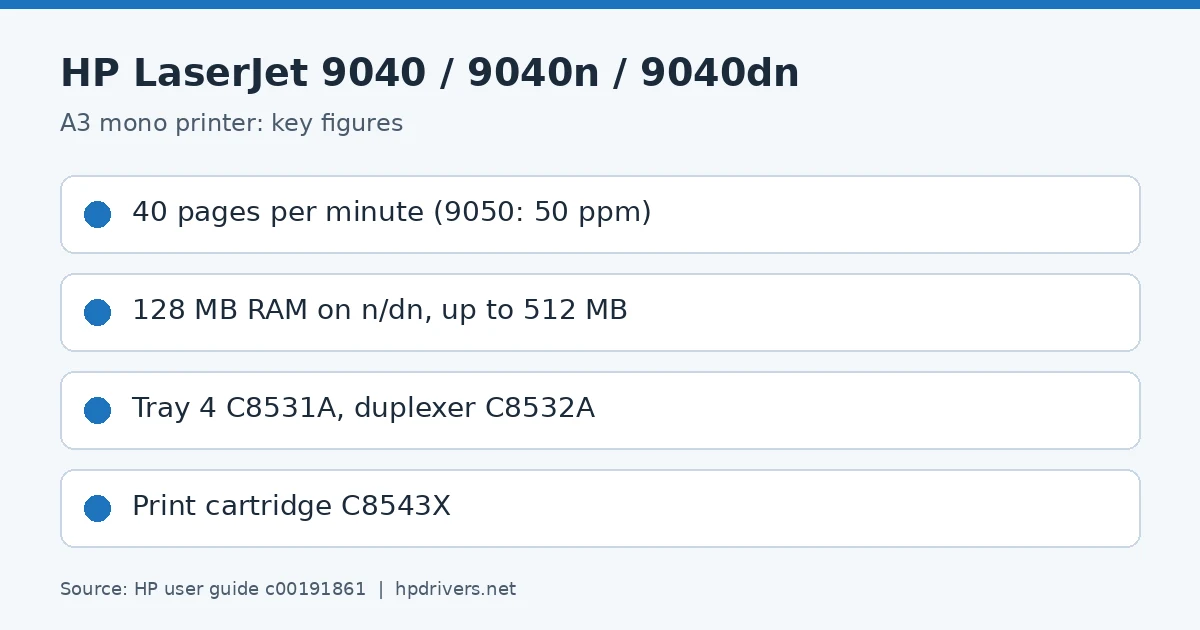
HP LaserJet 9040 series: key figures from HP’s user guide
Recommended downloads
Windows 11: HP Universal Print Driver for Windows PCL6 (64-bit)Version 8.2.0.26819 · Released Sep 26, 2026 · 20.2 MB
Files download directly from HP’s official servers. hpdrivers.net does not host or modify them.
Models covered by this page
All 3 models share one download list at HP:
HP LaserJet 9040HP LaserJet 9040nHP LaserJet 9040dn
Which Windows package should you choose?
HP publishes 2 kinds of Windows package for the LaserJet 9040:
HP Universal Print Driver (v8.2.0.26778, Sep 26, 2026): HP’s shared driver for many models, also listed for this series.
Firmware update (v08.300.1, Nov 06, 2017): updates the printer itself, not your PC.
All downloads for the LaserJet 9040
Each LaserJet 9040dn driver download below links straight to the file on HP’s servers; HP’s own support page for the LaserJet 9040dn lists the same files.
Windows
Package / Windows
Version
Released
Size
HP LaserJet 9050mfp Series Printer Firmware (Includes Code Signing) for – All Operating Systems – (Must Read README Before Installing)
HP lists its Universal Print Driver for this series on Windows 11, Windows 10, 7 (64-bit). Get it from our HP Universal Print Driver page.
Linux
HP lists a Linux driver for this series: HP LaserJet 9050mfp Series Printer Firmware (Includes Code Signing) for – All Operating Systems – (Must Read README Before Installing) (Version 08.300.1 · Released Nov 06, 2017 · 15.3 MB). Download from HP.
Installing the LaserJet 9040 driver
Once the LaserJet 9040dn driver download from the table above is complete, follow these steps.
Install the HP Universal Print Driver from the link on this page; HP no longer lists a model-specific installer for current Windows versions.
During setup choose the network address of the printer (9040n/9040dn) or the USB/parallel port of the base 9040.
If you install a firmware update, read HP’s README first and keep the printer switched on until it restarts.
Print a configuration page from the control panel to check memory, trays and the duplexer.
The newest firmware HP lists for the LaserJet 9040 is version 08.300.1, released Nov 06, 2017.
Keep the printer and the computer switched on until the update has finished.
Specifications that matter for setup
Wi-Fi
Optional, enabled with purchase of a hardware accessory
Print languages
HP PCL 6, HP PCL 5, HP postscript level 3 emulation, direct PDF printing (v 1.3) with at least 128 MB memory enabled, XHTML-Print v 0.95, HP PJL (Printer Job Language)
Print speed (black)
Normal: Up to 40 ppm
Recommended monthly volume
10,000 to 30,000
Two-sided printing
Automatic (standard or optional varies by product)
Paper handling and hardware details
Values below are HP’s published figures for the LaserJet 9040; they help you check that this page matches your printer before you download anything.
The 9040 and 9050 are the same A3 platform at two speeds: HP rates the 9040 at 40 pages per minute and the 9050 at 50, on Letter or A4, with the first page eight seconds after standby and a duty cycle of up to 300,000 pages a month. Both use a 533 MHz processor and print at 600 dpi with REt, or 1200 dpi quality at full speed with FastRes 1200.
Memory depends on the model rather than the speed: the base 9040 has 64 MB, while the 9040n and 9040dn have 128 MB; all can grow to 512 MB with 100-pin DDR DIMMs. The n adds the network card and the dn also the duplexer for two-sided printing.
Based on HP user guide c00191861 (“HP LaserJet 9040/9050 – User Guide”).
Trays, duplexer and toner for the 9040
HP’s accessory list for the 9040 includes the optional 2,000-sheet Tray 4 (C8531A), which sits under the printer and senses common paper sizes, and the duplex accessory (C8532A) for models that did not ship with one. The 3,000-sheet stacker, stapler/stacker and multifunction finisher all need Tray 4 to be fitted first.
The print cartridge is the C8543X. Tray 4 and the output devices have their own status LED, which the guide explains separately from the control panel, so check that light first when a tray or finisher stops responding.
Based on HP user guide c00191861 (“HP LaserJet 9040/9050 – User Guide”).
Similar models
This page is the LaserJet 9040dn driver download page for this model only. The LaserJet 9050dn is the 50 ppm version and has its own page.
Last checked against HP’s download list: November 10, 2026 · Checked by H&G
Looking for the HP Color Laser MFP 178nwg driver? This page lists HP’s official software for the whole HP Color Laser MFP 170 Printer series. HP lists some packages for specific models in the series, so check that the package title includes your model. For Windows 11; Windows 10, 8.1, 8, 7 (32-bit and 64-bit), the package most people need is the HP Color Laser MFP 170 Printer series Full Solution Software and Drivers. For a Mac, HP lists Install HP app to complete setup and support.
HP Color Laser MFP 178nwg
Recommended downloads
Windows 11; Windows 10, 8.1, 8, 7 (32-bit and 64-bit): HP Color Laser MFP 170 Printer series Full Solution Software and DriversVersion 1.20 · Released Jun 05, 2023 · 87.3 MB · HP rating: Recommended
HP lists a Linux driver for this series: HP MFP 130 and HP Color MFP 170 Printer series Print and Scan Driver (Version 1.00.39:00.12_00.15 · Released Jun 26, 2020 · 11.1 MB). Download from HP.
Installing the Color Laser MFP 170 driver
The driver files without an installer are added through Windows’ Add Printer wizard (Have Disk). For step-by-step instructions, see our guide to installing an HP printer driver.
Firmware update 3.82.01.23
The newest firmware HP lists for the Color Laser MFP 170 is version 3.82.01.23, released Apr 22, 2025.
Check your current firmware version first on the printer’s Configuration Page, and update only if it is older.
Install the printer driver before running the update. HP’s utility needs it to reach the printer.
Specifications that matter for setup
Connections
Hi-speed USB 2.0 port, Fast Ethernet 10/100Base-Tx network port, Wireless 802.11 b/g/n
Mobile printing
Apple AirPrint™; Mobile Apps; Mopria™ Certified; Wi-Fi® Direct Printing; Google Cloud Print™ May require a firmware upgrade to be compatible, download at http://www.hp.com/go/support .
Print languages
SPL
Print speed (black)
Normal: Up to 19 ppm
Recommended monthly volume
100 to 500
Two-sided printing
Manual (driver support provided)
Scan resolution
Up to 600 × 600 dpi
Scan file formats
PDF, JPG, TIFF
Ways to scan
Front-panel scan, copy, HP MFP scan software, user application via TWAIN or WIA
Copy speed
Black: Up to 14 cpm Color: Up to 4 cpm
Toner supplies HP lists for the Color Laser MFP 170
HP’s specifications name these replacement supplies for the Color Laser MFP 170:
HP 116A Original Laser Toner Cartridge (~1000/~700 pages) W2060A/W2061A/W2062A/W2063A (AMS)
HP 117A Original Laser Toner Cartridge (~1000/~700 pages) W2070A/W2071A/W2072A/W2073A (EMEA)
HP 118A Original Laser Toner Cartridge (~1000/~700 pages) W2080A/W2081A/W2082A/W2083A (China Only)
What comes in the box
HP lists these items with the Color Laser MFP 170:
Imaging drum, Toner collection unit
Installation guide, Getting Started guide, User's Guide, Support flyer, Warranty guide
No CD-ROM
Power cord
USB cable (AP, only Wi-Fi model for AMS, EMEA) Introductory cartridges included
Paper handling and hardware details
Values below are HP’s published figures for the Color Laser MFP 170; they help you check that this page matches your printer before you download anything.
Paper input tray
150-sheet input tray
Output tray
50-sheet output bin
Paper sizes
Tray 1: Letter, Legal, Executive, Oficio 8.5 x 13, 4 x 6. Tray 2: Not supported; Optional Automatic Duplexer: Not Supported
Black: Up to 600 x 600 4 bits Color: Up to 600 x 600 dpi
Control panel
2-Line LCD
Memory
128 MB
Processor
800 MHz
USB cable
Yes, 1 USB
Warranty
One-year limited hardware warranty; For more info please visit us at https://support.hp.com
Paper jam errors on the Color Laser MFP 178 and 179
HP has one article for the 178 and 179 printers. It applies to the messages Paper Jam in exit area, Paper Jam in tray, Paper Jam inside machine and Document jam. Remove paper, and to a blinking Status/Attention light. HP adds that jams can be real or false, and the same steps apply to both.
Steps HP gives
Pull jammed paper straight out with both hands and never use sharp tools such as tweezers or needle-nose pliers. HP says to avoid pulling paper from the front of the printer, because it can tear and leave pieces inside.
Exit area: turn the printer off and unplug it, lift the scan unit, open the rear door, pinch the latch to release the transfer roller and lower it, remove the paper, then raise the roller until it snaps back and close the rear door.
Input tray: pull out the tray, remove the paper, push it back in, and open and close the toner cartridge access door to clear the message.
Inside the printer: the same rear-door and transfer-roller procedure gives access to the inner paper path. Use a flashlight and check the rollers for torn pieces, because leftover scraps cause more jams.
HP’s print-quality article for these printers covers smeared, fuzzy, dark or faded output, and toner that is loose, partly missing or scattered.
What HP checks, in order
Use genuine HP toner. HP says it cannot guarantee non-HP or refilled cartridges and that the steps may not work with them.
Use paper made for LaserJet printers. HP warns not to use inkjet-only paper such as glossy photo paper, which can blister under the heat of the fuser and damage the printer. Use clean, wrinkle-free, smooth paper and load it print side up.
Check the toner level. HP says levels are estimates and you do not need to replace a cartridge until print quality becomes unacceptable.
Replace a low or empty cartridge: open the toner door, pull the cartridge out, remove all the sealing tape from the new one, align it with the tracks and push it in until it seats.
Check the print settings in the HP Smart app or the Windows print dialog: match paper size and type, choose the highest quality setting and print in color, because HP notes that color printing can improve quality.
Replacing the toner collection unit on the Color Laser MFP 178nwg
The message Replace/Install Waste Toner Tank means the toner collection unit (TCU) is full of waste toner. HP says reusing a TCU can cause print quality problems and recommends keeping a spare. The article covers the 178nw, 178nwg, 179fnw and 179fwg.
Details from HP
Compatible part numbers: 5LX86A for China and 5KZ38A for the rest of the world.
Steps: turn the printer off and unplug it, open the toner door, remove all four toner cartridges and set them aside, then lift out the old TCU and place it on a flat surface so the waste toner does not spill.
Take the cap off the new unit and put it on the old unit, insert the new TCU, reinstall the cartridges, close the door and reconnect power.
The HP LaserJet M142we driver download for Windows 11, Windows 10 (32-bit and 64-bit) is the HP LaserJet MFP M139w/M139we/M140w/M140we/M141w/M141we/M142w/M142we EasyStart Printer Setup Software – Offline Use Only, and for a Mac HP lists the package titled “Install HP app to complete setup and support”. This page lists HP’s official software for the HP LaserJet MFP M142we.
Last checked against HP’s download list: November 22, 2026 · Checked by H&G
HP LaserJet MFP M142we
Recommended LaserJet M142we driver downloads
Windows 11, Windows 10 (32-bit and 64-bit): HP LaserJet MFP M139w/M139we/M140w/M140we/M141w/M141we/M142w/M142we EasyStart Printer Setup Software – Offline Use OnlyVersion 54.3.5248 · Released Feb 08, 2023 · 186.1 MB
HP lists Linux support for this series through its HPLIP project, outside the regular download list: HP’s Linux printing page (HPLIP).
Which systems the LaserJet M142we driver supports
HP’s download list for the LaserJet M142we names Windows 11; Windows 10, 8.1, 8, 7 (32-bit and 64-bit); macOS 26, 15, 14, 13, 12, 11, 10.15, 10.14, 10.13, 10.12, Mac OS X 10.11, Mac OS X 10.10, Mac OS X 10.9, Mac OS X 10.8, Mac OS X 10.7, Mac OS X 10.6, Mac OS X 10.5; and Linux through HPLIP. For macOS 26, 15, 14, 13, 12, 11, setup runs through the HP app. For macOS 10.15, 10.14, 10.13, 10.12, Mac OS X 10.11, Mac OS X 10.10, Mac OS X 10.9, Mac OS X 10.8, Mac OS X 10.7, Mac OS X 10.6, Mac OS X 10.5, HP’s list has only the firmware utility.
HP’s specifications for the LaserJet MFP M139e-M142e series say Windows 7, 8 and 8.1 are not supported and that the full software solution is only for Windows 10 and newer. HP’s download list still shows some files for older versions.
For the LaserJet M142we, HP lists the HP LaserJet MFP M139we/M140we/M141we/M142we Printer Firmware Update Utility (not compatible with HP LaserJet MFP M139w Printer), version 20260530, released Jul 23, 2026. HP’s notes for it: USB Support for PSA Driver; Security updates; General improvements and bug fixes.
Check your current firmware version first on the printer’s Configuration Page, and update only if it is older.
Install the printer driver before running the update. HP’s utility needs it to reach the printer.
Specifications that matter for setup
Connections
802.11b/g/n (2.4 GHz) Wi-Fi radio
Mobile printing
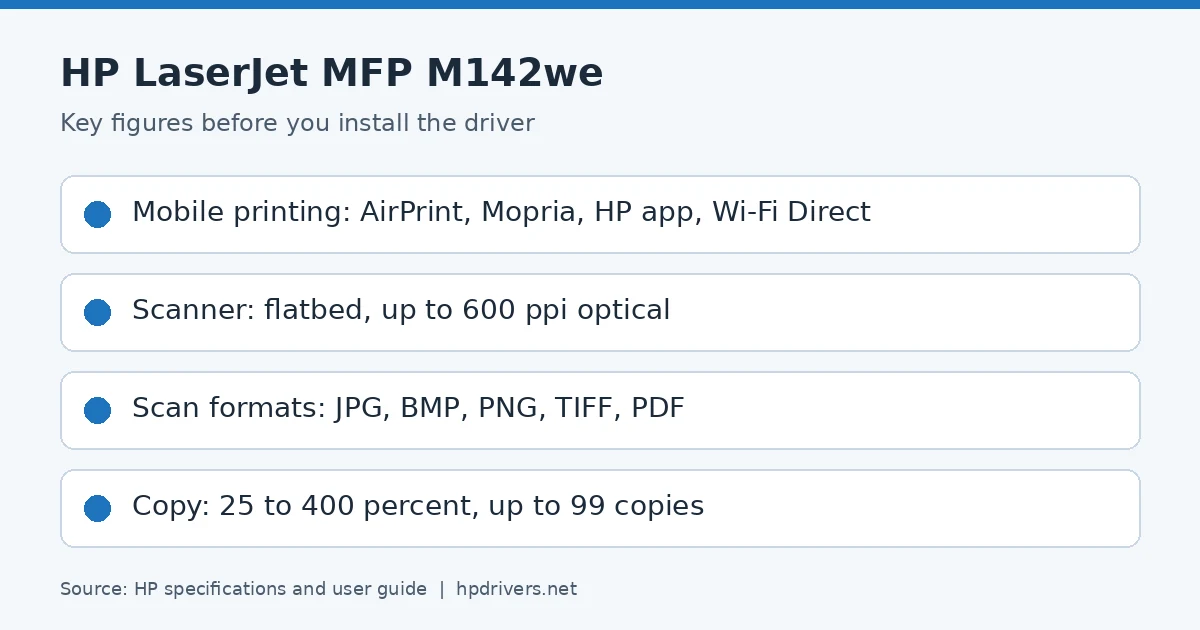
Apple AirPrint™; Mopria™ certified; HP app; Wi-Fi® Direct Printing
Print languages
PCLm/PCLmS; URF; PWG
Functions
Print, copy, scan
Recommended monthly volume
100 to 1000
Scanner
Flatbed
Scan resolution
Up to 600 ppi
Scan file formats
JPG, RAW (BMP), PNG, TIFF, PDF
Ways to scan
Scanning via HP LaserJet Software Scan or TWAIN-compliant or WIA-compliant software
Toner supplies HP lists for the LaserJet MFP M139e-M142e
HP’s specifications name these replacement supplies for the LaserJet MFP M139e-M142e:
HP 141A Black LaserJet Toner Cartridge (~950 pages), W1410A
HP 142A Black LaserJet Toner Cartridge (about 950 pages), W1420A
HP 150A Black LaserJet Toner Cartridge (about 975 pages), W1500A
What comes in the box
HP lists these items with the LaserJet MFP M139e-M142e:
Printer
Power cord
Toner Cartridge
Setup Poster
Reference Guide
Warranty Guide
Paper handling and hardware details
Values below are HP’s published figures for the LaserJet MFP M139e-M142e series, which the LaserJet M142we belongs to.
1 USB cable added for AP and wireless for EMEA, AMS (EM only)
Warranty
Two-year limited warranty
Printing from a phone or tablet on the same network
When the mobile device and the printer share a Wi-Fi network, you can print documents and photos from the device. HP Smart (HP’s current download list calls it the HP app) prints from a phone, a social media account or cloud storage. In addition, the printer’s specifications list Apple AirPrint, Mopria certification and the HP app.
iOS: when a device runs iOS 4.2 or later, AirPrint comes preinstalled.
iPadOS: AirPrint should already be preinstalled, so no download is needed.
Android: download the HP Print Service Plugin from Google Play Store or another app store. Then enable it on the device.
Before you print, check that both devices are on the same network. HP Smart, AirPrint and the HP Print Service Plugin also work over a Wi-Fi Direct connection.
Printing with Wi-Fi Direct
Wi-Fi Direct connects a computer or mobile device straight to the printer, so no existing wireless network is needed. Up to five devices can connect at once. Before you start, check in the EWS that Wi-Fi Direct is on. Look under the Networking tab and the Wi-Fi Direct Setup link.
On the mobile device, open the Wi-Fi or Wi-Fi Direct menu while it is near the printer.
Choose the printer’s name from the list. If it is missing, move closer, because the device is out of range.
Enter the Wi-Fi Direct password when asked.
Open a document, then choose the print option and select the printer.
When an Android device uses automatic connection, it skips the password. If the connection is manual, press the printer’s wireless button for Android. For Windows 10 or later, type the PIN from the printed report instead. If the mobile device does not support printing, install HP Smart. When printing ends, some devices must rejoin the local network.
Turning Wi-Fi Direct on, off or renaming it
Because both changes are made in the embedded web server, open it first.
Turn it on or off: open the EWS and click Wi-Fi Direct Setup in the left pane of the Networking tab. After that, choose On and click Apply. If you want it disabled, choose Off.
Rename it: on the same page, type a new name in the Wi-Fi Direct Name field, and then click Apply.
A unique name helps when several printers of the same model are in one place. Each can then be told apart. The same EWS page shows the Wi-Fi Direct password. A device that connects through Wi-Fi Direct can also open the EWS at the printer’s IP address, 192.168.223.1.
When a device asks to connect, the display shows Go/06, and a press of Resume accepts the request.
Copying with the wireless control panel
These are the guide’s steps for the wireless-model panel.
Before you start, place the original face down on the scanner glass, aligned with the mark at the rear left corner.
Press Copy Options, then pick a setting: the number of copies, lighten/darken or reduce/enlarge.
When the setting you want is selected, press the up or down button to change the value.
When the values are set, press Resume to start copying.
HP’s specifications give a copy resolution of 600 x 400 dpi for black text. Reduce and enlarge settings run from 25 to 400 percent, and the limit is 99 copies per job. If the glass is not clean, the scanner may not work properly, so wipe it before copying.
Scanning with HP Smart
HP Smart scans from the printer’s flatbed scanner, and it can also scan with a device’s camera. Editing tools let you adjust the image before you save or share it. You can then print the scan, save it locally or to cloud storage, or send it by email or SMS.
The scanner is a flatbed with an optical resolution of up to 600 ppi. It saves JPG, BMP, PNG, TIFF and PDF files. Besides HP Smart, the specifications mention scanning with HP LaserJet Software Scan or with TWAIN-compliant or WIA-compliant software.
HP publishes separate HP Smart help pages for iOS and Android, for Windows and for macOS. Because the steps differ by operating system, use the one that matches your device.
Scanning on a Mac
HP’s guide also names HP Easy Scan for macOS; it is not in HP’s current download list for this model. On a Mac, scan with HP Smart as described above.
If the glass is dirty, the scanner may not work properly. Cleaning steps are in the next section.
Better copies and scans
Start with a high-quality original, and if the image is still poor, try these fixes in order.
Clean the scanner glass and the white plastic backing, because dust builds up there over time. Switch the printer off and unplug it, then open the lid. Wipe both parts with a soft cloth and a non-abrasive glass cleaner. Never apply cleaner directly to the glass, because liquid can seep in and damage the printer. Never use abrasives, acetone, benzene, ammonia, ethyl alcohol or carbon tetrachloride. Dry any moisture with a chamois or sponge, then plug the printer back in and turn it on.
Check the paper settings in the EWS on the System tab.
If the copy still looks poor, open the Optimize list on the Copy tab. Choose Mixed, Text or Picture to match the original.
The printer cannot copy right to the edge, because a 4 mm border around the page stays unprintable. If the original is smaller than the output, move it 4 mm from the corner the scanner icon marks. If the original is the same size as the output you want, use reduce/enlarge to shrink the image so the copy is not cut off.
Similar models
This page covers the M142we only. The M141we, M140we and M139we have their own pages.