
An HP printer paper jam but no paper visible is a known situation, not necessarily a faulty printer. HP says paper jams can be real or false, and a printer might report a jam even when nothing is stuck. This guide follows HP’s steps for the OfficeJet Pro 9010 and 9020, which are written to work for both real and false jams.
Before you start
HP warns that you must disconnect the power cord before reaching inside the printer, to avoid injury or electric shock. Other models have their own pages, so use this as a guide to the order of checks and search HP’s site for your exact model if the parts differ.
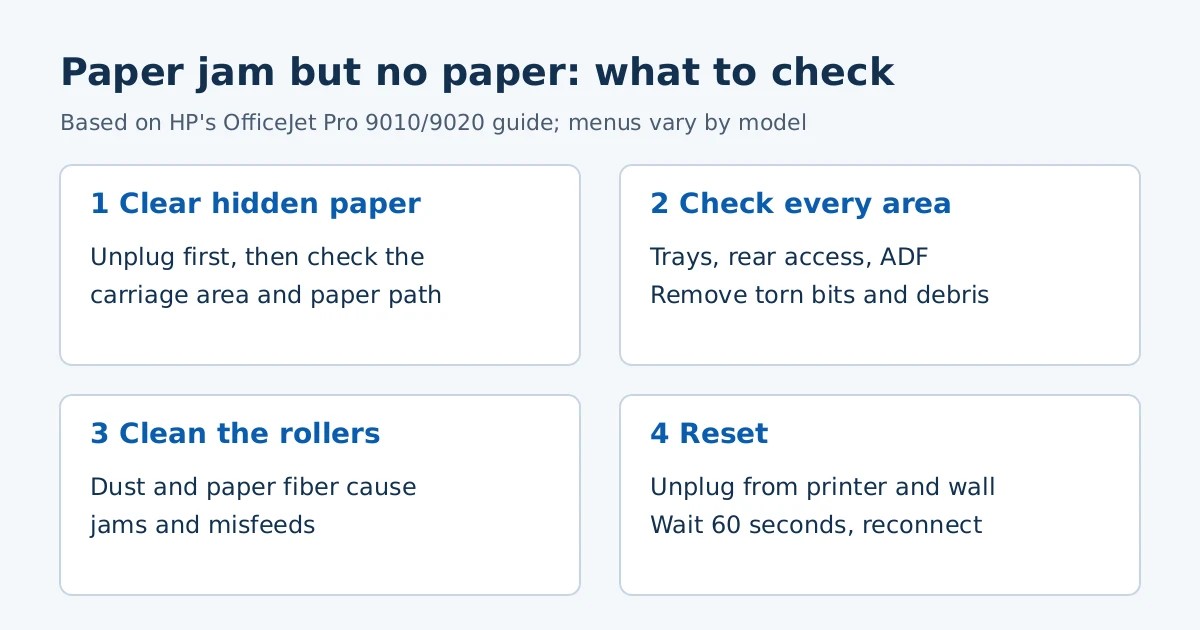
Step 1: Clear hidden paper from inside
- Open the front door and lift the ink cartridge access door.
- Wait until the carriage stops moving.
- With the printer still on, disconnect the power cord.
- Move the carriage to the far left and far right, and remove any jammed or torn pieces of paper.
- Remove the paper path cover and gently remove any jammed paper and bits of torn paper. HP says to pull with both hands so whole sheets do not tear.
- Slide the cover back in, close the doors, reconnect the power and turn the printer on.
Step 2: Check the other areas
HP says jams can occur in several places, so keep checking until you find it. Its guide lists the input and output trays, the rear of the printer (OfficeJet Pro 9020 models) and the automatic document feeder (ADF).
Step 3: Remove small debris and clean the rollers
HP says small bits of paper lodged in the paper path make jams more likely, and it describes running a blank print or copy job to eject them. It also says dust and paper fiber can build up on the feed rollers and cause jams and feed problems, so it includes steps to clean the rollers inside the cartridge access area, at the rear (9020 models) and in the ADF.
Step 4: Reset the printer
- With the printer on, disconnect the power cord from the printer.
- Unplug the cord from the power source.
- Wait 60 seconds.
- Reconnect the cord to the wall outlet and the printer.
HP recommends plugging the printer directly into a wall outlet.
Habits that help prevent jams
- Load paper flat, with edges not bent or torn, and set the paper guide against the stack.
- Do not overfill the tray, and do not mix paper sizes or types.
- Match the paper size and type in the app you print from to what is loaded.
- Avoid dusty or dirty places, and wait for a job to finish before adding paper.
If the message stays
HP says to service or replace the product if the problem continues after all the steps. Our OfficeJet Pro 9010e page has driver details for that series.
Frequently asked questions
Can a driver cause a paper jam message?
HP’s steps for this error are about paper, parts and a reset, not drivers. If a printer problem also involves the PC, see our install guide.
Why do I see the message when there is no paper?
HP says it can be a false jam. Torn bits, debris or dusty rollers can trigger it, so the steps above cover each.
Sources: HP Support, “HP OfficeJet Pro 9010, 9020 printers – Paper Jam error.” Steps and parts vary by model.
Advertisement