
Looking for an HP OfficeJet Pro 9130 driver download? This page lists HP’s official software for the HP OfficeJet Pro 9130, 9132, 9133 and 9135, which HP lists with (almost) the same downloads. HP lists some packages for specific models in the series, so check that the package title includes your model. For Windows 11, Windows 10 (64-bit), the package most people need is the HP OfficeJet Pro 9130 series EasyStart Printer Setup Software – Offline Use Only. For a Mac, HP lists Install HP app to complete setup and support.
Recommended downloads
Files download directly from HP’s official servers. hpdrivers.net does not host or modify them.
Models covered by this page
All 4 models share one download list at HP:
HP OfficeJet Pro 9133 HP OfficeJet Pro 9130 HP OfficeJet Pro 9135 HP OfficeJet Pro 9132
Which Windows package should you choose?
HP publishes 3 kinds of Windows package for the OfficeJet Pro 9130 All-in-One:
- HP Universal Print Driver (v8.2.89, Sep 11, 2026): HP’s shared driver for many models, also listed for this series.
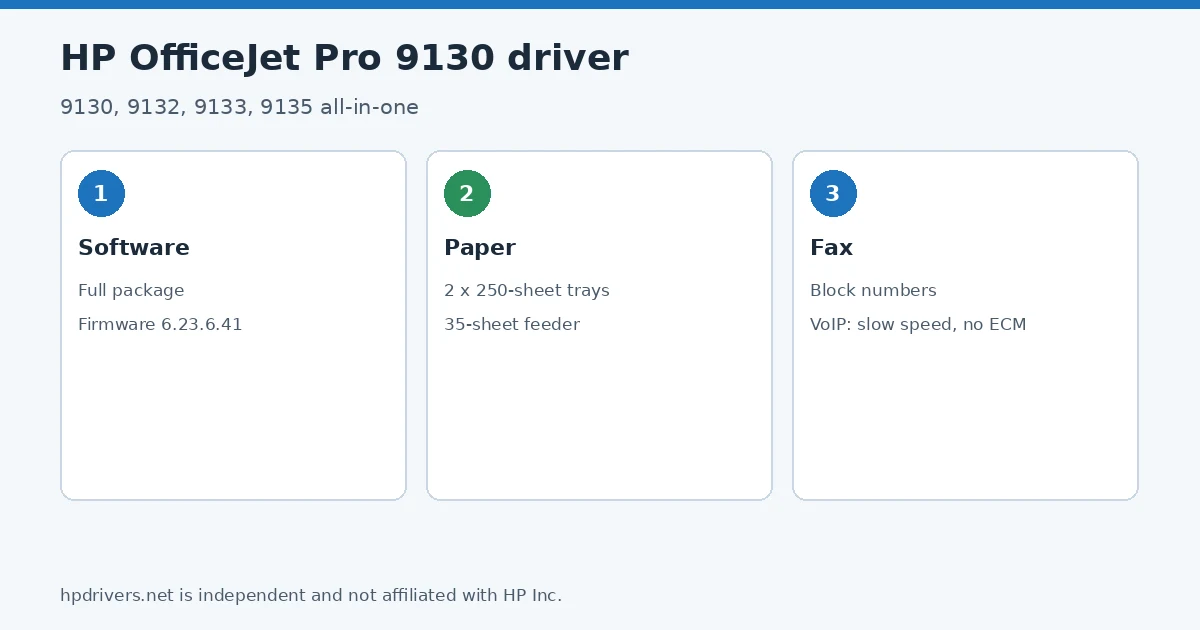
- Firmware update (v6.23.6.41, Jul 08, 2026): updates the printer itself, not your PC.
- Full software solution (v58.2.1857, Nov 16, 2023, 346.1 MB): driver plus HP’s setup wizard and tools.
All downloads for the OfficeJet Pro 9130 All-in-One
Each OfficeJet Pro 9130 driver download below links straight to the file on HP’s servers; HP’s own support page for the OfficeJet Pro 9130 lists the same files.
Windows
10 (64-bit)
File details
File:OJP9130_OJP9130e_6.23.6.41.exe10 (64-bit)
File details
File:HPEasyStart-16.2.4-OJP9130_58_2_1857_Webpack.exemacOS
File details
File:OJP9130_OJP9130e_6.23.6.41.dmgOther HP software listed for this series
Windows 10 (64-bit)
Windows 10 (64-bit)
Windows 10 (64-bit)
HP Universal Print Driver
HP lists its Universal Print Driver for this series on Windows 11, Windows 10, 7 (64-bit). Get it from our HP Universal Print Driver page.
Installing the OfficeJet Pro 9130 All-in-One driver
Once the OfficeJet Pro 9130 driver download from the table above is complete, follow these steps.
- Download the full software package from the Recommended downloads box (Windows) or use HP Easy Start on a Mac.
- Connect the printer by Ethernet or Wi-Fi, or leave the USB cable until the installer asks for it.
- Run the installer and select the 9130 from the printers it finds.
- For faxing, connect the phone cord to the fax port on the back and test with a one-page fax.
For step-by-step instructions, see our guide to installing an HP printer driver.
Firmware update 6.23.6.41
The newest firmware HP lists for the OfficeJet Pro 9130 All-in-One is version 6.23.6.41, released Jul 08, 2026. HP’s notes for it: Security fixes; General enhancements and bug fixes.
- Keep the printer and the computer switched on until the update has finished.
Specifications that matter for setup
Ink supplies HP lists for the OfficeJet Pro 9130 All-in-One
HP’s specifications name these replacement supplies for the OfficeJet Pro 9130 All-in-One:
- HP 936 Black Original Ink Cartridge (~1
- 250 pages) 4S6V2LN
- HP 936 Cyan Original Ink Cartridge (~800 pages) 4S6U9LN
- HP 936 Magenta Original Ink Cartridge (~800 pages) 4S6V0LN
- HP 936 Yellow Original Ink Cartridge (~800 pages) 4S6V1LN. HP EvoMore planned to be available April 2024: HP 936e EvoMore Black Original Ink Cartridge (~2
- 500 pages) 4S6V6LN
- HP 936e EvoMore Cyan Original Ink Cartridge (~1
- 650 pages) 4S6V3LN
What comes in the box
HP lists these items with the OfficeJet Pro 9130 All-in-One:
- NA: HP OfficeJet Pro 9130 AiO Printer
- HP 936 Setup Black Ink Cartridge (~800 pages)
- HP 936 Setup Cyan Ink Cartridge (~420 pages)
- HP 936 Setup Magenta Ink Cartridge (~420 pages)
- HP 936 Setup Yellow Ink Cartridge (~420 pages)
- Regulatory Flyer
- Ink Caution Flyer
- Power Cord
- Setup Poster
Paper handling and hardware details
Values below are HP’s published figures for the OfficeJet Pro 9130 All-in-One; they help you check that this page matches your printer before you download anything.
Faxing with the OfficeJet Pro 9130: blocking numbers and VoIP lines
The 9130 series is an office all-in-one with fax, a 35-sheet automatic document feeder and a 4.3-inch touchscreen. HP’s guide shows how to block an unwanted fax number: on the Home screen touch Menu, scroll to Utilities and touch Settings, then Fax Settings, Fax Receive and Blocked Fax Numbers, pick the number and touch Add. The number of blocked entries differs by model.
On a VoIP phone service HP warns that fax support is often limited. The fax cable must go to the port on the back of the printer through a converter box with analog phone jacks or through your phone company. If faxes fail, try a slower fax speed or turn off Error Correction Mode.
Based on HP user guide pdf_7618100 (“HP OfficeJet Pro 9130 series User Guide”).
Paper trays and capacity of the OfficeJet Pro 9130
The guide gives the capacity of the two trays: Tray 1 holds 250 sheets of plain paper (60 to 105 g/m²), up to 30 envelopes, 50 index cards or 50 photo sheets, and Tray 2 holds another 250 sheets of plain paper. The output tray takes 100 plain sheets, 10 envelopes or 30 index cards. HP’s specifications list a monthly duty cycle of up to 30,000 pages and an Ethernet port next to Hi-Speed USB.
When you order ink, HP’s guide says to use replacement cartridges with the same cartridge number as the one you are replacing; the number is on the label of the cartridge you are replacing and on a sticker inside the printer, under the cartridge access door.
Based on HP user guide pdf_7618100 (“HP OfficeJet Pro 9130 series User Guide”).
Similar models
This page is the OfficeJet Pro 9130 driver download page for this model only. The OfficeJet Pro 9130e (HP+ models) has its own page.
Advertisement