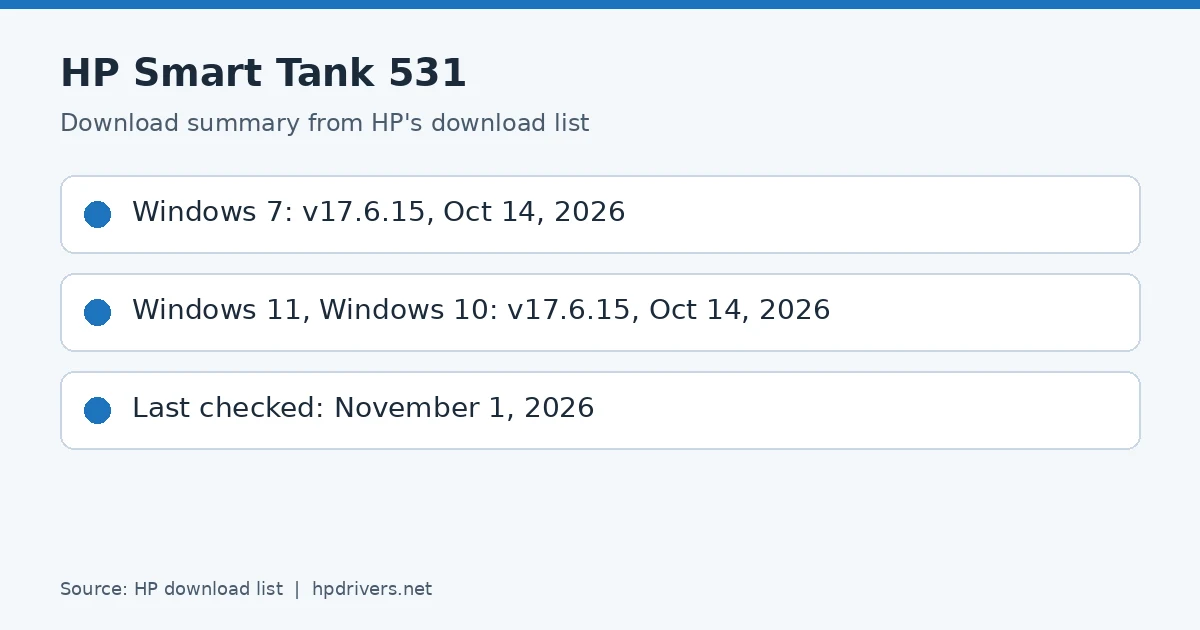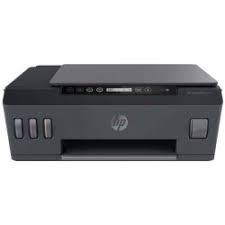
Looking for the HP Smart Tank 532 driver? This page lists HP’s official software for the whole HP Smart Tank 530 Wireless All-in-One series. HP lists some packages for specific models in the series, so check that the package title includes your model. For Windows 7 (32-bit and 64-bit), the package most people need is the HP Easy Start Printer Setup Software (Internet connection required for driver installation). For Windows 11, HP lists the HP Easy Start Printer Setup Software (Internet connection required for driver installation).
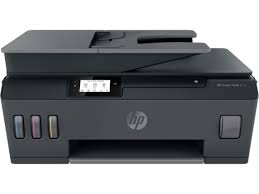
Recommended downloads
Files download directly from HP’s official servers. hpdrivers.net does not host or modify them.
All downloads for the Smart Tank 530 Wireless All-in-One
Windows
10, 8.1, 8, 7 (32-bit and 64-bit)
File details
File:HP_Smart_Tank_530_570_2413B.exe10, 7 (32-bit and 64-bit)
File details
File:Full_Webpack-50.3.4603_1-ST530_Full_Webpack.exe10, 7 (64-bit)
File details
File:Basic_Webpack_x64-50.3.4603-ST530_Basicx64_Webpack.exeFile details
File:Basic_Webpack_x86-50.3.4603-ST530_Basicx86_Webpack.exeOther HP software listed for this series
Windows 10, 8.1, 7 (32-bit and 64-bit)
Windows 10, 8.1, 7 (32-bit and 64-bit)
Windows 10, 7 (32-bit and 64-bit)
Windows 10, 8.1, 7 (32-bit and 64-bit)
Linux
HP lists Linux support for this series through its HPLIP project, outside the regular download list: HP’s Linux printing page (HPLIP).
Installing the Smart Tank 530 Wireless All-in-One driver
HP Easy Start needs an internet connection; it downloads the right software for your exact model during setup. For step-by-step instructions, see our guide to installing an HP printer driver.
Firmware update 001.2413B
The newest firmware HP lists for the Smart Tank 530 Wireless All-in-One is version 001.2413B, released Apr 23, 2024. HP’s notes for it: Security and general fixes.
- Keep the printer and the computer switched on until the update has finished.
Specifications that matter for setup
Paper handling and hardware details
Values below are HP’s published figures for the Smart Tank 530 Wireless All-in-One; they help you check that this page matches your printer before you download anything.
Grinding or metallic noise from the Smart Tank 532
HP’s article on noisy inkjet printers is on the support list for the Smart Tank 530 series. HP says some noise is normal, especially at start-up, but loud, metallic or grinding sounds can point to a paper jam, a stalled carriage or another problem. HP gives the tasks in order and says to try the printer after each one.
Remove paper and foreign objects
- Look in every place a jam can occur and take out jammed paper or foreign objects: the automatic document feeder, the rear access door, under the paper path cover, the bottom cleanout door, and the input and output trays.
- HP says not to use sharp tools such as tweezers or needle-nose pliers, and to pull paper straight out with both hands.
Check that the carriage moves freely
- Turn the printer on, open the carriage access door, wait until it is idle and then unplug the power cord, because HP warns of electric shock risk if you move the carriage with the power connected.
- Remove any paper that blocks the carriage, take out the cartridges or printhead and check them for damage, and wipe inside the carriage with a lint-free cloth.
- Refit them, slide the carriage across the width of the printer and back, close the door, reconnect the cord and turn the printer on.
Source: HP Support, HP inkjet printers – The printer makes a grinding noise.
‘Paper Jam’ errors, real or false, on the Smart Tank 532
HP covers the Smart Tank 530, 531, 538, 615, 617, 618, Plus 550, 555, 570, 571, 651 and 655 in one ‘Paper Jam’ article. It starts with a point worth knowing: the printer can report a paper jam even when no paper is stuck, and the steps apply to both real and false jams.
How HP organises the fix
- Do the tasks in order and use the printer after each one.
- Start by clearing paper from the places a jam can hide. HP lists the input tray, the output tray, inside the printer, underneath the printer and the automatic document feeder, and says to continue to the next area if you do not find it in the first.
- The article also has a task on cleaning the paper feed rollers. Its detailed steps are behind expandable sections on HP’s page, so open the article for them.
Source: HP Support, HP Smart Tank 500, 600 Printers – ‘Paper Jam’ error.
Blinking lights on the Smart Tank 530
HP has a lights article for the Smart Tank 500, 510 and 530. Wireless models have a Wireless button and light, and there is an Ink/Printhead light, a Resume light and a number counter.
Patterns HP describes
- Wireless light blinks and the wireless icons show: the setting is on but no signal is found, so move the printer closer to the router.
- Wireless and Attention icons blink: a connection error. Press Cancel, then press Wireless and Information together to print the Wireless Network Test Results page.
- Ink/Printhead light, Alert and a printhead icon blink: remove the printhead the dots point to, check for tape or plugs and reinsert it.
- Resume, Power, A and Alert blink: the alignment failed, so press Resume to print the alignment page again.
Source: HP Support, HP Smart Tank 500, 510, and 530 printers – Blinking lights.
Self-test pages on the Smart Tank 530
HP’s reports article lists the button combinations for the 500, 510 and Plus 550 printers. Load plain paper first.
Buttons for each report
- Printer Status Report: hold Cancel.
- Print Quality Diagnostic Page: press Resume and Color Copy together.
- Printer Information Page: press Information. Hold Information for three seconds for the Wireless Quick Start Guide.
- Wireless Network Test Results and Network Configuration page: Information and Wireless together.
Source: HP Support, HP Smart Tank 500, 600 Printers – Printing self-test pages.
When the Smart Tank 530 does not pick up paper
HP’s article names the Smart Tank 530, 531 and 538 among the models. On printers without a touchscreen the Alert icon and Paper Error icon blink and the Resume light is on or blinks.
Step 1: check and reload
- Use good paper stored dry and cool, because feed problems occur more often in humid places. Do not load pages that are already printed, and wait for the printer to finish before adding paper.
- HP continues with the paper guide, rollers and an underneath check in later steps.
Source: HP Support, HP Smart Tank 500, 600 Printers – ‘Out of Paper’ Displays, Printer Does Not Pick Paper.