
Looking for an HP DesignJet T850 MFP driver download? This page lists HP’s official software for the HP DesignJet T850 36-in Multifunction Printer. HP lists some packages for specific models in the series, so check that the package title includes your model. For Windows 11, Windows 10, 8.1, 7 (64-bit), the package most people need is the HP Windows HPGL2 Driver. For a Mac, HP lists HP DesignJet Mac Raster Driver.
Recommended downloads
Files download directly from HP’s official servers. hpdrivers.net does not host or modify them.
Models covered by this page
All 2 models share one download list at HP:
HP DesignJet T850 36-in Multifunction HP DesignJet T850 36-in Multifunction Printer with 2-year Warranty
Which Windows package should you choose?
HP publishes 3 kinds of Windows package for the DesignJet T850 Multifunction Printer:
- HP DesignJet and PageWide XL Windows Printer Driver installer (v4.0.0.70, Oct 15, 2025).
- Firmware update (v6.40.1.7, Oct 27, 2026): updates the printer itself, not your PC.
- Driver-only installer (v61.242.12211.50, Jul 02, 2024): print driver only, for PCs that can’t or shouldn’t take the full package.
All downloads for the DesignJet T850 Multifunction Printer
Each DesignJet T850 MFP driver download below links straight to the file on HP’s servers; HP’s own support page for the DesignJet T850 MFP lists the same files.
Windows
10, 8.1 (32-bit and 64-bit)
File details
File:HP_DesignJet_T850MFP_T950MFP_XT950MFP_Firmware_6.40.1.7-202610221106_prod.bdlmacOS
File details
File:HP_DesignJet_T850MFP_T950MFP_XT950MFP_Firmware_6.40.1.7-202610221106_prod.bdlOther HP software listed for this series
Windows 10, 8.1, 8, 7 (32-bit and 64-bit)
Windows 10 (64-bit)
Windows 10, 8.1, 8, 7 (64-bit)
Windows 10, 8.1, 7 (32-bit and 64-bit)
Windows 8 (32-bit)
Installing the DesignJet T850 Multifunction Printer driver
Once the DesignJet T850 MFP driver download from the table above is complete, follow these steps.
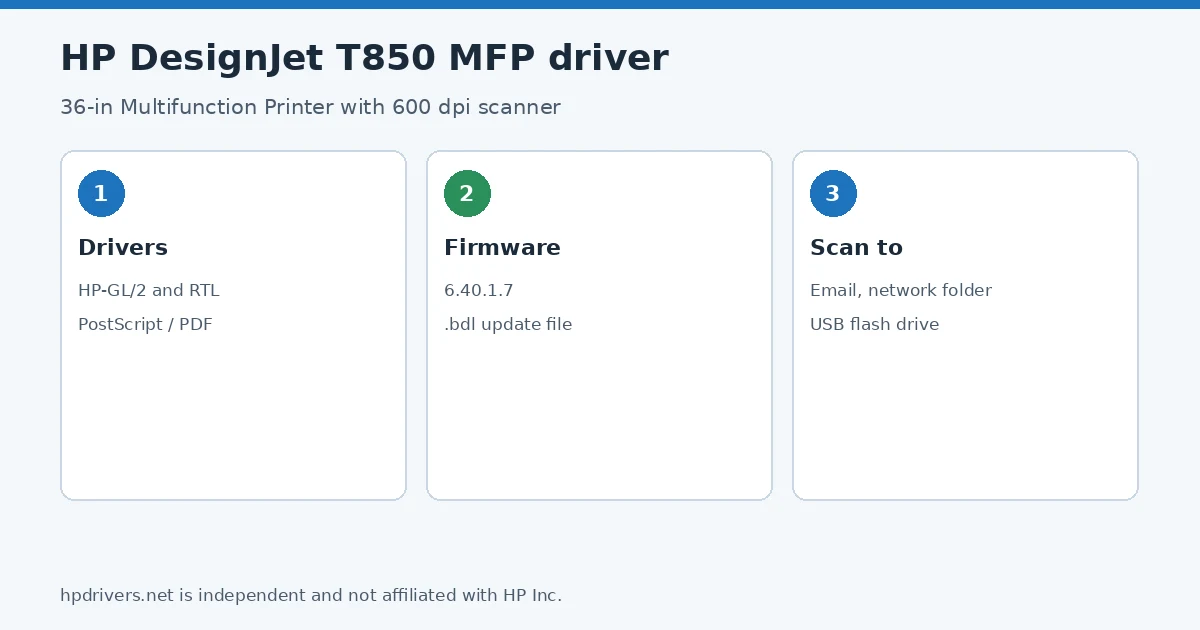
- Download the driver for your workflow from the table above (HP-GL/2 and RTL for CAD, PostScript/PDF if needed) or HP Smart for simple jobs.
- Connect the printer to your network and note its IP address from the control panel.
- Run the installer and choose the T850 MFP from the printers it finds.
- Open the Embedded Web Server in a browser and set up Scan to email and Scan to network folder before the first scan.
For step-by-step instructions, see our guide to installing an HP printer driver.
Firmware update 6.40.1.7
The newest firmware HP lists for the DesignJet T850 Multifunction Printer is version 6.40.1.7, released Oct 27, 2026. HP’s notes for it: "Always ready" functionality: Printer servicing regardless the device is turned off; Carriage jam troubleshooting improved: Instructions in the front panel; Improves for customer using HPGL2 driver.
- Keep the printer and the computer switched on until the update has finished.
Specifications that matter for setup
Paper handling and hardware details
Values below are HP’s published figures for the DesignJet T850 Multifunction Printer; they help you check that this page matches your printer before you download anything.
Scanning on the DesignJet T850 Multifunction
The MFP version of the T850 adds an integrated color scanner as wide as the printer’s 36-inch print width. HP’s guide gives a scan resolution of up to 600 dpi in 24-bit RGB color, 8-bit grayscale or 1-bit black and white. Scans can go to a network folder, an email address or a USB flash drive; email and network-folder destinations are set up first in the Embedded Web Server under Scan.
To scan, select Scan on the control panel, or feed the sheet directly: printed side up, centred on the scanner with the size markings, and pushed into the slot until the rollers take it. The scanner does not accept paper while the printer is printing, and the maximum scan length depends on the paper width and resolution; the panel warns you if a sheet is too long.
Based on HP user guide pdf_5759089 (“HP DesignJet T850 / T950 Printer Series User Guide”).
Copy and scan quality on the T850 MFP
HP’s troubleshooting chapter for copy and scan quality applies only to the MFP models. Its first step is to calibrate the scanner from the control panel; the second is the scanner diagnostic plot, which you print and then scan to check the scan bars.
On wide originals the plot helps to spot small color differences where two scan bars meet, or grain in large filled areas. HP’s guide shows ideal, acceptable and faulty examples; if the result looks like the faulty one after calibration, HP asks you to call support and describe the problem. The Scan edge-to-edge option, off by default, keeps the full scan instead of cropping it to the original’s edges.
Based on HP user guide pdf_5759089 (“HP DesignJet T850 / T950 Printer Series User Guide”).
Similar models
This page is the DesignJet T850 MFP driver download page for this model only. The DesignJet T850 printer without scanner has its own page: DesignJet T850 Printer driver download.
Advertisement