Independent download guide for HP printer and scanner drivers
hpdrivers.net is an independent website and is not affiliated with, endorsed by, or sponsored by HP Inc. Download links point to HP's official servers (ftp.hp.com). Read the full disclaimer
HP Smart Tank 7005 Series Driver Download for Windows 11/10/7 (32-Bit)(64-Bit)
Download HP Smart Tank 7005E Printer Driver
HP Easy Start Printer Setup Software – Offline Use Only
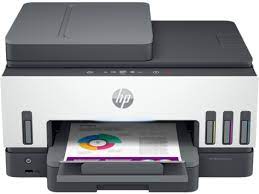
HP Smart Tank 7005 e Printer
Details HP Smart Tank 7005e Driver
The full solution software includes everything you need to install and use your HP printer. This collection of software includes the complete set of drivers, installer software, and other administrative tools.
Fix and enhancements: Handled blank screen issue due to deprecation of Internet Explorer
Microsoft Windows 11 All Editions (64-bit), Microsoft Windows 10 (32-bit), Microsoft Windows 10 (64-bit), Microsoft Windows 7 (32-bit), Microsoft Windows 7 (64-bit)
HP Easy Start Printer Setup Software (Internet connection required for driver installation)
HP Easy Start provides guided setup and drivers for your HP printer. Furthermore, installation Software and Driver-Includes print, scan, latest features, and solutions.
Fix and enhancements: Improved user experience. Moreover, performance Optimizations. Additionally, added support for newest printer models.
Operating Systems : Microsoft Windows 11 All Editions, Microsoft Windows 10 (32-bit), Microsoft Windows 10 (64-bit)
Installation Software and Driver-Includes print, scan, latest features, and solutions.
Version : 16.7.5 Release date: Jul 18, 2024 File Name : HPEasyStart_16_7_5.exe
Looking for the HP Smart Tank 6005 driver? This page lists HP’s official software for the whole HP Smart Tank 6000 series. HP lists some packages for specific models in the series, so check that the package title includes your model. For Windows 11; Windows 10 (32-bit and 64-bit), the package most people need is the HP Easy Start Printer Setup Software (Internet connection required for driver installation). For a Mac, HP lists Install HP app to complete setup and support.
Last checked against HP’s download list: November 10, 2026 · Checked by H&G
HP Smart Tank 6005
Recommended downloads
Windows 11; Windows 10 (32-bit and 64-bit): HP Easy Start Printer Setup Software (Internet connection required for driver installation)Version 17.6.15 · Released Oct 14, 2026 · 26.5 MB
HP Easy Start needs an internet connection; it downloads the right software for your exact model during setup. For step-by-step instructions, see our guide to installing an HP printer driver.
Specifications that matter for setup
Connections
1 Wi-Fi Direct; 2 Hi-Speed USB 2.0 (device)
Wi-Fi
Yes, 2.4/5G dual band Wi-Fi, Wi-Fi Direct
Mobile printing
Apple AirPrint; Mopria™ certified; HP Print Service Plugin (Android printing); HP app; Wi-Fi® Direct Printing
Print languages
HP PCL 3 GUI
Functions
Print, Scan, Copy, Wireless
Print speed (black)
Normal: ISO speeds measured using ISO/IEC 24734
Recommended monthly volume
400 to 800
Two-sided printing
Automatic
Scanner
Flatbed
Scan resolution
Up to 1200 dpi
Scan file formats
JPG; PDF; PNG; TIFF
Ways to scan
Front Panel Copy; HP Software
Ink supplies HP lists for the Smart Tank 6000
HP’s specifications name these replacement supplies for the Smart Tank 6000:
HP 32XL 135-ml Black bottle (~6000 pages)
HP 31 70-ml Cyan bottle (~8000 pages)
HP 31 70-ml Magenta bottle (~8000 pages)
HP 31 70-ml Yellow bottle (~8000 pages)
Paper handling and hardware details
Values below are HP’s published figures for the Smart Tank 6000; they help you check that this page matches your printer before you download anything.
Paper input tray
150-sheet input tray
Output tray
100-sheet output tray
Paper sizes
Letter; Legal; Government Legal; Executive; Statement; 4 x 6 in; 5 x 7 in; 8 x 10 in; L; Photo 2L; Envelope( #10, Monarch, 5.5 bar); Card (4 x 6 in, 5 x 8 in)
Media types
Plain Paper, HP Photo Papers, HP Matte Brochure or Professional Paper, HP Matte Presentation Paper, HP Glossy Brochure or Professional Paper, Other Photo Inkjet Papers, Other Matte Inkjet Papers
Paper weight
Plain paper: 16 to 28 lb; Envelopes: 20 to 24 lb; Cards: up to 110 lb; Photo paper: up to 66 lb
Print quality (black)
Black: Up to 1200 x 1200 rendered dpi Color: Up to 4800 x 1200 optimized dpi color when printing from a computer and 1200 input dpi
Control panel
2-line LCD Smart guided buttons, 2.0 x 0.4 in (50.8 x 10.16 mm)
Processor
800 MHz
Power use
0.10 Watts (Off Mode), 2.00 Watts ( Sleep mode)
Size (W x D x H)
16.83 x 14.33 x 7.82 in
Weight
6.38 kg 14.07 lb
Warranty
One-year or 30,000 pages limited hardware warranty, whichever is earlier from the date of purchase. For more info please visit us at http://support.hp.com
Printhead errors on the Smart Tank 6000 series
HP has a printhead article for the Smart Tank 6000, 7000, 7300 and 7600. It applies when the printer does not prime after the printheads are installed. On models without a touchscreen, such as the 6000 series, the Attention light and one or both printhead icons blink.
Which printhead is at fault
A blinking tri-color printhead icon points to the tri-color printhead, a blinking black printhead icon points to the black one, and both blinking points to both.
What HP says to do
Make sure the ink tanks are at least half full and there is paper in the tray.
Lift the ink access door, wait for the carriage to stop, and press the blue button on the carriage to open the printhead cover.
Press down on the printhead with the error to release it and pull it out, holding it by the sides and upright so ink does not leak.
Check that the plugs on top and the tape on the contacts of a new printhead are removed. HP warns not to touch the copper-colored contacts or the nozzles, and not to put the protective tape back.
Wipe only the contacts, on the printhead and in the carriage, with a dry lint-free cloth or swab, then reinstall the printhead.
On a Smart Tank 6000 series printer an E4 appears on the control panel and the Resume light blinks when pages stop feeding. HP’s article also covers the 670, 720, 750 and 7000 series and lists four jam locations: input tray area, inside the printer, rear of the printer and the document feeder (HP Smart Tank 750 and 7300 only).
HP’s steps
Input tray area: remove the paper, the input tray and the output tray, reach into the gap, pull the duplexer plate, remove any paper and put everything back.
Inside the printer: lift the ink access door and remove any paper you can reach at the printhead area.
Rear of the printer: open the rear door and remove the paper.
Press Resume after each step. HP also describes an automated roller clean: with the printer off and the tray empty, hold the Power button, press Color Copy three times and Black Copy seven times, then release Power; the printer turns on and cleans the paper path rollers.
HP’s pick-up article applies to the Smart Tank 670, 720, 750, 790, 6000, 7000, 7300 and 7600. On printers without a touchscreen the Attention light and Document icon blink and the Resume and Cancel lights are on.
HP’s advice
Paper problems come from ripped, dusty, curled, wrinkled or bent paper. Use good quality paper that meets the printer specifications and store it somewhere dry and cool.
HP then walks through checking and reloading the paper and cleaning the pick rollers, and gives separate steps for the document feeder on models that have one.
Looking for the HP Smart Tank 755 driver? This page lists HP’s official software for the whole HP Smart Tank 750 series. It also covers the HP Smart Tank 758, which HP lists as a model of the same 750 series. HP lists some packages for specific models in the series, so check that the package title includes your model. For Windows 7 (32-bit and 64-bit), the package most people need is the HP Easy Start Printer Setup Software (Internet connection required for driver installation). For Windows 11, HP lists the HP Easy Start Printer Setup Software (Internet connection required for driver installation). For a Mac, HP lists Install HP app to complete setup and support.
Last checked against HP’s download list: November 10, 2026 · Checked by H&G
HP Smart Tank 755
Recommended downloads
Windows 7 (32-bit and 64-bit): HP Easy Start Printer Setup Software (Internet connection required for driver installation)Version 17.6.15 · Released Oct 14, 2026 · 26.5 MB · HP rating: Recommended
Windows 11; Windows 10 (32-bit and 64-bit): HP Easy Start Printer Setup Software (Internet connection required for driver installation)Version 17.6.15 · Released Oct 14, 2026 · 26.5 MB
HP Easy Start needs an internet connection; it downloads the right software for your exact model during setup. For step-by-step instructions, see our guide to installing an HP printer driver.
HP Smart Tank 758 and the 750 series
HP’s support site files the Smart Tank 758 All-in-One under the Smart Tank 750 series: its software and driver page is a model page of the 750 series, and HP’s setup guide for it uses the same series address as the 755. The 758 has its own product number (28B79A), as the 755 has (28B72A), but the downloads are the series packages on this page: HP Easy Start, the Smart Tank 750/7300 firmware, the HP Universal Scan packages and the HP Smart app.
For the 755, HP also lists the Easy Start offline installers with PSA, including an ARM64 build for Windows on ARM PCs. If your printer label says 758, use the same package.
Firmware update 002.2630B
The newest firmware HP lists for the Smart Tank 750 is version 002.2630B, released Sep 15, 2026.
Keep the printer and the computer switched on until the update has finished.
Specifications that matter for setup
Connections
Hi-Speed USB 2.0; Wi-Fi; LAN
Wi-Fi
Yes, 2.4/5G dual band Wi-Fi, Wi-Fi Direct
Mobile printing
Apple AirPrint; Mopria™ certified; HP Print Service Plugin (Android printing); HP app; Wi-Fi® Direct Printing
Print languages
HP PCL 3 GUI
Functions
Print, Scan, Copy, ADF, Wireless
Recommended monthly volume
400 to 800
Two-sided printing
Automatic
Scanner
Flatbed, ADF
Scan resolution
Up to 1200 dpi
Document feeder
Standard, 35 sheets
Scan file formats
JPG; PDF; PNG; TIFF
Ways to scan
Front Panel Copy; HP Software; EWS
Ink supplies HP lists for the Smart Tank 750
HP’s specifications name these replacement supplies for the Smart Tank 750:
HP GT53 90-ml Black bottle (~4000 pages)
HP 53XL 135-ml Black bottle (~6000 pages)
HP GT52 70-ml Cyan bottle (~8000 pages)
HP GT52 70-ml Magenta bottle (~8000 pages)
HP GT52 70-ml Yellow bottle (~8000 pages)
Paper handling and hardware details
Values below are HP’s published figures for the Smart Tank 750; they help you check that this page matches your printer before you download anything.
Paper input tray
250-sheet input tray
Output tray
100-sheet output tray
Media types
Plain Paper, HP Photo Papers, HP Matte Brochure or Professional Paper, HP Matte Presentation Paper, HP Glossy Brochure or Professional Paper, Photo Inkjet Papers, Matte Inkjet Papers
Print quality (black)
Black: Up to 1200 x 1200 rendered dpi Color: Up to 4800 x 1200 optimized dpi color when printing from a computer and 1200 inp ut dpi
Control panel
Twisted Pneumatic Positive, Reflective, LCD 2.8 x 0.5 in (70 x 12 mm)
Processor
800 MHz
Power use
0.1 watts (off);1.10 watts (sleep)
Warranty
One-year or 30,000 pages limited hardware warranty, whichever is earlier from the date of purchase. For more info please visit us at http://support.hp.com
E codes and lights on the Smart Tank 750
HP covers the Smart Tank 670, 720, 750 and 790. On the 670, 720 and 750 the number counter shows E plus a digit when the printer is in an error state.
The codes
E1 or E2: the paper in the tray does not match the paper settings, so press Cancel, load the right paper and resend.
E3: the printhead carriage has stalled. HP says to lift the ink access door, remove paper or objects blocking the carriage, and not to open the printhead cover.
E4: a paper jam. E5: the scanner is not working, so restart and scan again.
E6: reset the printer (unplug, wait 60 seconds, plug into the wall).
E7 with ink icons blinking: a tank is empty, and the blinking letter (K, Y, M or C) says which one to refill.
E8 is a fatal error and E9 a firmware update error. HP says to turn the printer off and on.
Power light
Solid means ready, dim means sleep after about five minutes, and blinking quickly means the ink access door is open or an error exists. HP adds that the printer turns itself off after two hours of inactivity when wireless, Wi-Fi Direct and Bluetooth are off and no USB cable is connected.
If the printer does not prime after the printheads are installed, HP says the software shows Printheads missing or Printhead Problem, or the Attention light and a printhead icon blink.
Finding and reseating the printhead
The icon that blinks tells which head failed: tri-color, black or both.
Check that the ink tanks are at least half full and paper is loaded. Lift the ink access door, wait for the carriage to stop and check that the printhead cover is closed.
Press the blue button on the carriage to open the cover, press the failing printhead down and pull it out, holding it upright by its sides. Confirm the plugs and the tape on the contacts are removed, and do not touch the copper contacts or nozzles.
Skewed copies and scans from the Smart Tank 750 document feeder
HP has an article for the Smart Tank 750, 790, 7300 and 7600 when copies or scans from the automatic document feeder come out skewed.
Limits and steps
The feeder takes plain paper of 60 to 80 gsm in A4, Letter or Legal, and HP says not to load more than 35 sheets. Originals go in with the side to be scanned facing up.
Flex the stack in a U shape and then the other way, remove folded or torn pages, and do not mix paper types.
Clean the feeder rollers and separator pad with a lint-free cloth dampened with distilled, filtered or bottled water, with the printer off and unplugged.