hpdrivers.net is an independent website and is not affiliated with, endorsed by, or sponsored by HP Inc. Download links point to HP's official servers (ftp.hp.com). Read the full disclaimer

HP Printer ‘User Intervention Required’ in Windows: What HP Says to Do

When Windows shows User Intervention Required for your HP printer and nothing prints, HP says the cause is usually one of three things: a printer error condition, corrupted print jobs, or a wireless connection problem. HP’s Windows guide for the message lists its fixes in a fixed order, from the quickest to the most involved. This article follows that order, explains what each step does, and says when to stop and ask for service.
Last checked against HP’s published support information: November 8, 2026 · Checked by H&G
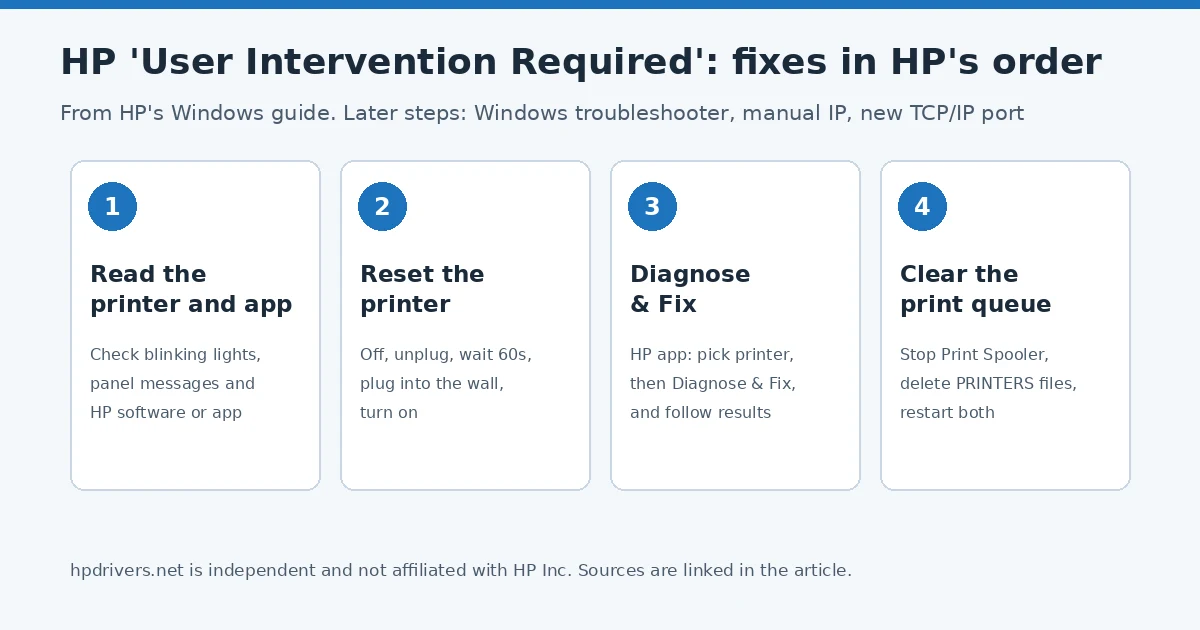
HP User Intervention Required: four fixes in HP's order, from reading the panel to clearing the print queue

The short version

  1. Look at the printer first: blinking lights or a message on the panel, in the HP software or in the HP app.
  2. Reset the printer: off, unplug, wait 60 seconds, plug it straight into the wall.
  3. Run Diagnose & Fix in the HP app.
  4. Clear the Windows print queue, then try the Windows printer troubleshooter.
  5. Only then work on the network side: a manual IP address and a new TCP/IP port.

What the User Intervention Required message means

User Intervention Required is a status Windows shows for the printer when something needs attention and printing is blocked. HP describes it as a message on the computer while the printer does not print, and it does not tie the message to one cause. It names a printer error condition, corrupted print jobs and wireless connection problems, and its steps cover all three, which is why they are ordered the way they are: the cheap checks that fix the first two come before the network work.

Step 1: Check for blinking lights and messages

Look at the printer’s control panel. If lights are blinking or an error is shown, HP says to follow the instructions on the panel or in the printer software. If the panel gives none, HP says to search its support site for your model plus the blinking lights or the exact error. Also open the HP software or the HP app, because they sometimes show instructions for printer error states that the panel does not.

Step 2: Reset the printer

  • If the printer has a rechargeable battery, remove it.
  • Turn the printer off with the power button. If it will not turn off, unplug the power cord from the printer.
  • Unplug the power cord from the power source and wait 60 seconds.
  • Connect the cord directly to a wall outlet and to the printer, then turn the printer on.

Step 3: Run Diagnose & Fix in the HP app

HP points to the Diagnose & Fix tool in the HP app for Windows and macOS. Open the app, click your printer, then click Diagnose & Fix (it can also be in the Printers menu or under Diagnostics). Click Start, wait for the analysis to finish without closing the app, and follow the instructions on the results screen. If you do not have the app yet, HP says to get it from 123.hp.com or your app store; our HP app guide explains the change from HP Smart. The older Print and Scan Doctor is no longer the tool HP points to, as we explain in this article.

Step 4: Reset the Windows printing environment

This clears corrupted print jobs, one of HP’s three causes. HP gives these steps:

  1. Turn the printer off and unplug its power cord.
  2. In Windows, open Services, right-click Print Spooler and click Stop, then close the window.
  3. Open File Explorer and go to C:, Windows, System32, spool, PRINTERS. Delete all the files in the PRINTERS folder, but not the folder itself.
  4. Shut down the computer. Reconnect the printer’s power cord and turn the printer on, then turn the computer on.

Step 5: Run the Windows printer troubleshooter

Search for Troubleshoot settings in Windows, click Other troubleshooters, and click Run next to Printer. Select your printer if asked and click Next.

Step 6: Give the printer a manual IP address

This is the wireless connection part of HP’s list. Print a Network Configuration Report (in the HP app under Printer Reports, or from the control panel’s Wireless or Network Settings menu; on printers without a touchscreen HP says to press and hold the Wireless and Information buttons, and the exact buttons vary by model). On the report, check that the wireless status is Connected, and note the IP address, subnet mask, default gateway and the Embedded Web Server URL.

From a computer on the same network, open that URL in a browser, go to the Network (or Networking) tab, open Wireless, then IPv4 Configuration, and choose Manual IP. Click Suggest a Manual IP Address to fill the fields, or type the values from the report, then click Apply and wait for the change to be confirmed.

Step 7: Create a new TCP/IP port in Windows

Open Printers & scanners, click your printer, then Printer properties (on Windows 10 you may need to click Manage first). On the Ports tab click Add Port, choose Standard TCP/IP Port, click New Port, and enter the printer’s IP address with a port name you will recognize. Select the new port, click OK, then on the Device Settings tab set Automatic Configuration to Update Now. HP says the setting switches to Off a few seconds later. Click OK.

HP adds one caution here: do not uninstall duplicate printers with the same model name, because that can cause printing and scanning problems. For a printer that goes offline while Wi-Fi looks fine, our guide on HP printers that show offline covers the related checks.

When to stop and call service

If the message stays after all seven steps, HP says to service or replace the product. Contact HP Customer Support, and check your warranty status first, since repair fees might apply outside warranty.

Questions people ask

Is this a driver problem?

HP does not name the driver as a cause in this guide. Its first two causes are inside the printer and the print queue. If you do need to reinstall software for your model afterwards, our install guide covers the standard route.

Which step usually fixes it?

HP does not say. The order is built so that the quick steps come first, so start at step 1 and stop as soon as the printer prints.

Source: HP Support, HP Printers – ‘User Intervention Required’ Error (Windows).
Empty HP Cartridge: Can You Still Print? It Depends on the Number

Whether you can keep printing with an empty HP cartridge depends on the cartridge number, not on the printer family. HP’s guide on printing with one or more empty cartridges sorts its inkjet cartridges into three types: some printers keep printing, some refuse until every cartridge has ink, and two-cartridge printers can run on a single one. Find your cartridge number below and you have HP’s answer.

Last checked against HP’s published support information: November 8, 2026 · Checked by H&G
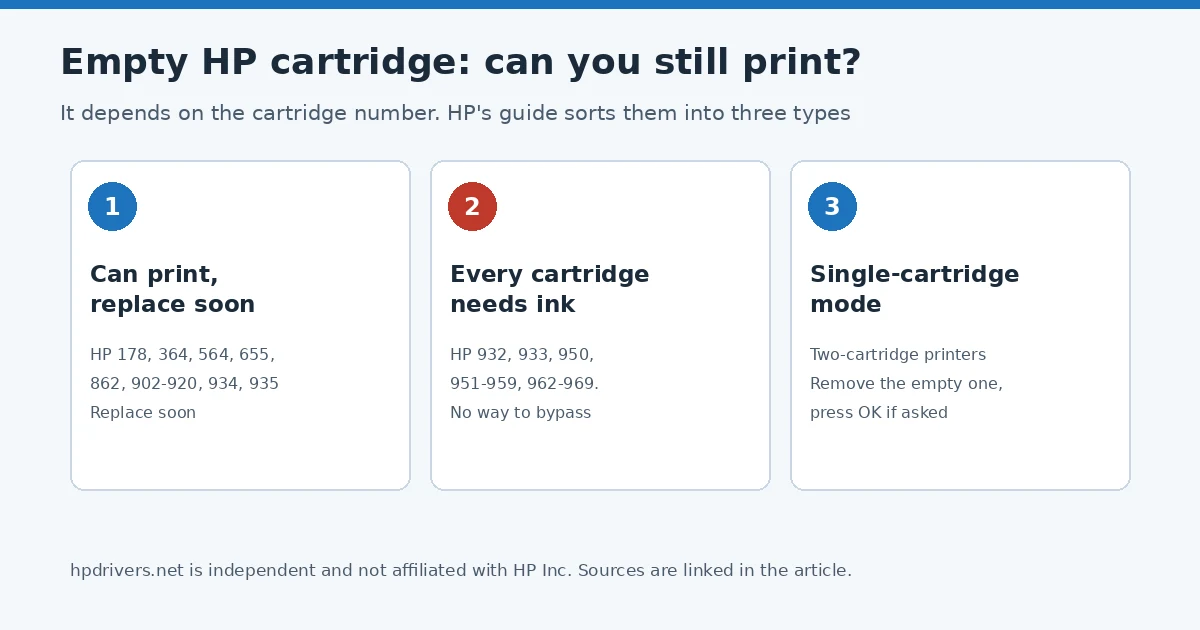
Empty HP cartridge: three types from HP's guide, can print, every cartridge needs ink, single-cartridge mode

The short version

  1. Look at the number on your cartridge, for example “HP 63” or “HP 950.”
  2. Match it to one of the three lists below.
  3. If it is on the “every cartridge needs ink” list, no setting will let you print with an empty one. Replace it.

Type 1: keep printing with an empty HP cartridge, but replace it soon

HP lists these cartridges: 178, 364, 564, 655, 862, 902 to 920, 934 and 935. HP says you can continue to print with one or more empty cartridges, but recommends replacing them as soon as possible to avoid printhead damage.

Type 2: every cartridge needs ink

HP lists: 932, 933, 950, 951 to 959 and 962 to 969. For these, HP says ink is required in all cartridges, both to print and to perform periodic servicing that prevents clogs and other print quality problems. HP states there is no way to bypass this feature.

If one of these messages appears, replace the cartridge it points to in order to print again: “The cartridges above must be replaced to resume printing,” “Cartridges Depleted,” or “Depleted cartridges must be replaced to resume printing.”

Type 3: two-cartridge printers can run on one

HP lists these numbers: 21, 22, 27, 28, 46, 56 to 68, 61/301, 63/302, 64/303, 65/304, 74, 75, 92 to 98, 110, 121 to 125, 129 to 131, 134, 135, 140, 141, 300 to 305, 308, 336 to 339, 342 to 344, 350, 351, 650 to 654, 662, 664, 667, 668, 675, 678, 680, 682, 683, 703, 704, 802 to 805, 818, 851, 852, 855 and 901.

These are the printers with one black and one tri-color cartridge. HP says they can print if one cartridge is empty. To continue, remove the empty cartridge, and select OK if a Single-cartridge mode message appears. With only the black cartridge in, prints are black and white (grayscale). With only the color cartridge in, colors print normally but black prints lighter than usual. HP says you can keep printing until the print quality becomes unacceptable.

What if my number is not on any list?

HP’s guide lists only the numbers above. If yours is missing, check the guide for your exact printer on HP’s support site rather than assuming it behaves like a similar model. Our cartridge compatibility pages show which cartridge numbers belong to which printer family, for example DeskJet, OfficeJet and ENVY printers.

Questions people ask

Will running on one cartridge hurt the printer?

For Type 1 cartridges HP warns about printhead damage and says to replace the empty cartridge as soon as possible. For Type 3 printers HP describes removing the empty cartridge as the way to continue, with the quality trade-off above.

My printer shows a message and will not print at all. Why?

If your cartridges are on the Type 2 list, that is the expected behavior according to HP. If a new cartridge is not recognized instead, see our article on the “Use SETUP cartridges” error, which applies to new printers.

Source: HP Support, HP inkjet printers – Print with one or more empty ink cartridges.

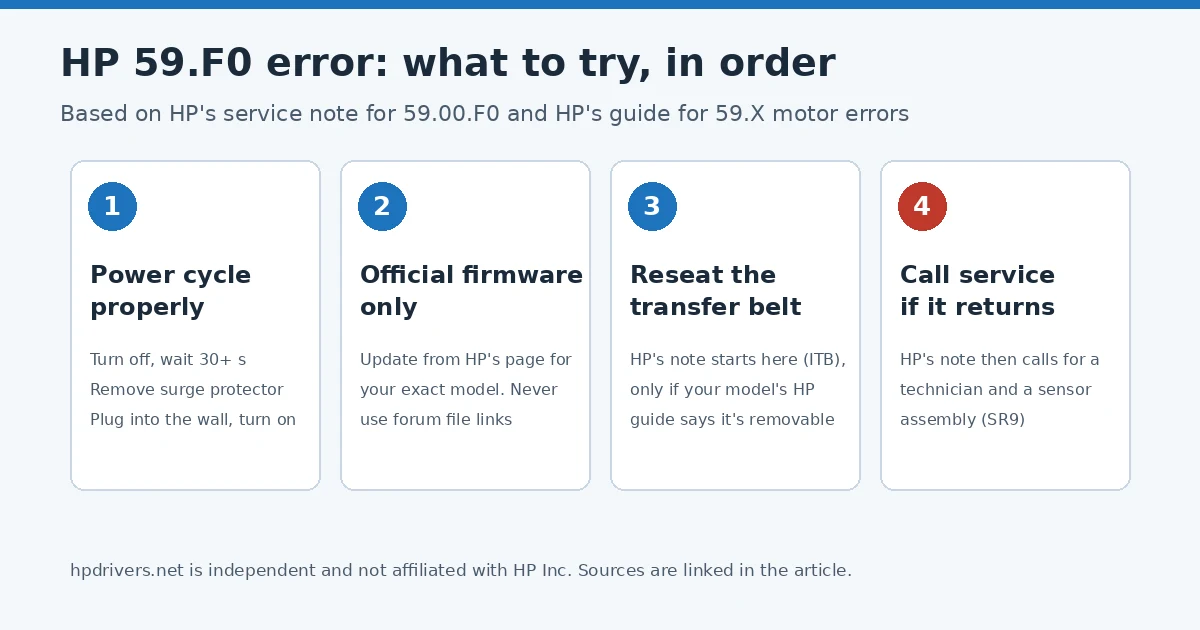
HP 59.F0 Error: What It Means and What You Can Safely Try

A HP 59.F0 error on a LaserJet is a hardware message, not a driver or software problem: the printer stops because something in its own mechanism did not do what it was told. HP does not publish a plain-language page for the 59.F0 code. What HP does publish is a short service note for the closely related 59.00.F0 code and a general guide for 59.X motor errors. This article puts those together, says clearly what is and is not known, and lists what is safe to try before you call for service.

Last checked against HP’s published support information: November 8, 2026 · Checked by H&G
HP 59.F0 error: four steps in order, from a proper power cycle to calling service

The short version

  1. The 59 family is a motor or mechanism error. Reinstalling drivers will not touch it.
  2. Do HP’s power reset first: turn the printer off, wait at least 30 seconds, take away any surge protector, plug it into the wall, turn it on and let it initialize.
  3. If the code comes back, HP’s own service note for 59.00.F0 says to remove and reinstall the ITB (the transfer belt unit), and after that to send a technician with a sensor assembly.
  4. Use firmware only from HP. Do not install “fix” files from forum links.

What HP says the 59.F0 error means

HP’s support site has a one-entry note titled 59.00.F0 T1 alienation mechanism failure. It is written for HP’s call agents, so it is short. It says to remove and re-install the ITB and make sure it is correctly installed. If the error persists, it says to send an on-site technician with the SR9 sensor assembly.

HP does not explain the wording in that note, and it does not describe the 59.F0 error in everyday language anywhere I could find. Reading it plainly: the failure is in a mechanism around the transfer belt unit, and the part HP expects to be replaced is a sensor assembly. That points at the printer’s inside, not at toner, paper, the network or the computer. This is my reading of HP’s note, not a quote from HP.

HP’s general guide for the LaserJet Pro 400 M401 describes the broader 59.X error the same way: “the product has experienced a problem with one of the motors,” with the same first action. That guide is for one model, but it shows how HP treats the 59 family.

Which printers show it

HP has no list of 59.F0 models that I could find. The code shows up in HP Community threads about the Color LaserJet CP3525 and CP4525, the LaserJet 500 color M551 (as 59.00 F0), and the Color LaserJet Pro M452 and M477 families. Those threads are user reports, so treat them as a sign of where the code appears, not as HP’s statement. If you have one of these models, the driver and firmware pages we link to point to HP’s own servers: Color LaserJet Pro M452, Color LaserJet Pro MFP M477, LaserJet Enterprise M551 and Color LaserJet Enterprise M553.

Is it the same as an F0.XX.XX.XX error?

No, and the two get mixed up. HP’s guide for the Color LaserJet Pro 4201 to 4203 and MFP 4301 to 4303 says that F0 and C1 are event codes mostly related to firmware events, not hardware issues. For those, HP says to turn the printer off and on, then update the firmware if it does not return to Ready, then do a factory reset if the code persists. A 59.F0 has the 59 in front, which is the motor and mechanism family above, so do not assume the firmware route fixes it.

What you can safely try for a HP 59.F0 error

1. Reset the printer the way HP describes

  • Turn the printer off and wait at least 30 seconds.
  • If you use a surge protector, remove it and plug the printer directly into a wall socket.
  • Turn it on and wait for it to finish initializing.

This is HP’s routine for 59.X and 79 errors on the M401, and it does no harm on other models. If the printer reaches Ready and prints normally, note when the code appears (at start-up, on the first color page, after a certain page count), because HP support will ask.

2. Update the firmware, from HP only

HP recommends a firmware update for F0 and C1 event codes. HP’s 59.00.F0 note does not mention firmware, so an update may or may not change anything for a 59.F0. It is still a reasonable check, because it is what HP asks for in the related F0 guide. Take the file from HP’s download page for your exact model, which is where our model pages send you.

3. Reseat the transfer belt unit, only if HP’s guide for your model shows it

HP’s service note starts with reinstalling the ITB. Whether the belt unit is something an owner may remove depends on the model. Look in your model’s HP user or service guide for the belt unit. If the guide shows it as removable, follow that guide exactly, with the printer off. If it does not, skip this step. I am not giving removal steps here because they differ by model and I have not verified them for any single model.

4. Stop and call service

If the code returns after the reset and a correct ITB reinstall, HP’s own note moves to a technician with a sensor assembly. Contact HP support or an authorized service provider for your model, and check your warranty status first. A repair estimate is worth getting before you decide whether an older printer is worth repairing.

What not to do

Several forum threads about 59.F0 contain links to files on personal file-sharing accounts, offered as “the fix.” In one HP Community thread about a LaserJet Pro MFP 477, a reply links to a Dropbox folder and says it works for M477 and M452 printers. Do not flash firmware from a source like that, whatever the 59.F0 error thread promises. A bad firmware file can leave a printer unusable, and HP’s support pages are the only place I would take firmware from. Also avoid paid “59.F0 repair” tools and support phone numbers found in search ads. Nothing in HP’s notes calls for either.

Questions people ask

Is 59.F0 a driver problem?

Nothing in HP’s notes points to a driver. The code is raised by the printer itself. If you need a driver for other reasons, our install guide covers the standard route.

Is 59.F0 the same as 59.00.F0?

They look like the same family, and the control panel text can differ by model and firmware. HP’s published note uses 59.00.F0. I could not find an HP statement that treats them as identical, so check your model’s message list if you have it.

Can I keep printing with it?

If the printer stops with the code and will not clear after the reset, it needs service. HP does not describe a workaround.

Sources: HP Support, 59.00.F0 T1 alienation mechanism failure; HP Support, HP LaserJet Pro 400 Printer M401 – Interpret Control Panel Messages; HP Support, HP Color LaserJet Pro 4201, 4202, 4203, MFP 4301, 4302, 4303 – F0.XX.XX.XX and C1.XX.XX.XX errors troubleshooting guide. Model list based on HP Community threads, for example 59.F0 error message not associated with hardware issues (M477, 2019).