
Scan to Email lets you press Scan on the printer and send the file straight to an inbox. HP describes two ways to set it up on supported models: with an HP account through the HP app, or without one by entering your email server details in the printer’s web page. This guide covers both, plus the Windows Scan to Computer setting that people often confuse with it.
Quick check
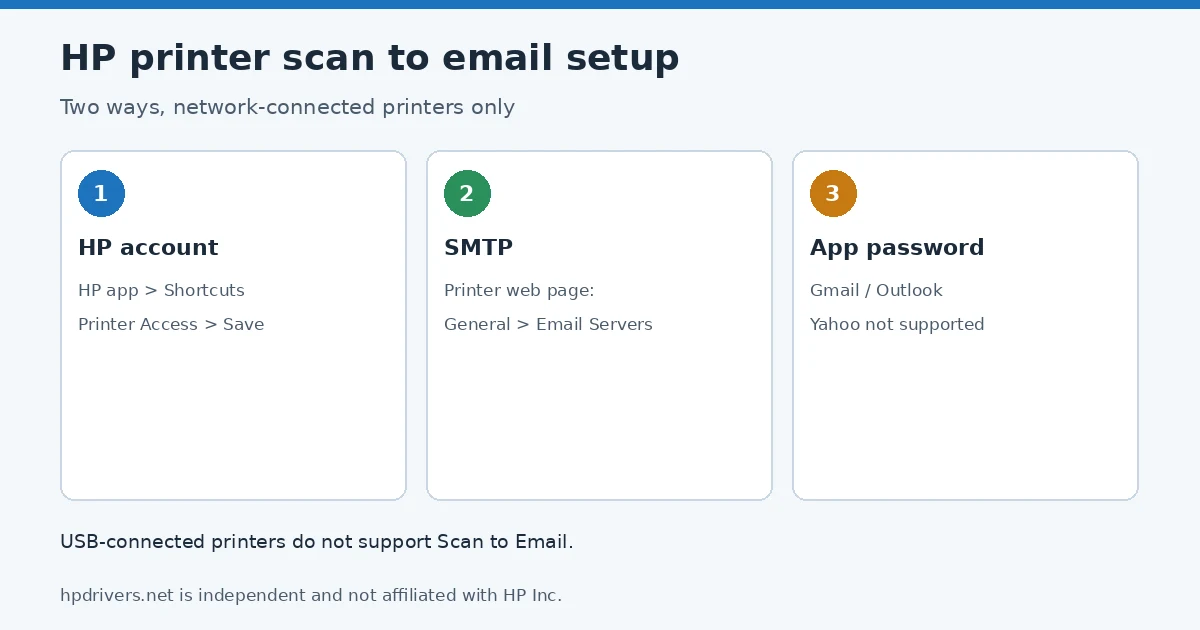
- Printer supports HP app shortcuts: use the HP ID method (step 1), the one HP recommends.
- You want to use your own mail account: SMTP setup with an app password (step 2).
- Printer connected by USB: HP says Scan to Email is not supported on USB-connected printers.
Which method fits your printer
HP’s list of control panel scan methods shows which models offer which options. For example, OfficeJet Pro 8120 and 8130 series list scan to computer, email and cloud; OfficeJet Pro 9120, 9130, 9720 and 9730 series and Color LaserJet Pro MFP 3301–3304, 3388 and 4301–4303 series add network folder and SharePoint. HP also recommends using the HP app to scan. If your model is not in HP’s list, check your model’s own page.
Step 1: Scan to Email with an HP ID account (recommended)
- Sign in to the HP app, select your printer, click Shortcuts, then the settings icon, then Printer Access.
- Select or set an access period and click Save. A “Shortcuts access enabled!” message appears.
- On the printer, touch Scan, then Scan to Email, and select the receiver’s address.
- Change any settings, touch Scan, then OK. To add pages, touch Add; when done, touch Finish.
HP says the file reaches the receiver within a few minutes. This route needs a network-connected printer; it is not supported over USB.
Step 2: Scan to Email without an HP ID (select printers)
You need administrative access to the printer, the SMTP server name and port, and the authentication details of the outgoing server.
Create an app password
| Mail account | What HP says |
|---|---|
| Gmail | Turn on 2-Step Verification, then create an app password under Security. A 16-character code is generated; save it for the setup. |
| Hotmail, Outlook | An app password is needed when two-step verification is on. Create one under Advanced security options; a 16-character code is generated. |
| Yahoo | Not supported, because Yahoo has discontinued app passwords. |
| Work accounts (Google Workspace, Office 365) not ending in gmail.com, hotmail.com or outlook.com | Ask your email provider or administrator. |
Enter the settings in the printer’s web page
- Make sure the printer and your computer are on the same network. On the printer, swipe down the notification pane to see the IP address (or see how to find it), and type it into a browser.
- Open General > Email Servers and click the Add icon. Choose SMTP server, or User-defined email profile if you use several servers.
- Enter the display name, sender address, SMTP server name, port and maximum email size. HP notes that free accounts typically limit attachments to 10 MB to 50 MB. Turn on Always Use Secure Connection (SSL/TLS).
- If the server needs a login, select Server Requires Authentication and enter your email address and the app password.
- Optionally enable a Security PIN, click Apply, then select the new profile and use the Test icon. A test email arrives if it worked.
HP says not to enable Validate Certificates if no certificate was imported into the printer.
Scan to Computer is a different setting
To scan from the printer’s control panel to a Windows PC, HP says to install HP Universal Scan Software. Then open HP Scan Assistant, select the printer, click Manage Scan to Computer and click Enable. HP states that macOS does not support scanning directly to a Mac from the control panel; use the HP app or Apple Image Capture. If the printer prints but will not scan, see HP printer not scanning but still prints.
Related problems
Sources
- HP Support: Scan from the control panel on HP OfficeJet Pro, ENVY, DeskJet, Color LaserJet Pro, DesignJet printers
hpdrivers.net is independent and not affiliated with HP Inc. Steps follow HP’s guide; the wording is ours.
Advertisement