
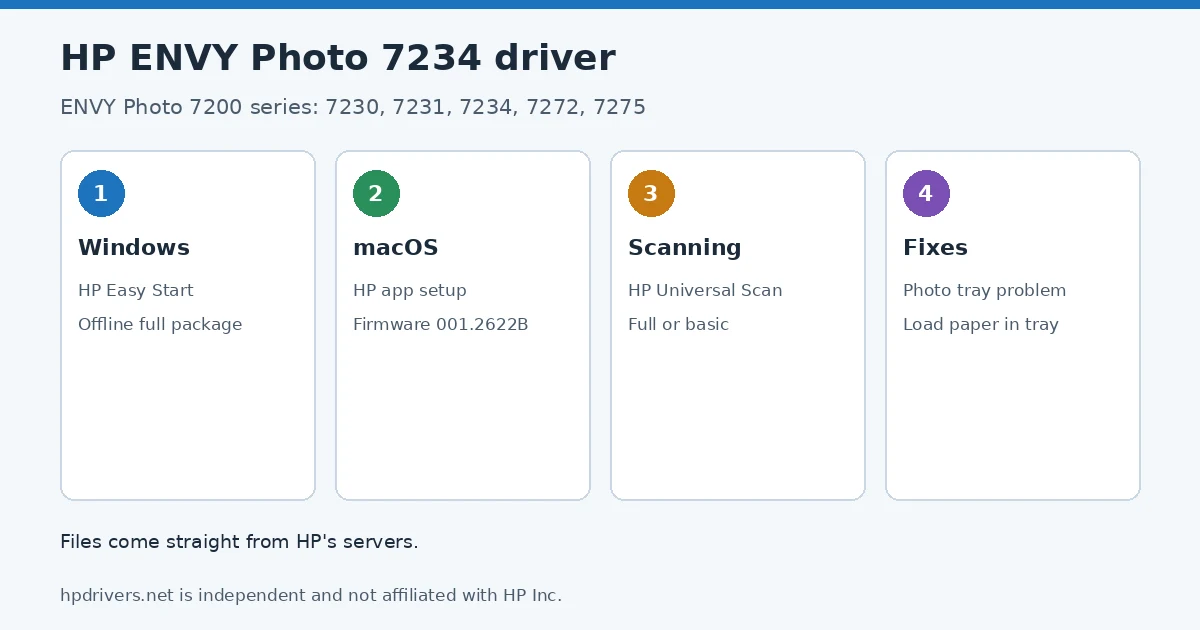
Looking for the HP Envy Photo 7234 driver? This page lists HP’s official software for the whole HP Envy Photo 7200 All-in-One Printer series: the Envy Photo 7230, Envy Photo 7231, Envy Photo 7234, Envy Photo 7272 and Envy Photo 7275. HP lists some packages for specific models in the series, so check that the package title includes your model. For Windows 11; Windows 10 (32-bit and 64-bit), the package most people need is the HP Easy Start Printer Setup Software (Internet connection required for driver installation). For a Mac, HP lists Install HP app to complete setup and support.
Recommended downloads
Files download directly from HP’s official servers. hpdrivers.net does not host or modify them.
Models covered by this page
All 5 models share one download list at HP:
HP Envy Photo 7230 HP Envy Photo 7231 HP Envy Photo 7234 HP Envy Photo 7272 HP Envy Photo 7275
All ENVY Photo 7234 driver downloads for the 7200 series
Windows
10, 7 (32-bit and 64-bit)
File details
File:ENP7200_2622B.exeFile details
File:HPEasyStart-17.2.17-EN7200_63_1_2123_Webpack.exe10 (32-bit and 64-bit)
File details
File:HPEasyStart-17.2.17-EN7200_63_1_4_1_Webpack.exemacOS
File details
File:ENP7200_2622B.dmgOther HP software listed for this series
Windows 10, 8.1 (32-bit and 64-bit)
Windows 10, 8.1 (32-bit and 64-bit)
Windows 10 (32-bit and 64-bit)
Installing the ENVY Photo 7234 driver
The steps below install the ENVY Photo 7234 driver the way HP’s package expects. Download the file only from the HP link in the table above, and follow the order shown here.
HP Easy Start needs an internet connection; it downloads the right software for your exact model during setup. For step-by-step instructions, see our guide to installing an HP printer driver.
Firmware update 001.2622B
The newest firmware HP lists for the Envy Photo 7200 All-in-One is version 001.2622B, released Jul 10, 2026. HP’s notes for it: Key product improvements and bug fixes.
- Keep the printer and the computer switched on until the update has finished.
Specifications that matter for setup
| Connections | 1 USB 2.0 client; 1 Wi-Fi 802.11a/b/g/n/ac, dual band; Wi-Fi 2.4/5Hhz |
|---|---|
| Wi-Fi | Yes, built-in self-healing dual band Wi-Fi 802.11a/b/g/n/ac |
| Mobile printing | HP app; Apple AirPrint; Chrome OS; Mopria Print Service; Mopria-certified; HP Print Service Plugin |
| Print languages | HP PCL 3 GUI |
| Functions | Print, Scan, Copy, Photo |
| Recommended monthly volume | 300 to 400 |
| Two-sided printing | Automatic |
| Scanner | ADF; Flatbed |
| Scan resolution | Up to 1200 dpi |
| Document feeder | Standard, 35 sheets |
| Scan file formats | JPG, BMP, TIFF, PDF, PNG |
| Ways to scan | Mopria Scan; Front-panel; HP app; EWS |
What comes in the box
HP lists these items with the Envy Photo 7200 All-in-One:
- HP Envy Photo 7200 All-in-one Printer
- HP Setup Black Original Ink Cartridge
- HP Setup Tri-color Original Ink Cartridge
- Setup Guide
- Reference Guide
- Power cord
Paper handling and hardware details
Values below are HP’s published figures for the Envy Photo 7200 All-in-One; they help you check that this page matches your printer before you download anything.
| Paper input tray | 125-sheet input tray, 15 sheet photo tray |
|---|---|
| Output tray | 60-sheet output tray |
| Paper sizes | Main Tray: Letter, Executive, Statement (8.5 x 5.5 in), 4 x 6 in, 5 x 7 in, 8 x 10 in, 4 x 12 in, Envelope (#10, A2); Photo Tray: 5 x 5 in, 4 x 6 in, 5 x 7 in |
| Media types | Plain Paper; HP Photo Papers; HP Matte Brochure or Professional Paper; HP Matte Presentation Paper; HP Glossy Brochure or Professional Paper; Other Photo Inkjet Papers; Other Matte Inkjet Papers |
| Paper weight | 16 to 80 lb |
| Print quality (black) | Black: Up to 1200 x 1200 rendered dpi Color: Up to 4800 x 1200 optimized dpi color (when printing from a computer and 1200 input dpi) |
| Control panel | 2.7" Color Touchscreen; 3 buttons (back, home, help); Articulating display |
| Power use | Up to 14 Watts (printing) 4.9 Watts (ready), 1.02 Watts (sleep), 0.06 Watts (manual off) |
| Size (W x D x H) | 18.11 x 15.08 x 7.5 in |
| Weight | 6.91 kg 15.32 lb |
| Warranty | NA/APJ: One-year limited warranty. For more info please visit us at www.support.hp.com. For full terms and conditions visit: www.hp.com/go/orderdocuments |
ENVY Photo 7234 shows “Photo Tray Problem”
The ENVY Photo 7200 has a small photo tray that sits on top of the main paper tray. HP says a “Photo Tray Problem” or “The photo tray is blocked” message on the ENVY Photo 7230, 7234 or other 7200 models means the printer stops printing until the tray is seated correctly. HP’s fix, in order:
- Put the printer on a flat surface and remove any leftover tape or cardboard from inside it.
- Open the main tray, lift off the output tray and pull out the photo tray. Remove any jammed paper.
- Check the guide tabs: the dark grey tabs of the photo tray must slide beneath the light beige main tray guides on both sides. If they sit on top, move the photo tray gently until the gaps line up and press the tabs back into place.
- Push the photo tray in, clear any paper from the main tray and refit the output tray.
- Tilt the printer forward about 60° and remove any paper stuck in the base, then close the main tray.
- If the message stays, turn the printer off, unplug it for 60 seconds and plug it straight into a wall outlet.
Based on HP support document HP ENVY Photo 7200, 7900 Printers – ‘Photo Tray Problem’ error; the wording is ours.
“Load Paper in Tray” when the main tray is full
If the ENVY Photo 7200 says Load Paper in Tray while paper is loaded, HP starts with the paper itself. Ripped, dusty, curled or already printed sheets and humid storage all cause pick-up failures, and HP asks you to wait for the printer to finish a job before you add more paper.
- Reload the stack: open the main tray, push the photo tray in, slide the paper-width guides out and take the paper out. Remove damaged sheets and any small scraps in the tray, tap the stack even, put it back and slide the guides in until they touch the paper.
- Match the settings: the paper size and type in the printer software or on the control panel must match what is loaded.
- Clean the rollers: turn the printer off and unplug it, remove the input tray, tilt the printer forward about 60° and turn the feed rollers away from you with a lint-free cloth lightly dampened with distilled or bottled water. HP says tap water might damage the printer. Let the rollers dry for about 10 minutes.
HP gives the same checks for the document feeder on models that have one, and ends with a 60-second power reset before service.
Based on HP support document HP ENVY Photo 7200, 7900 Printers – Printer does not pick paper; the wording is ours.
“Unable to connect to the printer” during HP app setup
Setting up the ENVY Photo 7234 from a phone, tablet or Mac with the HP app can stop at Unable to connect to the printer. HP’s answer depends on where you are in setup:
| Where you are | What HP says to do |
|---|---|
| Cartridges installed and paper loaded already | Select I completed hardware setup, then Continue. |
| Hardware setup not finished yet | Click Exit Setup, finish the hardware steps, then start setup again. |
If you prefer a computer setup, the Windows packages above include HP Easy Start; on a Mac, HP points to the HP app. General Wi-Fi checks are in HP printer won’t connect to Wi-Fi, and printing from a phone is covered in printing from an iPhone.
Based on HP support document HP ENVY Photo 7200, 7900 Printers – ‘Unable to connect to the printer’ displays (iOS, macOS, Android); the wording is ours.
Advertisement