
HP printers can print a self test page and other reports that show hardware, ink, Wi-Fi and Web Services status. Which buttons you press depends on the model. HP’s guide for DeskJet 2700, 4100 and 4800 printers gives a short button combination for each report; this page collects them in one table and explains what each report is for.
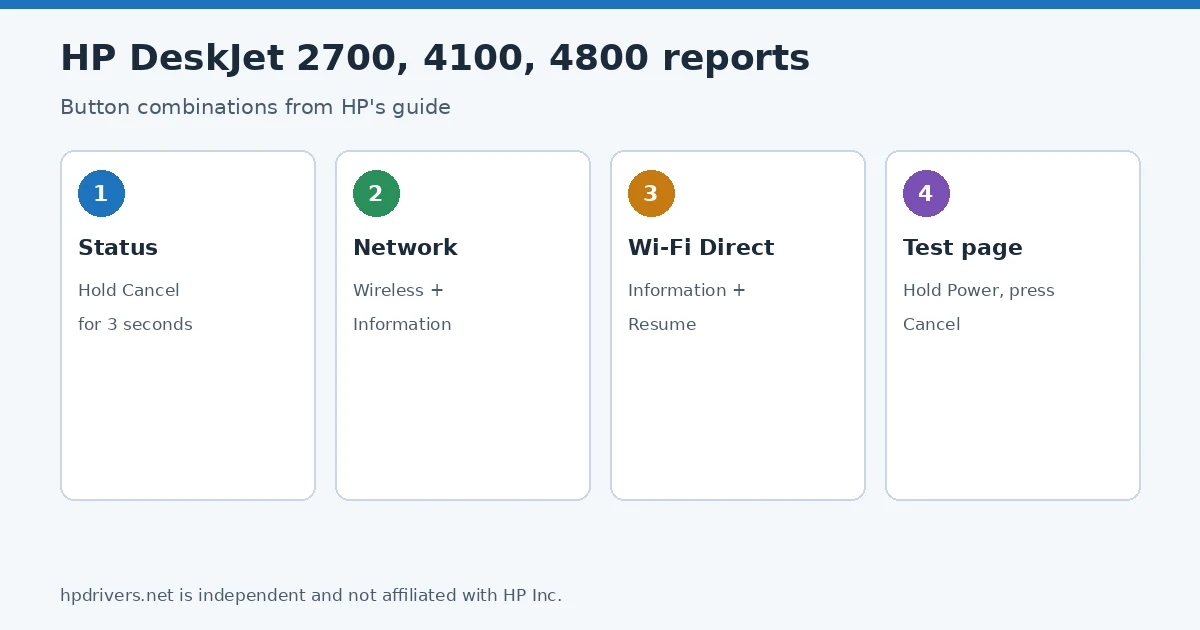
Quick check
- Printer status and ink levels: hold Cancel for three seconds.
- IP address and network test: press Wireless and Information together.
- Other model: HP has a separate self-test page for each family; these buttons apply to DeskJet 2700, 4100 and 4800.
Before you start
For every report except the print quality page, HP says to load paper into the input tray and turn the printer on first. These steps are for HP DeskJet 2700, 4100 and 4800 printers only.
Button combinations
The first row of the table prints the self test page; the other rows print the status, network, Wi-Fi Direct and Web Services reports.
| Report | What HP says it shows | How to print it |
|---|---|---|
| Test page | Checks that the printer hardware works | Hold Power, press Cancel, release Cancel, then Power |
| Printer Status Report | Product information, connectivity and scan settings | Hold Cancel for three seconds |
| Wireless Network Test report and Network Configuration Page | Network status and the printer IP address; whether the printer is on the same network as your device | Press Wireless and Information together (both print) |
| Printer Information Page | Mobile printing, wireless network connection, Wi-Fi Direct name and password | Press Information |
| Web Services Report | Web Services status, turning it on, connection problems | Press Cancel and Information together |
| Wi-Fi Direct Report | Wi-Fi Direct status, turning it on, finding its password | Press Information and Resume together |
Print quality diagnostic page
This page helps find the source of a print quality problem. Load plain white paper, open the HP app, click the image of your printer, scroll to Diagnostics or Tools, click Print quality tools or Printer Reports, then Print quality report.
Using the reports
Keep the self test page and the status report together when you contact HP support; they show the same hardware and network details HP asks about.
- To read the IP address from the Network Configuration Page, see how to find the HP printer IP address.
- For the Wi-Fi Direct name and password, see WPS PIN, Wi-Fi Direct password and printer PIN.
- If the printer prints a report but not your documents, the problem is outside the printer; start with the won’t-print checklist.
Related problems
Sources
hpdrivers.net is independent and not affiliated with HP Inc. Steps follow HP’s guide; the wording is ours.
Advertisement