
hpdrivers.net is an independent website and is not affiliated with, endorsed by, or sponsored by HP Inc. Download links point to HP's official servers (ftp.hp.com). Read the full disclaimer

HP Instant Ink Cancelled and Printer Won’t Print: Why

If your HP Instant Ink cancelled printer will not print, the cause is usually not a fault. HP says Instant Ink cartridges only work in a printer that is enrolled, so once the billing cycle after your cancellation ends, those cartridges stop working. This guide explains what HP says happens and what to do next.
Last checked against HP’s published support information: November 5, 2026 · Checked by H&G
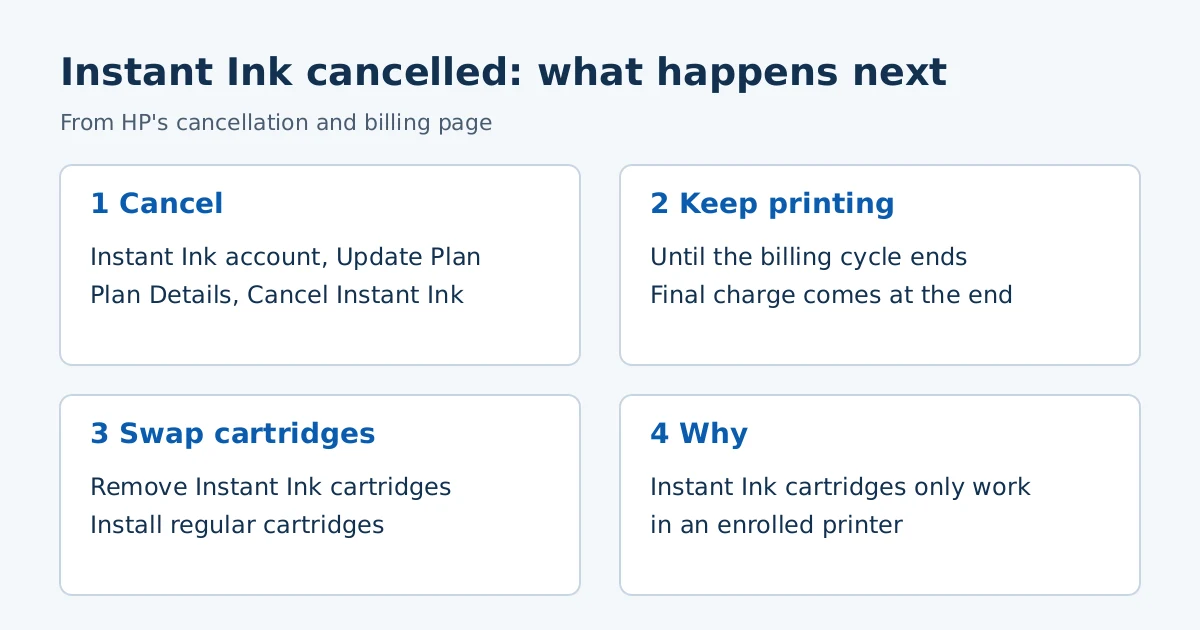
What happens to an HP printer after Instant Ink is cancelled, from billing cycle to regular cartridges

What HP says happens after you cancel

  • You can keep printing with Instant Ink supplies until the end of your current billing cycle.
  • At the end of the billing cycle you must remove the Instant Ink cartridges and install regular cartridges to keep printing.
  • Instant Ink cartridges only work in enrolled printers.
  • Your final monthly charge comes at the end of the billing cycle.

How cancelling works

HP’s page lists these steps. Sign in to your Instant Ink account, verify the serial number under Overview and Printer Details, click HP Instant Ink, then Update Plan. Scroll to Plan Details and click Cancel Instant Ink, then follow the prompts. HP says you get an email confirmation right away and another at the end of the billing cycle. If you are on a yearly plan, HP says the cancellation timing differs, so read that note on its page before cancelling.

HP also suggests contacting Instant Ink support before you cancel, because other plan options may fit better. HP has a separate section for people who cancelled and then decided to keep the service, so check its page if that is you.

When the printer stops after the cycle ends

  1. Open the cartridge access area and remove the Instant Ink cartridges.
  2. Install regular cartridges that match your printer. HP’s page “Which cartridges work with my HP printer?” lists them by model.
  3. Close the door and try a test print.

HP’s Instant Ink problem page also says most printing problems are not related to Instant Ink. If a regular cartridge is installed and the printer still does not print, work through the usual causes, such as an offline printer or a missing driver.

Billed after cancelling?

HP has a section titled “Why was I billed after I cancelled?” on its billing page. We did not review it in detail, so check it directly, as your charge depends on your plan and billing date.

Frequently asked questions

Can I use the leftover Instant Ink cartridges in another printer?

HP says Instant Ink cartridges only work in enrolled printers, so no.

Does cancelling stop printing immediately?

No. HP says you can keep printing until the end of the current billing cycle.

Sources: HP Support, “HP Instant Ink account subscription, billing, and cancellation” and “Help with Instant Ink problems.” Plans and menus vary by country.
HP Encryption Credentials Expired: Fix for Mac and iPhone

The HP encryption credentials expired error appears when you print from a Mac, iPhone or iPad and the printer’s secure certificate has run out. Printing stops until the printer has a valid certificate again. HP’s fix is to check the printer’s clock and create a new certificate in its web page, and this guide follows that order.

Last checked against HP’s published support information: November 5, 2026 · Checked by H&G
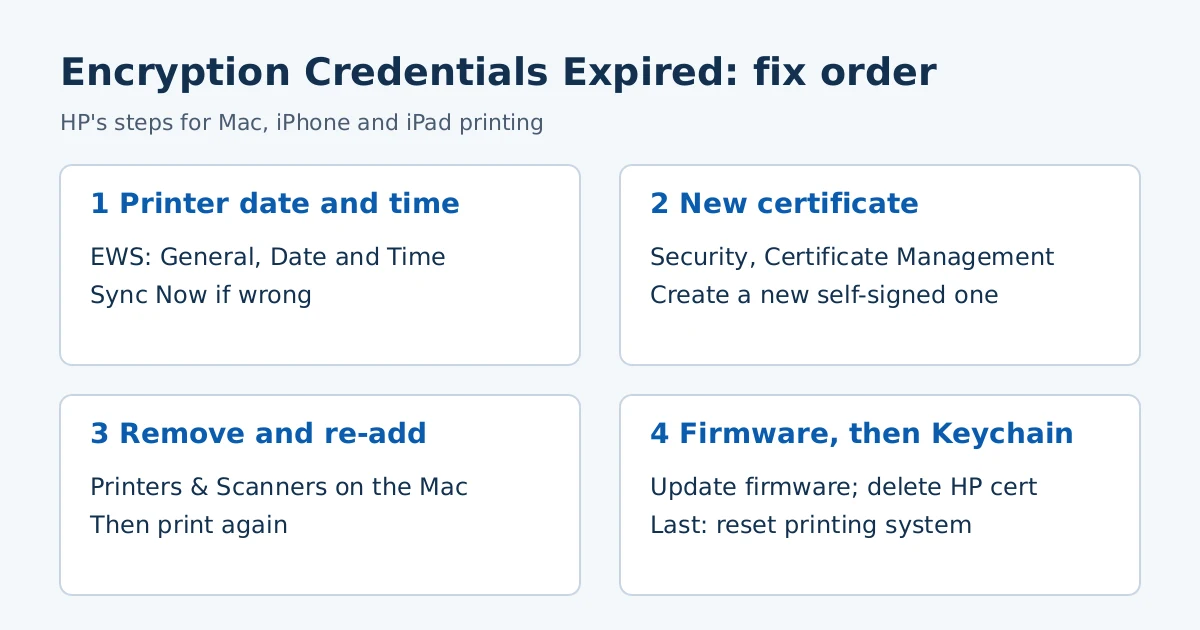
Fix order for the HP encryption credentials expired error on Mac, iPhone and iPad

What the HP encryption credentials expired error means

HP says the error displays when the printer’s Embedded Web Server (EWS) has an expired certificate, so the operating system rejects it. A current certificate is needed to secure AirPrint and Secure Internet Printing Protocol (IPPS) connections. It does not mean the printer is broken or that a driver is missing.

Step 1: Fix HP encryption credentials expired with a new certificate

  1. Type the printer’s IP address into a browser on a computer to open the EWS.
  2. Click General, then Date and Time. If the current printer time is wrong, click Sync Now.
  3. Click Security, then Certificate Management.
  4. Select Create, choose Create a New Self-Signed Certificate, and click Next.
  5. Click Create, then OK, and close the EWS.

HP says the printer then generates a new certificate that defaults to 10 years from the valid date. Try printing again.

Step 2: If HP encryption credentials expired stays, re-add the printer

If the error stays, open Printers & Scanners on the Mac, select the printer and remove it, then click Add Printer, Scanner, or Fax (or the Add button), pick the printer and add it again.

Step 3: Update firmware if HP encryption credentials expired returns

In the EWS, click General, then Firmware Update. If asked to log in, enter the PIN from the printer label, which is typically inside the cartridge access area. Click Check for Update. If an Update button appears, click it. HP warns not to turn the printer off during a firmware update because that can permanently damage it.

Step 4: Delete the stored HP certificate on the Mac

If the certificate itself may be corrupted, open Keychain Access, select Login and Certificates, and look for an HP certificate that includes your printer model name. Control-click it and delete it, then print again.

Step 5: Reset the printing system (last resort)

Control-click in the printer list in Printers & Scanners and choose Reset printing system. HP notes this removes all printers and scanners and clears print jobs and saved print settings, so you must set them up again. Restart the printer, then add it back.

What some users do instead

Many Apple Community and HP Community threads mention adding the printer with plain AirPrint instead of the secure option. This is a user workaround, not an HP step, and plain AirPrint may not encrypt the print data the same way, so use it only on a network you trust.

HP encryption credentials expired: frequently asked questions

Do I need a new driver?

Not for this error. It is about the printer’s certificate. If you do need a driver or the HP app, see our install guide and our HP app guide.

Why does it come back later?

A new certificate defaults to 10 years, according to HP. If it returns sooner, check that the printer’s date and time are correct, because a wrong clock can make a valid certificate look expired. That is our reasoning, and HP’s page does list checking the date first.

Sources: HP Support, “HP printers – ‘Encryption Credentials Expired’ or ‘Expired Credentials’ error (macOS, iOS).” Menu names vary by model.

HP Printer WPS PIN, Wi-Fi Direct Password and Printer PIN

An HP printer can ask for a Wi-Fi password, a WPS PIN, a Wi-Fi Direct password or a printer PIN, and they are four different things. The most common mistake is typing the wrong one into the wrong prompt. This guide shows what each one is and where HP says to find it, starting with the HP printer WPS PIN, which is the one people confuse most.

Last checked against HP’s published support information: November 5, 2026 · Checked by H&G
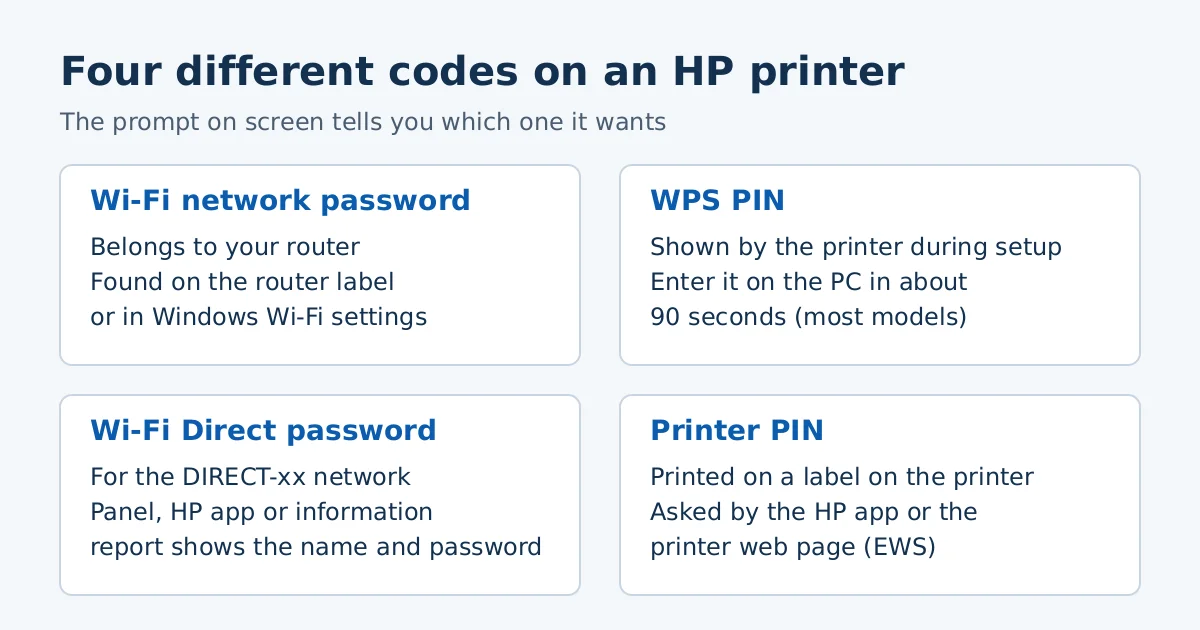
HP printer WPS PIN, Wi-Fi network password, Wi-Fi Direct password and printer PIN compared

The short version

What it is
Where it comes from
Where HP says to find it
Wi-Fi network password
Your router
Router label, or Windows Wi-Fi settings
WPS PIN
Printer, during setup
Printer control panel or the information sheet printed during setup
Wi-Fi Direct password
Printer’s own network
Control panel, information report, or HP app Advanced Settings
Printer PIN
Printer label
Label inside the cartridge access area or printer door, typically

Wi-Fi network password: from the router, not the printer

This is the password for your home or office network. HP says to look for it on the router label, next to the network name (SSID). It may be called Wi-Fi Password, Network Key or Wireless Security Key. If the label does not help, check the paperwork from your internet provider.

On a Windows PC that is already connected, open Wi-Fi Settings, then Change adapter options under Related settings. Right-click your network, click Status, then Wireless Properties. On the Security tab, tick Show characters. If you changed the router or its password, HP has a separate article on reconnecting the printer after a router or network change.

WPS PIN: shown during setup, with a time limit

You may see a WPS PIN prompt on the computer when you set up the printer on a wireless network. HP says to look for the PIN on the printer control panel or on the information sheet that printed during setup, then enter it and click Next. For most models you have about 90 seconds before it expires.

If the PIN does not work, HP lists these options:

  • Restart your computer and run the printer setup again to generate a new PIN.
  • Use a different driver or method from HP’s downloads page. See our install guide.
  • Install the HP app from 123.hp.com or your app store and connect the printer that way.

Wi-Fi Direct password: for the DIRECT network

Wi-Fi Direct lets a device print without your router. HP says it is available on most printers released after 2014. The printer has its own network, whose name starts with DIRECT followed by your model name. Its password is not your router password.

HP gives these places to find the name and password:

  • HP app: click the printer, open Advanced Settings, click the Network tab, then Wi-Fi Direct Setup. Enter the printer PIN if prompted.
  • Touchscreen printers: touch the Wi-Fi Direct icon on the control panel.
  • Printers without a touchscreen: press the Information button to print an Information Report. On some models, press and hold the Wi-Fi Direct button for 3 seconds.

The WPS PIN appears here too. When you add a Wi-Fi Direct printer in Windows (Add a printer or scanner, then Show Wi-Fi Direct printers), a PIN prints or shows on the printer after you click Add device. HP says to enter it within 90 seconds. If it expires, close Printers & Scanners and start again. If Windows then says “Driver is unavailable,” HP points to 123.hp.com for the print driver.

Printer PIN: from the label

This PIN protects the printer’s settings. HP says it is typically on a label inside the cartridge access area or the printer door. The HP app may ask for it before showing Wi-Fi Direct details or checking for firmware updates.

Change the Wi-Fi Direct password

  1. Connect your computer to the printer by Wi-Fi Direct, or to the same network. HP says the printer web page (EWS) cannot be opened over USB.
  2. For a Wi-Fi Direct connection, type 192.168.223.1 into the browser address bar, not a search engine, and press Enter.
  3. If asked to log in, enter the printer PIN from the label. For HP LaserJets, the username is admin.
  4. Click Network, choose Wi-Fi Direct, click Status, then Edit Settings.
  5. Set a custom password, or click Generate for a random one.

HP recommends turning Wi-Fi Direct off when you are not using it and choosing the Manual or Advanced connection method, so a password is needed. Our HP app guide shows where Advanced Settings sits.

Frequently asked questions

Is the WPS PIN the same as the Wi-Fi password?

No. The WPS PIN comes from the printer during setup and expires quickly. The Wi-Fi password belongs to your router.

Where is the default Wi-Fi Direct password?

It depends on the model, so we do not list one. Use the control panel, the information report, or the HP app as above.

Can I print without a router?

Yes, on printers that support Wi-Fi Direct. HP says it does not need an internet connection to send print jobs to the printer.

Sources: HP Support, “Find the wireless network password or PIN to connect an HP printer” and “HP printer setup (Wi-Fi Direct).” Menu names vary by model.