
Your HP printer Chromebook setup needs no driver or extra app on most models. HP’s guide says no drivers or apps are required for a USB or network connection; you add the printer in Chromebook Settings and print from the Chrome browser. This page walks through HP’s steps and explains the one case that needs a second device, the HP+ printer.
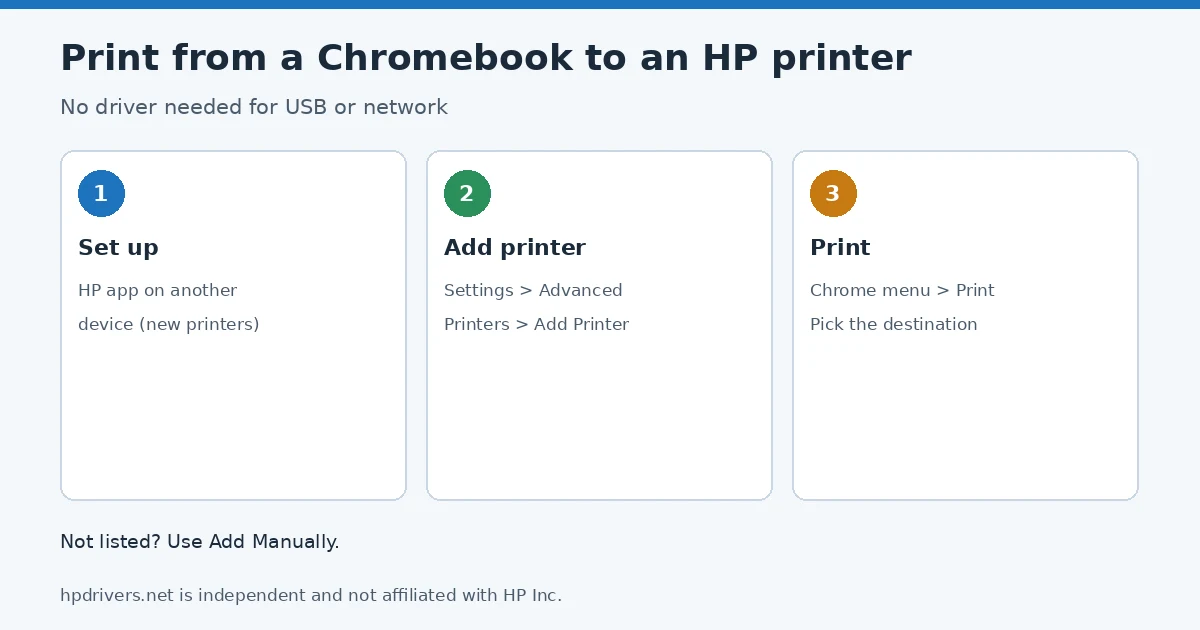
Quick check
- Printer already works on Wi-Fi: go straight to step 2.
- New printer: HP recommends setting it up with the HP app on another computer or phone first (step 1).
- Printer not in the list: use Add Manually (step 2).
Step 1: Set up the printer with the HP app (new printers)
HP recommends that you set the printer up with the HP app on a different computer or a mobile device. The app registers the printer with an HP account, which gives access to advanced print features and services such as Instant Ink; features depend on the model and country. Install the app from hp.com/start/install or your app store and follow the instructions. More on the app is in HP app replaces HP Smart.
Step 2: Add the printer on the Chromebook
- Make sure the printer is on the same network as the Chromebook. For a USB connection, connect the printer to the Chromebook with its USB cable.
- Click the clock in the lower-right corner, then the Settings icon.
- Scroll down and click Advanced.
- Under Printing, click Printers, then Add Printer.
- If your printer is listed, select it and click Add. If it is not listed, click Add Manually and follow the instructions.
If the printer is not found on Wi-Fi, check the network first: HP printer won’t connect to Wi-Fi. If you need the printer’s address for a manual setup, see how to find the IP address.
Step 3: Print from Chrome
Once the HP printer Chromebook connection is added, you print from Chrome like any other printer.
- Open the page, document or email you want to print.
- Click the Chrome Settings icon and select Print.
- Next to Destination, click Change and choose your printer.
- Change any print settings, then click Print. For two-sided jobs, see printing on both sides.
Is my printer compatible?
| Printer support | What HP says |
|---|---|
| IPP Everywhere | No setup needed. Print and select the printer if asked. HP points to the IPP Everywhere printer list to check your model. |
| HPLIP (HP Linux Imaging and Printing) | Thousands of HP printers print through Chromebook in-OS support. These must be added first through Chrome’s printer settings. |
| Managed by an organization | HP says printers can be managed remotely through CUPS and Google admin tools. |
If the Chromebook shows the printer but nothing prints, run through the won’t-print checklist.
Related problems
Sources
- HP Support: HP printer setup (Chromebook)
hpdrivers.net is independent and not affiliated with HP Inc. Steps follow HP’s guide; the wording is ours.
Advertisement