
To print double sided with an HP printer, you choose a two-sided option in the print settings. HP’s guide covers Windows and Mac, and it explains what happens when the printer cannot flip the page itself and you must reload it by hand. This page follows that guide.
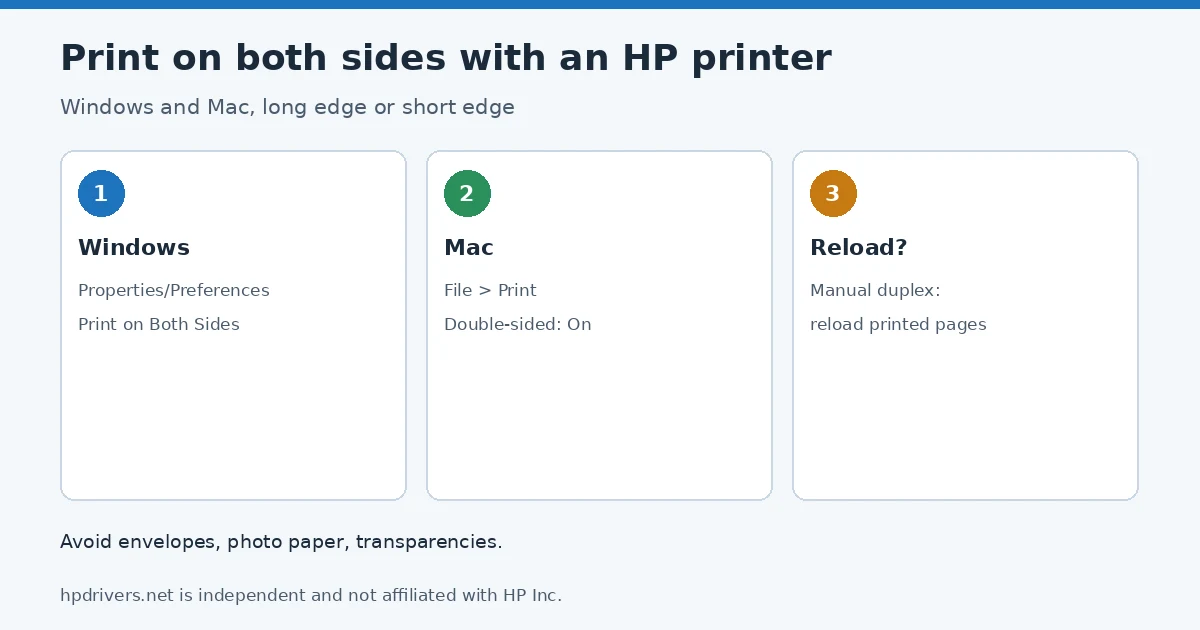
Quick check
- Windows: Printer Properties or Preferences, then the two-sided option (step 1).
- Mac: Double-sided in the print dialog (step 2).
- Printer asks you to reload pages: manual duplex, see the reload rules in step 1.
Step 1: Print on both sides in Windows
To print double sided in Windows, use the Print on Both Sides option in the printer properties.
- Open the document and click File > Print.
- Select your printer and click Printer Properties, Preferences or Printer Setup. Menu names vary by model.
- Click the Layout, Features or Finishing tab. In the Print on Both Sides drop-down, choose Flip on Long Edge for a book or Flip on Short Edge for a tablet.
- Or open the Printing Shortcut tab and choose the Two-sided (Duplex) Printing shortcut, then pick Flip on Long Edge or Short Edge in the manual drop-down.
- Click OK, then Print.
If the printer does not print the other side by itself
Remove any remaining paper from the input tray, take the printed pages from the output tray and reload them, then click Continue to finish the job. How you load them depends on the tray:
| Input tray | Book (long edge) | Tablet (short edge) |
|---|---|---|
| Bottom-loading | Print-side up, top edge toward the printer | Print-side up, bottom edge toward the printer |
| Top-loading | Print-side down, top edge toward the printer | Print-side down, bottom edge toward the printer |
To return to one-sided printing, open the print settings again and remove the two-sided selection.
Step 2: Print on both sides on a Mac
On a Mac, you print double sided from the same print dialog that you use for any other job.
- Open the document and click File > Print.
- Select your printer.
- Click Double-sided and choose On, or On (Short Edge).
HP’s guide for Mac does not cover a missing Double-sided option. For driver questions, see how to install an HP printer driver.
If nothing prints
A job that never starts is a different problem; use the won’t-print checklist or clear a stuck print queue.
Related problems
Sources
hpdrivers.net is independent and not affiliated with HP Inc. Steps follow HP’s guide; the wording is ours.
Advertisement