
You need the printer IP address to open the web page of your HP printer, to add it as a port in Windows, or to fix a printer that shows offline. HP lists three places to look: the HP app, the printer’s touchscreen, or a printed information page. This guide follows HP’s instructions and adds what to do with the address once you have it.
Quick check
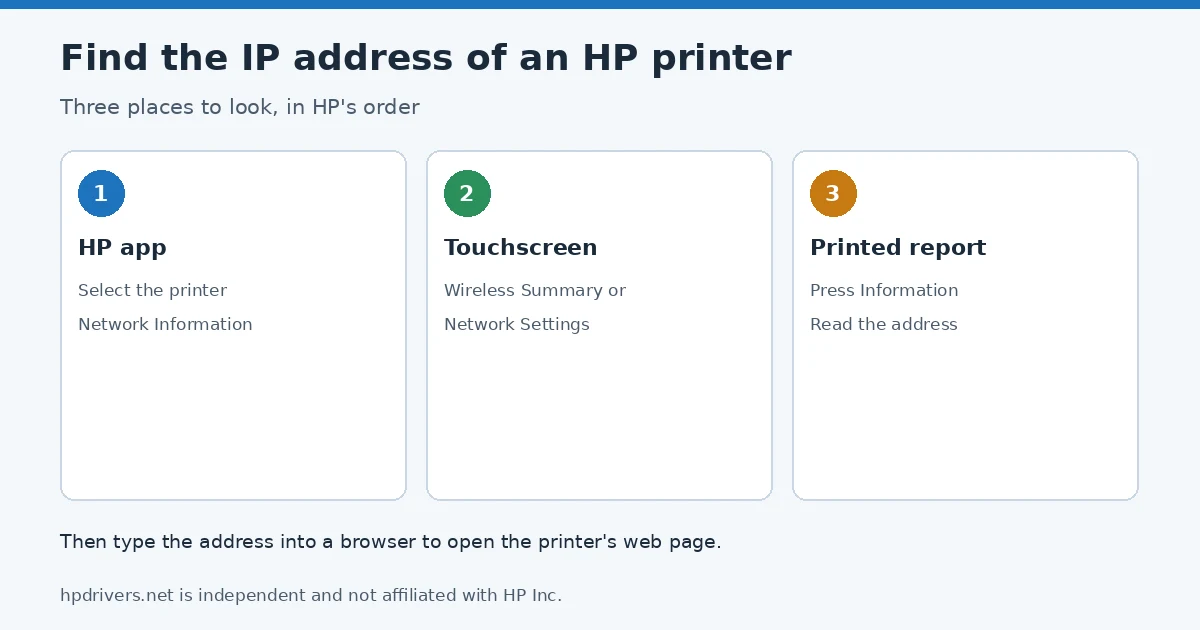
- Printer has a touchscreen: open the Wireless Summary or Network Settings menu (step 2).
- No touchscreen: print an Information report with the Information button (step 3).
- You use the HP app: select the printer and open Network Information (step 1).
Before you start
The printer IP address is a number your router assigns automatically; it can change after a router restart.
HP says the printer must be connected to the network, and if you use the HP app your phone or computer must be on the same network as the printer. An IP address is a number your router assigns automatically; it looks like four groups of digits separated by dots.
Step 1: Use the HP app
Open the HP app and click the image of your printer, then click Network Information. If you do not see it, scroll to Product Information, click More information and reports, and then click Network. The HP app guide explains how the app replaced HP Smart.
Step 2: Use the touchscreen
On printers with a touchscreen control panel, open the Wireless Summary or Network Settings menu. The IP address is listed there. HP notes that menu names vary by model.
Step 3: Print an information report
On printers without a touchscreen, press the Information button to print an Information Report and read the address from the page. HP says printing reports from the control panel varies by model. For HP DeskJet 2700, 4100 and 4800 printers, HP describes pressing the Wireless and Information buttons together; that prints a Network Configuration Page and a Wireless Network Test page, which list the network settings including the printer IP address. Our self-test page guide lists the other reports for those models.
What to do with the address
Once you have the printer IP address, type it into the address bar of a browser on a device that is on the same network.
| Goal | How HP describes it |
|---|---|
| Open the printer’s Embedded Web Server (EWS) | Type the IP address into the address bar of a web browser on a device that is on the same network. |
| Set up scanning to email or a network folder | HP’s steps start from the EWS opened with the IP address. See scan to email and scan to network folder. |
| Check whether the printer is really offline | If the address does not open, the printer is not reachable on the network. Start with offline but connected to Wi-Fi. |
Because the router assigns the number, it can change after a router restart. If you rely on an address for a printer port, check it again when printing stops working.
Related problems
Sources
- HP Support: HP’s guide to locating the network address of a printer
- HP Support: HP DeskJet 2700, 4100, 4800 printers – Printing self-test pages
hpdrivers.net is independent and not affiliated with HP Inc. Steps follow HP’s guide; the wording is ours.
Advertisement