
hpdrivers.net is an independent website and is not affiliated with, endorsed by, or sponsored by HP Inc. Download links point to HP's official servers (ftp.hp.com). Read the full disclaimer

HP Printer Says Out of Paper but Paper Is Loaded: HP’s Fixes

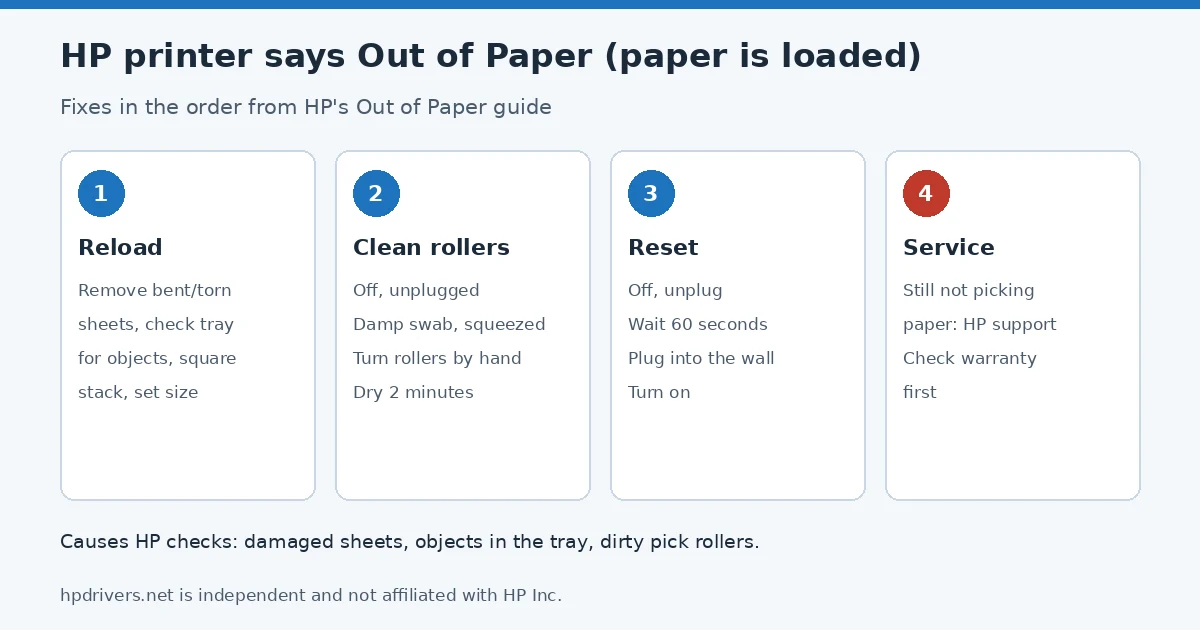
When an HP printer says out of paper while the tray is full, the paper is not reaching the printer. HP’s guide names the usual causes are the paper stack itself, something blocking the rollers, or pick rollers that have become too dirty to grip. HP’s guide for the “Out of Paper” or “Load Paper” message works through these in a fixed order. This page follows it, including where to find the pick rollers on the three common printer layouts.
Last checked against HP’s published support information: November 12, 2026 · Checked by H&G
HP printer says out of paper but paper is loaded: reload the stack, clean the pick rollers, reset, then service

In short

  1. Take the paper out, remove bent or torn sheets, check the tray for objects, square the stack and reload it.
  2. Set the correct paper size on the printer or in the print settings.
  3. Clean the paper pick rollers with a lightly damp swab and let them dry for two minutes.
  4. Reset the printer. If it still will not pick paper, HP says it needs service.

Why the HP printer says out of paper with paper loaded

HP’s steps point to three causes: sheets in the stack that are bent, wrinkled or torn, something in the tray that keeps the stack from touching the rollers, and dirt or debris on the paper pick rollers. The message is the same for all three, so HP checks them from the easiest to the most work.

Step 1: Check the paper and reload it

  1. Remove all the paper from the tray.
  2. Throw away any sheets that are badly bent, wrinkled or torn.
  3. Look inside the tray for anything that stops the paper reaching the rollers.
  4. Make the stack even on all sides, load it and close or push in the tray.
  5. Select the correct paper size on the control panel or in the printer software. If the size in the print job does not match the tray, see our HP printer won’t print checklist, which covers the Paper Mismatch message too.

Step 2: Clean the paper pick rollers

For all three layouts HP uses the same method: turn the printer off, wait until it is silent, unplug the power cord, take the paper out, then wipe the rollers with a cotton swab lightly dampened with water and squeezed out, turning the rollers with your fingers so the whole surface gets cleaned. Let them dry for two minutes before plugging the printer back in. What changes is where the rollers are.

Printer layout
Where the pick rollers are
Paper loads in a tray at the top or back
Shine a flashlight down into the input tray; the rollers are at the bottom of the tray.
Paper tray at the bottom
Unplug all cables, lay the printer on its side or back, pull out the tray and look for the gray rollers. Set the printer upright afterwards.
Rollers inside the printer
Use a flashlight. Depending on the model they sit under the cartridges or above the input tray.

Step 3: Reset the printer

  • Remove the battery if your printer has a rechargeable one.
  • Turn the printer off, or unplug the cord from the printer if it will not turn off.
  • Unplug the cord from the power source and wait 60 seconds.
  • Plug it straight into a wall outlet and into the printer, then turn the printer on.

For the other kinds of reset, see how to reset an HP printer.

Step 4: Service

If the printer still says out of paper after all of the above, HP says the printer needs service or replacement and points to HP Customer Support. Check your warranty status first, since repair fees can apply outside warranty.

Related messages

Sources

hpdrivers.net is independent and not affiliated with HP Inc. Steps follow HP’s guide; the wording is ours.
HP Printer Won’t Connect to Wi-Fi: Setup Fails or Connection Lost

An HP printer that won’t connect to Wi-Fi usually fails in one of two situations: during first-time setup, when the HP app cannot find it, or after something on the network changed, such as a new router, a new internet provider or a new Wi-Fi password. HP has a support guide for each case. This page combines them in one order, from the quick restarts to reconnecting with WPS or the printer’s own setup page, and points out the network types HP says a printer cannot join at all.

Last checked against HP’s published support information: November 12, 2026 · Checked by H&G
HP printer won't connect to Wi-Fi: restart, Wi-Fi setup mode, network checks, then reconnect

Try these first

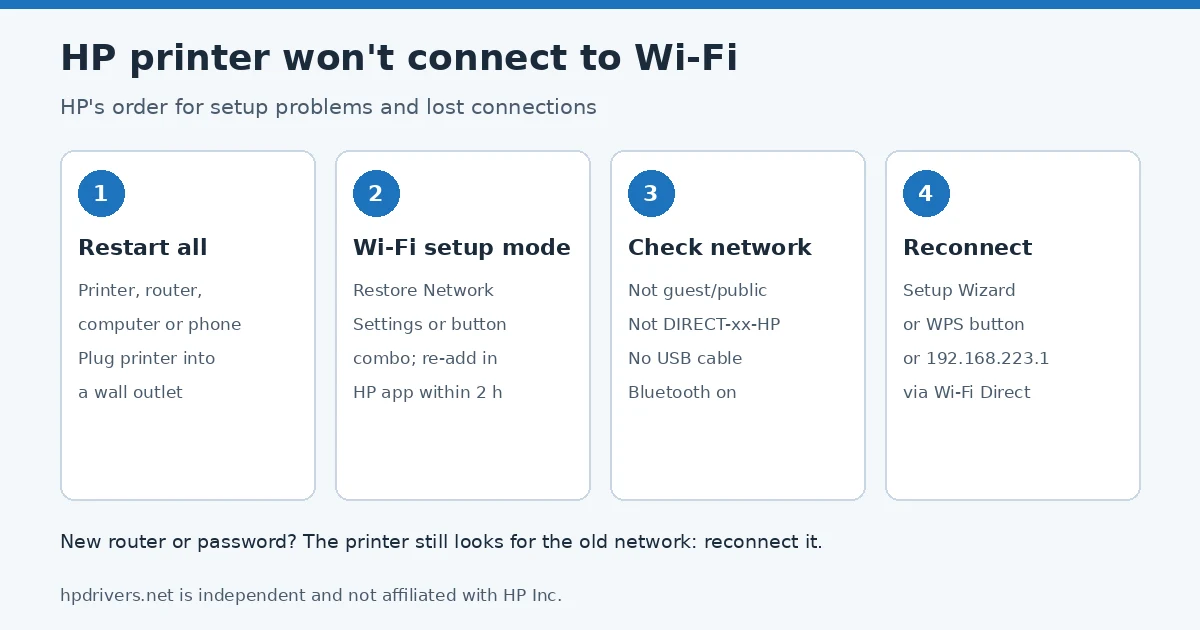
  1. Turn off the printer, the router and your computer or phone, then turn them back on.
  2. Restore Wi-Fi setup mode on the printer and add it again in the HP app within two hours.
  3. Make sure your computer or phone is on your normal Wi-Fi, not a guest network and not the printer’s DIRECT-xx-HP signal.
  4. Unplug any USB cable between the printer and the computer.

Before you start: networks an HP printer cannot use

  • Guest and public networks. HP says a printer connection cannot be made on networks that need a guest login or a confirmation page, like those in schools, hotels or coffee shops.
  • A USB cable plugged in. HP says a USB connection can block Wi-Fi setup, and it also turns off the internet connection the printer needs for Instant Ink.
  • The printer’s own Wi-Fi Direct signal. A network named DIRECT-xx-HP plus your model is the printer itself. Do not connect your computer to it for normal setup.

When the HP printer won’t connect to Wi-Fi during setup

If the HP app cannot find the printer the first time, HP’s order is:

  1. Restart the printer and the computer or phone.
  2. Restore Wi-Fi setup mode. On a touchscreen: Wireless or Setup menu, Network setup or Settings, Restore Network Settings. On button models the combination depends on the family; our HP printer reset guide lists HP’s sequences.
  3. Check which network you are on. Reconnect to your own Wi-Fi if needed and confirm it shows Connected.
  4. Turn on the extra connections the app needs. On a PC, switch Wi-Fi on even if you use Ethernet (unplug the cable for a moment if Wi-Fi will not turn on). Turn Bluetooth on, because HP says the app uses it to detect the printer. On a phone, allow the HP app to use location and Bluetooth.
  5. Reinstall the HP app from your app store and add the printer again.

When the connection was lost after a router or password change

A printer that worked before keeps trying the old network name and password. HP’s guide for a new router, new internet provider or changed password depends on the control panel:

Printers with a touchscreen

  1. Place the printer near the router, load paper and turn it on.
  2. Wireless or Setup menu, Network setup or Settings, Restore Network Settings.
  3. Have the new network name and password ready, then open Wireless Setup Wizard, select your network and enter the password. If the wizard is not listed, use Wi-Fi Protected Setup (WPS) Push Button instead.

Printers with buttons only

HP lists three methods; if one fails, try the next.

  • HP app: restore Wi-Fi setup mode, then add the printer in the HP app.
  • WPS: hold the printer’s Wi-Fi button for 5 seconds until the light flashes (DeskJet 6000, 6400, ENVY 6000, 6400 and Tango: hold Wi-Fi and Power on the back for 3 seconds). Within 2 minutes, hold the WPS button on the router. The printer is connected when its wireless light stops flashing.
  • The printer’s setup page over Wi-Fi Direct: connect to the printer’s Wi-Fi Direct name, open 192.168.223.1 in a browser, then Network, Wireless (802.11), Wireless Setup Wizard. The Wi-Fi Direct name and password are on the printer’s information report or in the HP app’s Advanced Settings; see where to find the HP printer PIN and passwords.

Print a Wireless Network Test report

The report shows the network the printer sees and the signal strength, and it often names the problem. HP’s ways to print it:

Printer
How to print the report
Inkjet with a menu
Wireless, Network Settings or Setup menu, then the reports list
Most inkjets without a menu
Press Wireless and Information together, or Wireless and Start Copy Black
LaserJet
Hold Wireless for 10 seconds or until the Ready light blinks, or Wireless menu, Wireless Network Test
Laser NS, Neverstop Laser
Hold Resume and Wireless for 3 seconds
DeskJet 6000, 6400, ENVY 6000, 6400, Tango
Hold Information until all buttons light, then press Information and Resume

If it connects but keeps dropping

HP names three causes when a printer joins the network but does not stay on it: too many devices on the network (especially streaming), signal interference from walls, metal furniture or other electronics, and router or provider problems. Move the router to a central spot or add a range extender, pause streaming while you test, and check the router maker for firmware updates. A solid blue Wireless light on the printer means it is connected.

If the printer is on the network but your computer shows it as offline, continue with HP printer offline but connected to Wi-Fi.

Sources

hpdrivers.net is independent and not affiliated with HP Inc. Steps follow HP’s guides; button names can differ slightly on your model.

HP Print Job Stuck in Queue: How to Clear It in Windows and Mac

An HP print job stuck in the queue blocks everything behind it: nothing prints, and in Windows the Cancel and Delete options are often grayed out or do nothing. HP’s support guide for this problem has separate fixes for Windows and macOS, in a set order. The most reliable one in Windows is to stop the Print Spooler and delete the waiting job files by hand. This page walks through each step, explains what it does and tells you what you will have to set up again afterwards.

Last checked against HP’s published support information: November 12, 2026 · Checked by H&G
HP print job stuck in queue: stop the Print Spooler, empty the PRINTERS folder, restart, then reinstall if needed

Short version

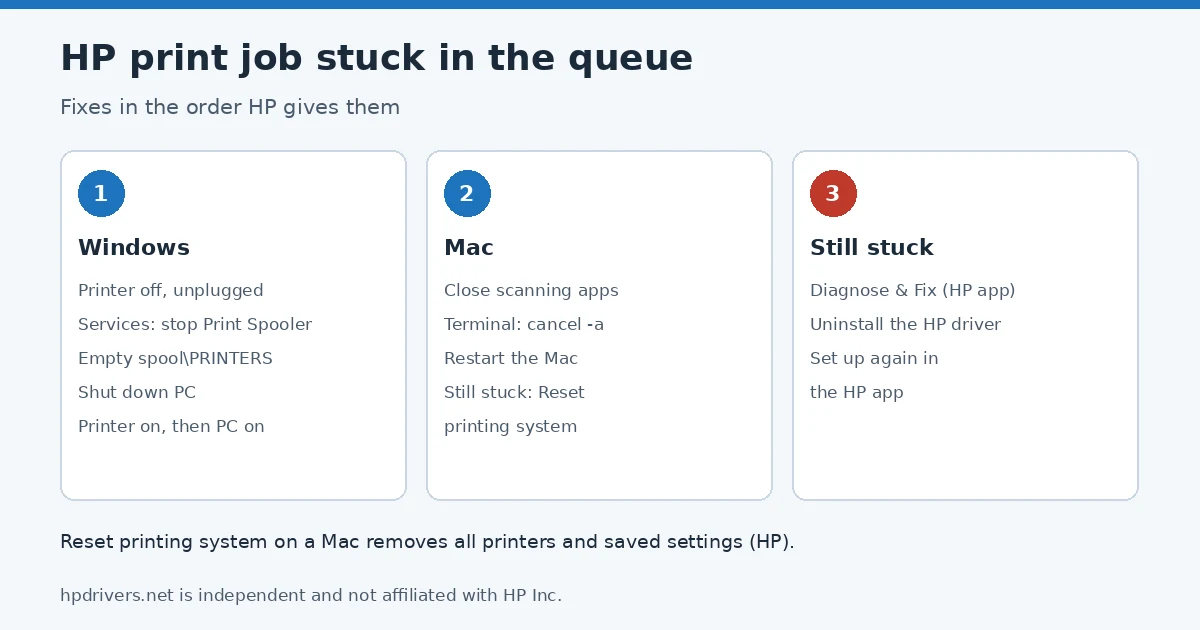
  • Windows: printer off and unplugged, stop Print Spooler in Services, delete everything in C:\Windows\System32\spool\PRINTERS, shut down the PC, then turn the printer and PC back on.
  • Mac: close scanning apps, run cancel -a in Terminal and restart. If that fails, reset the printing system.
  • Still stuck: run Diagnose & Fix in the HP app, or remove the HP driver and set the printer up again in the HP app.

Why an HP print job gets stuck

Windows and macOS hold every document in a queue until the printer accepts it. If the first job cannot be sent, because the printer went offline, ran out of paper or hit an error halfway, the queue waits on it and every later job waits too. Deleting the job in the queue window sometimes fails because the system is still trying to send it. Clearing the files behind the queue removes it for good.

Clear a stuck HP print job in Windows

1. Reset the Windows printing environment

  1. Turn the printer off and unplug its power cord.
  2. Search Windows for Services and open it.
  3. Right-click Print Spooler and click Stop. Close Services once it has stopped.
  4. Open File Explorer and go to C:\Windows\System32\spool\PRINTERS.
  5. Delete every file in the PRINTERS folder. These are the waiting jobs; the folder itself stays.
  6. Shut down the computer.
  7. Plug the printer back in and turn it on, then turn the computer on.

Windows starts the spooler again when the computer starts, with an empty queue. Send a single test page before reprinting large documents.

2. Remove the HP driver and use the HP app

If jobs keep getting stuck, HP’s next step is to remove the printer software and set the printer up again with the HP app:

  1. Unplug any USB cable from the printer.
  2. Open Add or remove programs, find your HP printer and click Uninstall. If it is not listed, open Printers & scanners, click the printer and choose Remove device.
  3. Restart the computer, install the HP app from 123.hp.com or your app store, and add the printer.

Our page on the HP app that replaced HP Smart explains what changes. If you would rather keep the full driver, the HP driver installation guide shows how to reinstall it cleanly.

3. Run Diagnose & Fix

In the HP app, click your printer, then Diagnose & Fix (it may also be in the Printers menu or under Diagnostics). Click Start and leave the app open until the results screen appears.

Clear a stuck print job on a Mac

1. Clear the queue from Terminal

  1. Close Image Capture, HP Easy Scan and HP Scan if they are open.
  2. Open Terminal from Spotlight.
  3. Type cancel -a and press Enter. This cancels all jobs in all queues.
  4. Close Terminal and restart the Mac.

2. Reset the printing system

Open Printers & Scanners, Control-click (or right-click) in the printer list and choose Reset printing system. Restart the printer, then add it again with the Add button. HP warns that this removes every printer and scanner and deletes all print jobs and saved print settings, so use it only if Terminal did not help.

3. Run Diagnose & Fix, or reinstall

The HP app’s Diagnose & Fix works on macOS too. As a last step, HP suggests uninstalling the old HP software with HP Easy Start (Uninstall HP Software) and setting the printer up in the HP app.

If the queue clears but nothing prints

Sources

hpdrivers.net is independent and not affiliated with HP Inc. Steps follow HP’s guide; explanations are ours.